
Setting up Ottplayer for viewing
No contract yet? Entertainment Box — TV in your native language in HD and 4K, works in ClouDDy, Ottplayer and other players. Choose a package and start with a one-month trial →
Important. We recommend watching IPTV through OTTPlayer only as a fallback — in exceptional cases, when there is no alternative. Drawbacks of the app:
- no support from the developers;
- frequent problems with the app itself;
- no support for external EPG sources. Its own TV guide is incomplete and missing on most channels, so catch-up and timeshift do not work on those channels.
Detailed guides for the alternative ways of watching are available to the users of our website.
Ottplayer is a free service for organising and configuring internet TV playlists, and also a free app for watching TV on a range of devices. The player comes with no built-in playlists — you add them yourself. If you do not have a playlist yet, you can order one from us.

Registration
You can add a playlist and start watching without registering, but registration is free, takes a minute and unlocks a number of extra benefits.
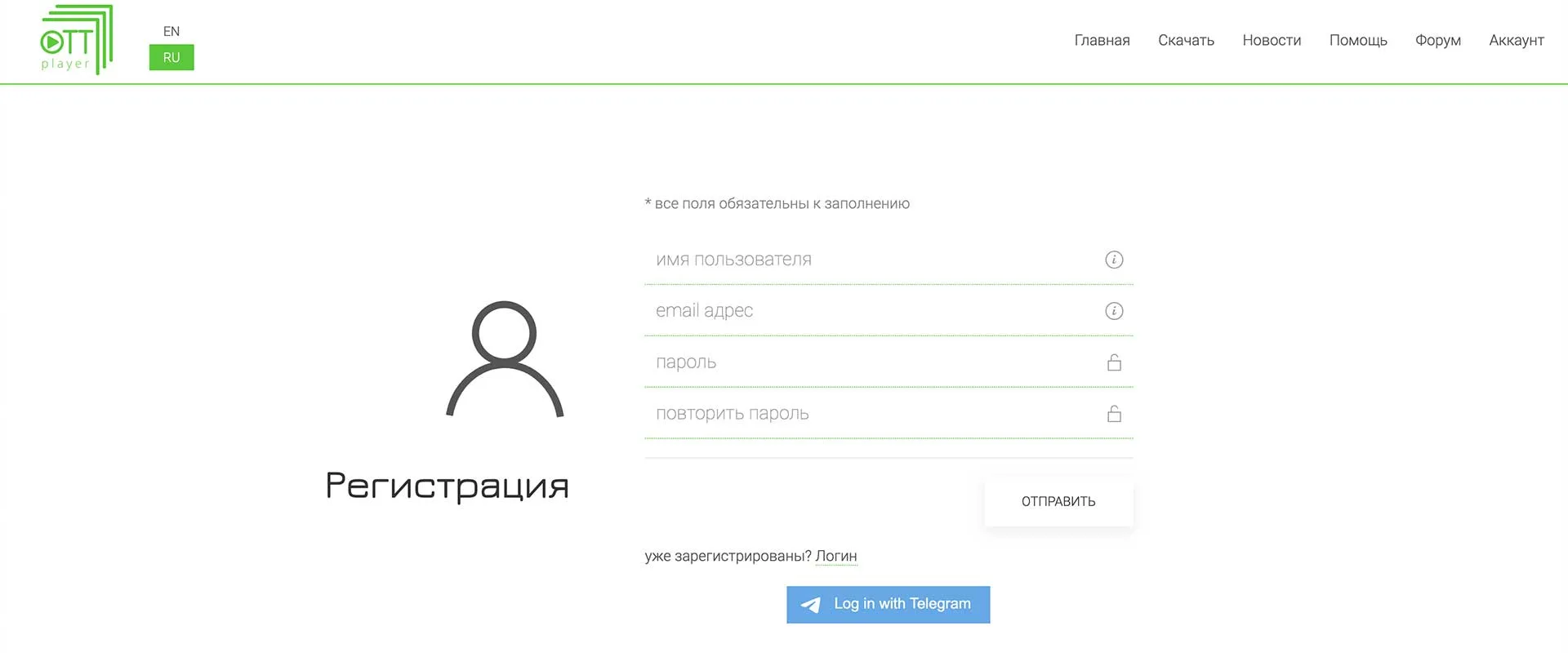
Register with your email address and a password rather than through Telegram. After registering, check your inbox and confirm your registration on ottplayer.tv.
Adding and configuring an IPTV playlist
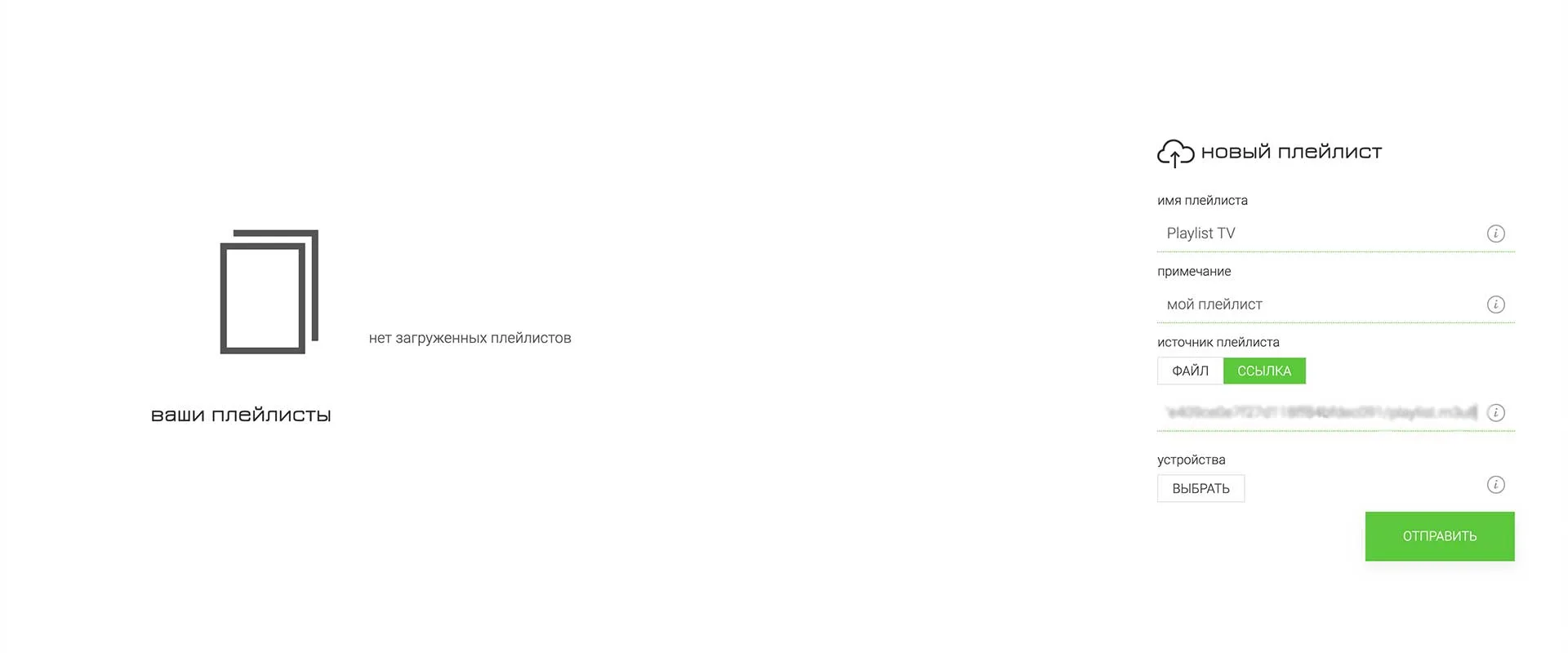
In your Ottplayer account, add a playlist using the link you received in the email after your order (m3u or m3u8).
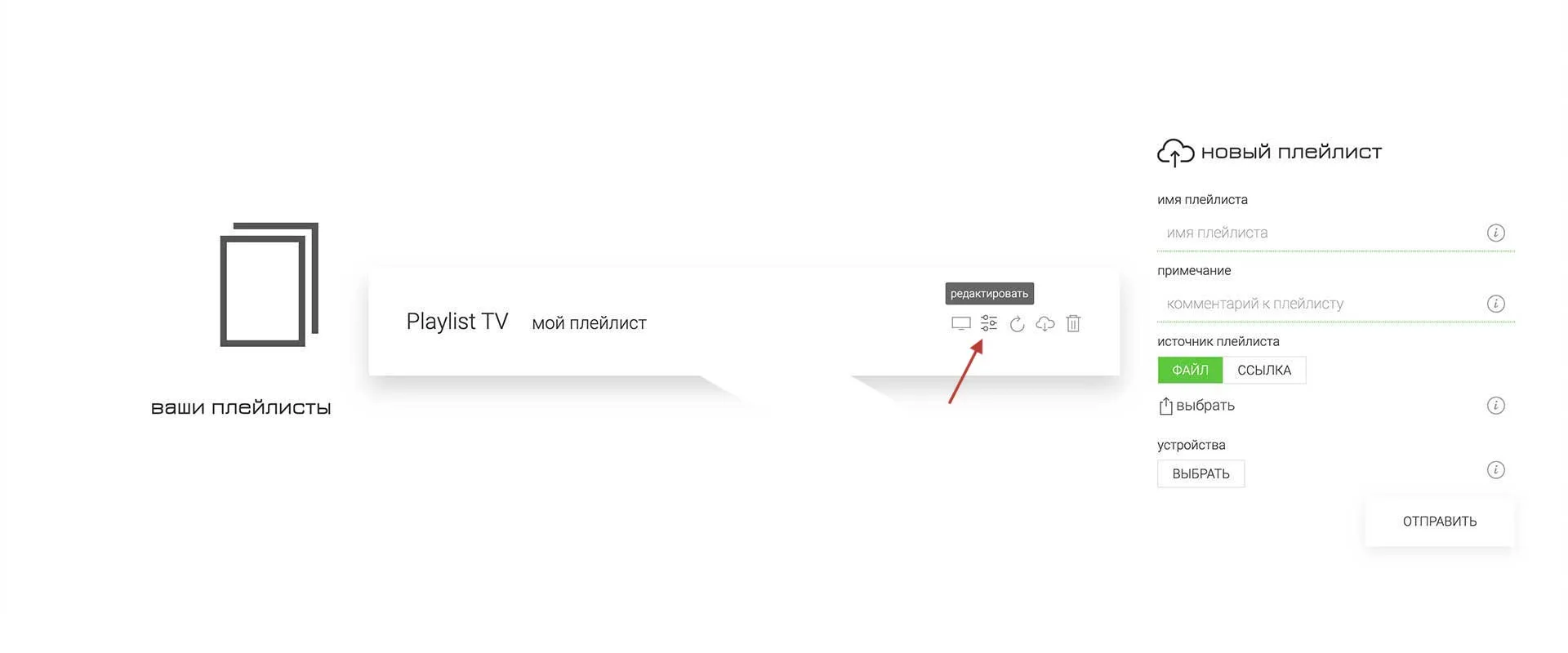
Open the playlist settings by clicking the icon indicated by the arrow.
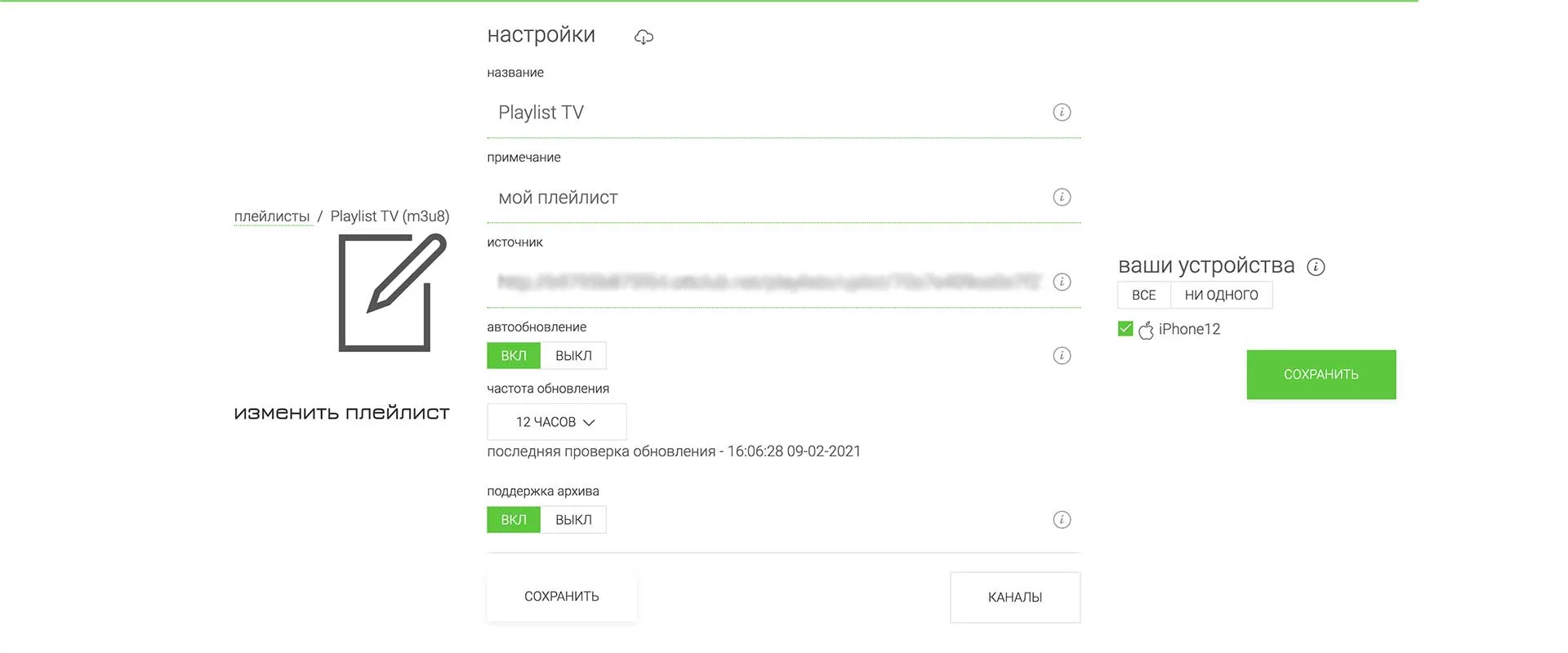
In the settings you must set the refresh interval to 12 hours as shown in the picture, enable archive support, and press Save at the bottom of the page. Then choose which of your devices may use this playlist and save again with the Save button below the device list. If the device list is still empty, or your device is not in it, see below how to add devices correctly.
Turn on auto-update. In the same settings, make sure playlist auto-update is enabled. Without it the app keeps showing the channel list it downloaded earlier, and changes will not reach you.
Installing and setting up on your devices
Ottplayer runs on many different devices. Pick your device and set it up. Note that in the top right corner of the page you can choose the language the instructions are shown in.
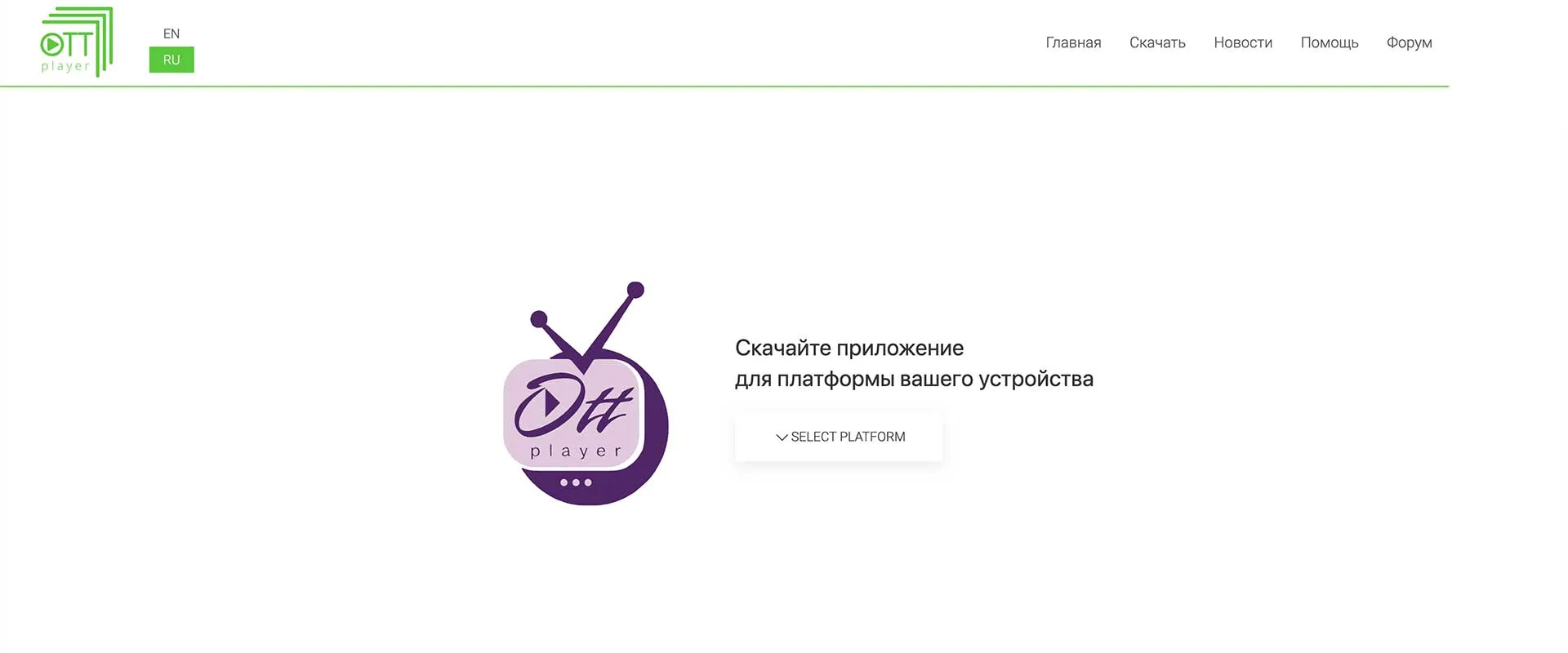
After installing the player on your device, or after opening Ottplayer for WEB, sign in to your account. Ottplayer will ask you to pick an existing device from the list or add a new one. If you choose a new device, give it a name and press Ok. Then enable this playlist for that device in your account on the website.
The screenshots below show the web player settings; other devices are set up in much the same way.
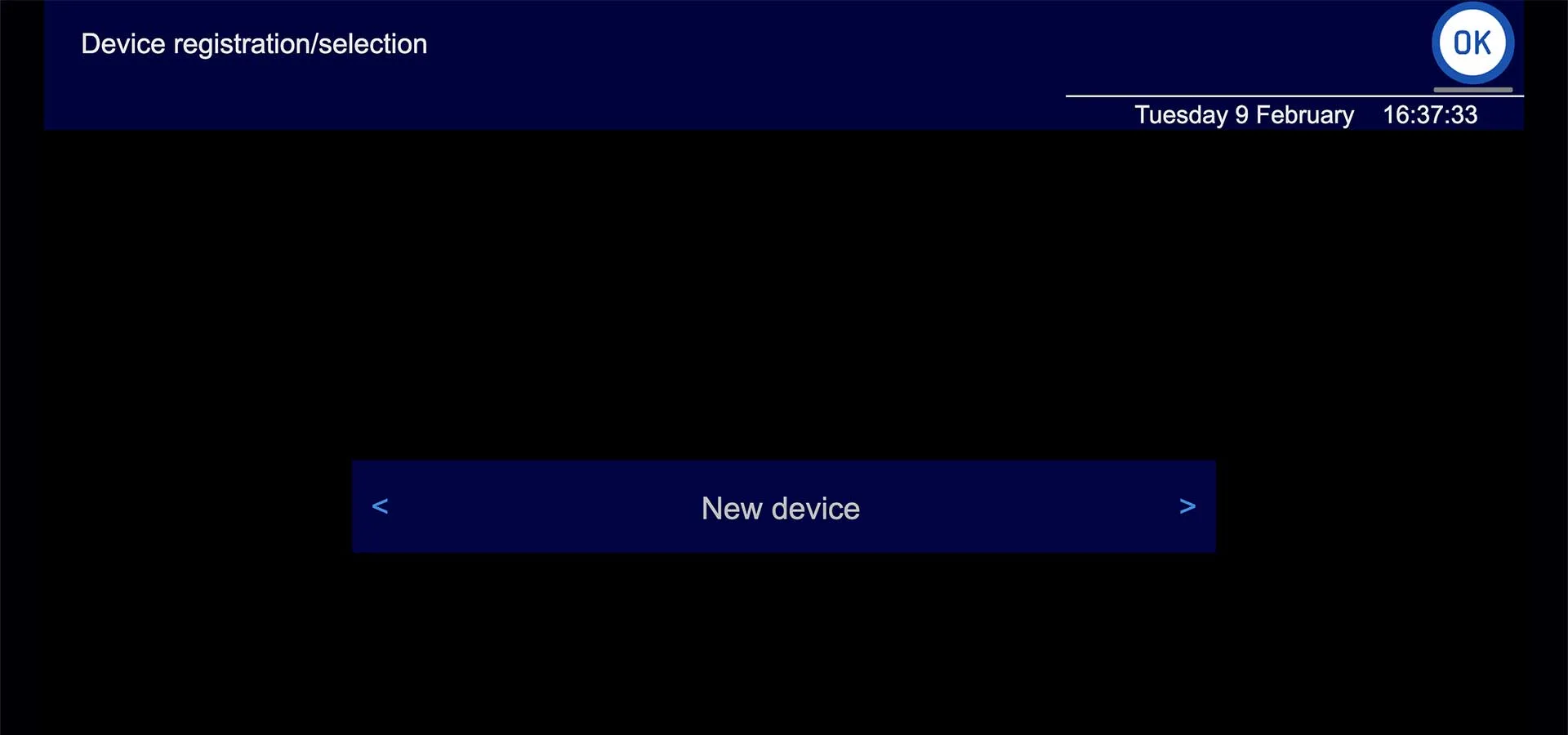
1. Add a new device or select one you have already added
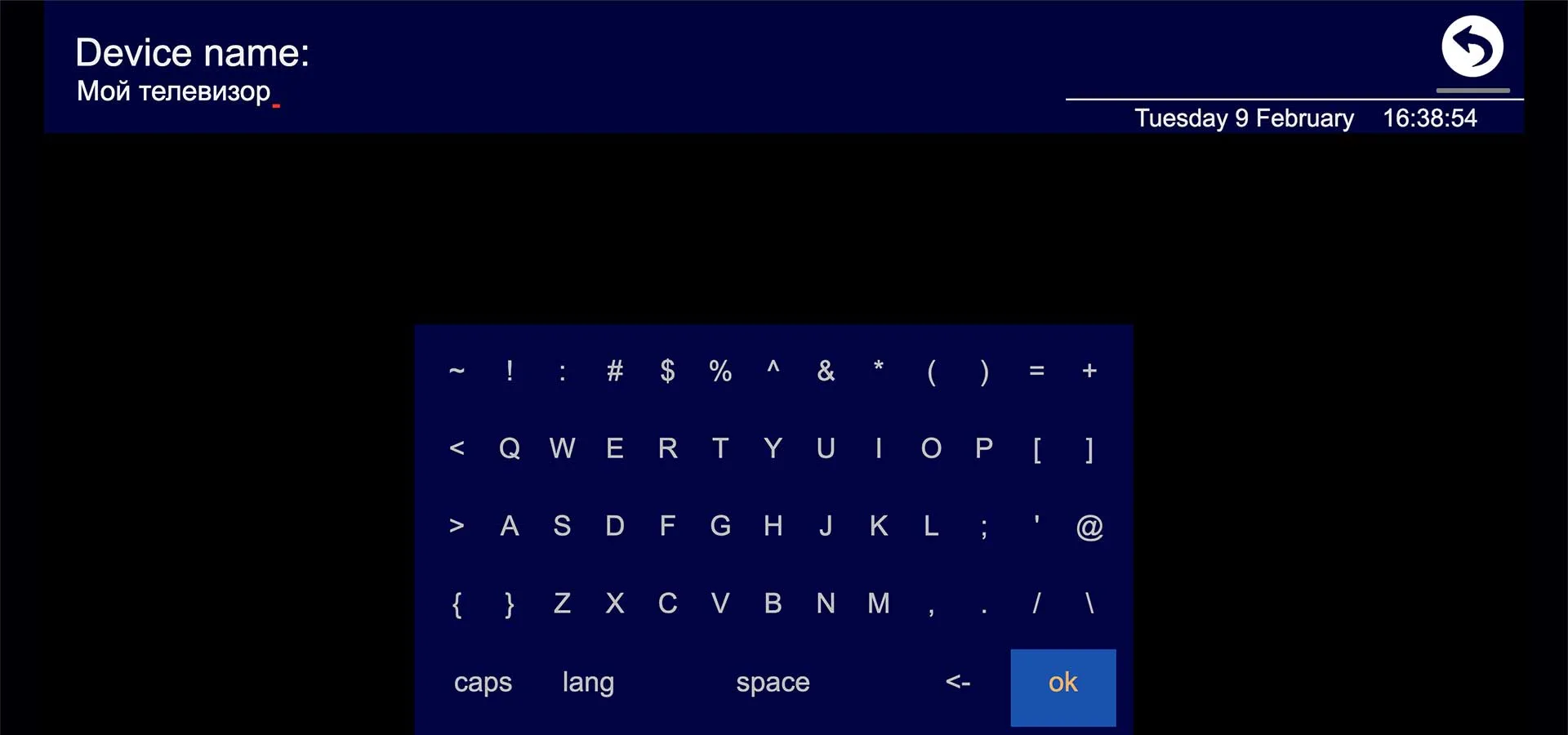
2. Give the new device a name and press Ok

3. After signing in you will see that no playlists are available
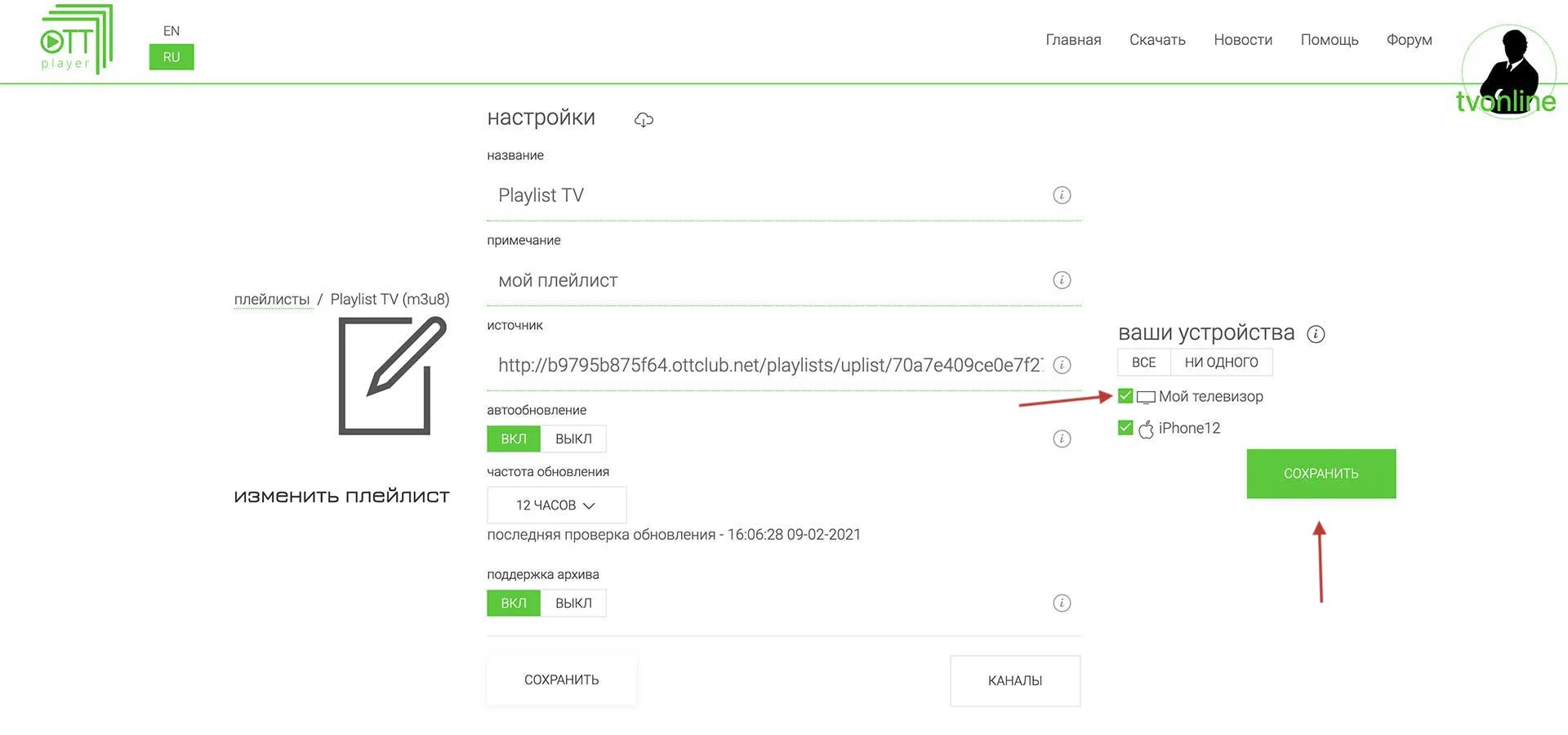
4. Enable the playlist for this device
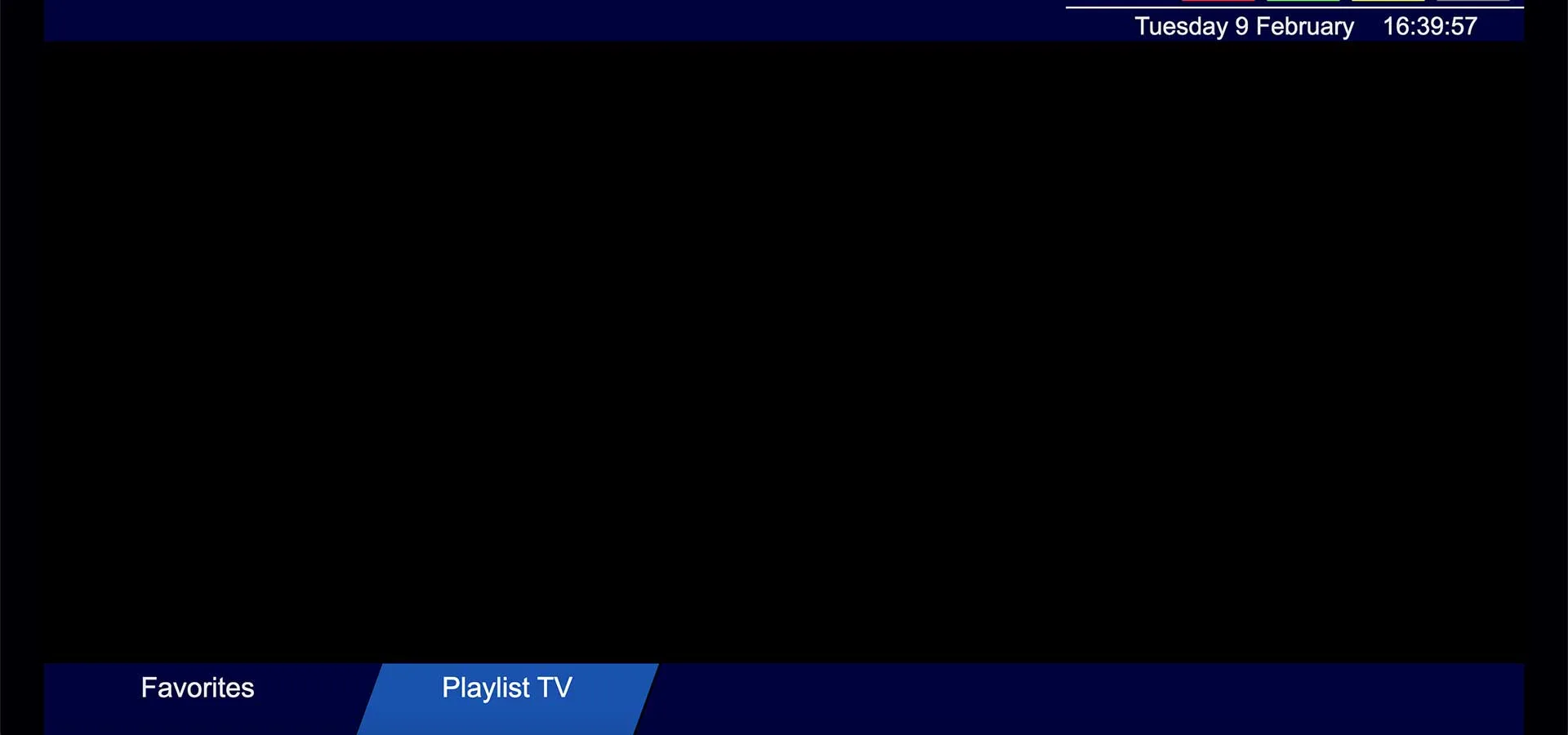
5. The playlist now appears
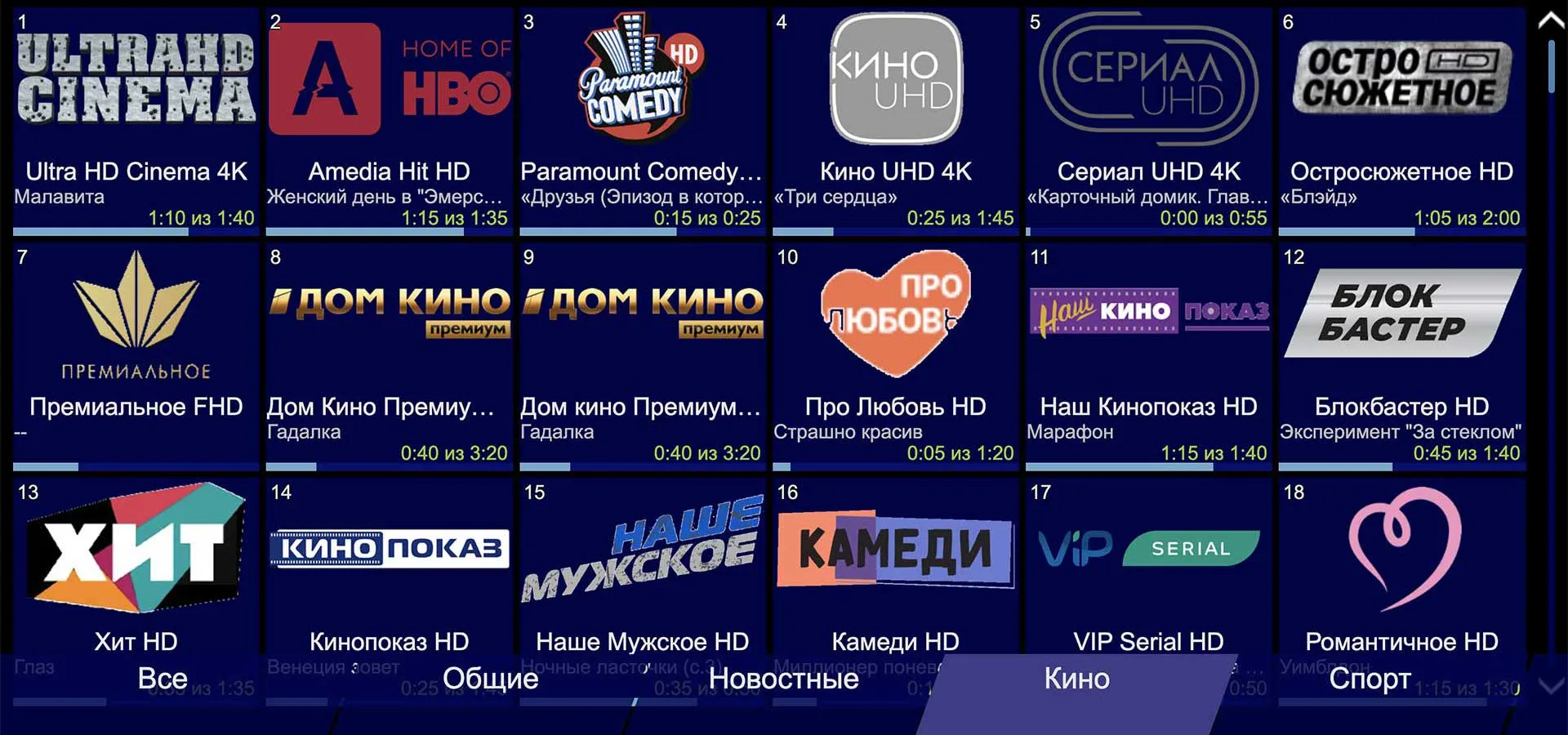
6. You can start watching TV
Media library for the Parus contract
Films and series included with the Parus contract are available in this app only. The connection details look like this:
portal::[key:YOUR-KEY]http://address/api/v1/
We add them to your contract card once the order is placed. If you took out a contract earlier and do not have these details, write to support and we will send them.
How to connect:
- install OttPlayer on your device;
- create a new playlist in your OttPlayer account and use this string as the source;
- in the playlist list in the app on your device, select the new playlist.
Watch with Entertainment Box
If you don't have a contract yet, or your current service keeps dropping out, give us a try. Channels, the TV archive and the programme guide all work in ClouDDy, Ottplayer and other players, and these guides and our support team will help you set everything up.
Start with a one-month trial: choose a package, check the channels on your own devices, and only then take out a contract.