
IPTVnator is a free program for watching IPTV on a computer or laptop. It has no content of its own: you add the playlist from your Entertainment Box subscription, and your channels, TV guide and catch-up appear — plus films and series if your package includes on-demand. Below, the whole process is shown screen by screen on Windows 11, with separate steps for Mac.
The interface is in English by default; you can switch the language in Settings (Russian is available).
Which playlist type you need depends on your package
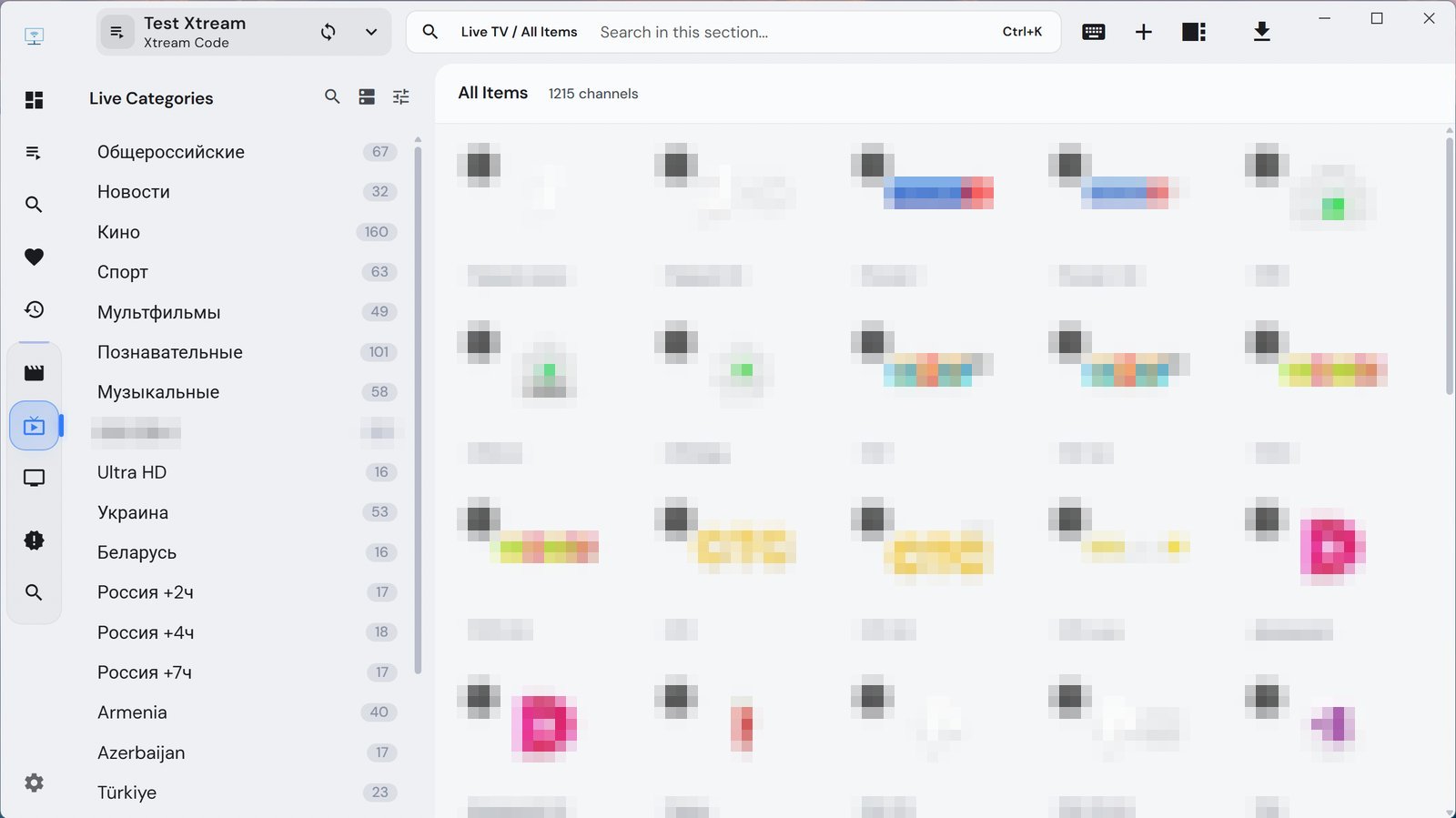
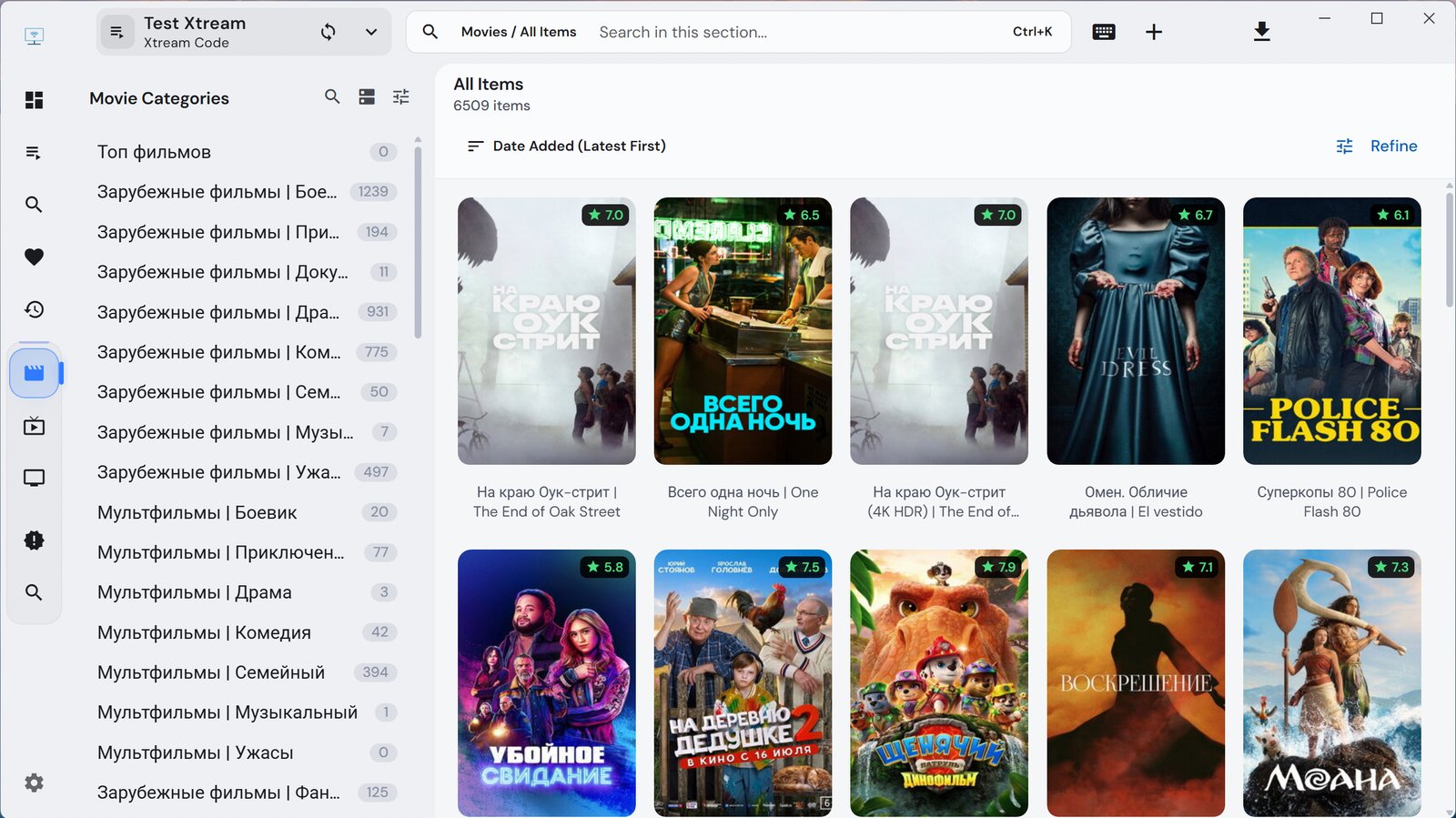
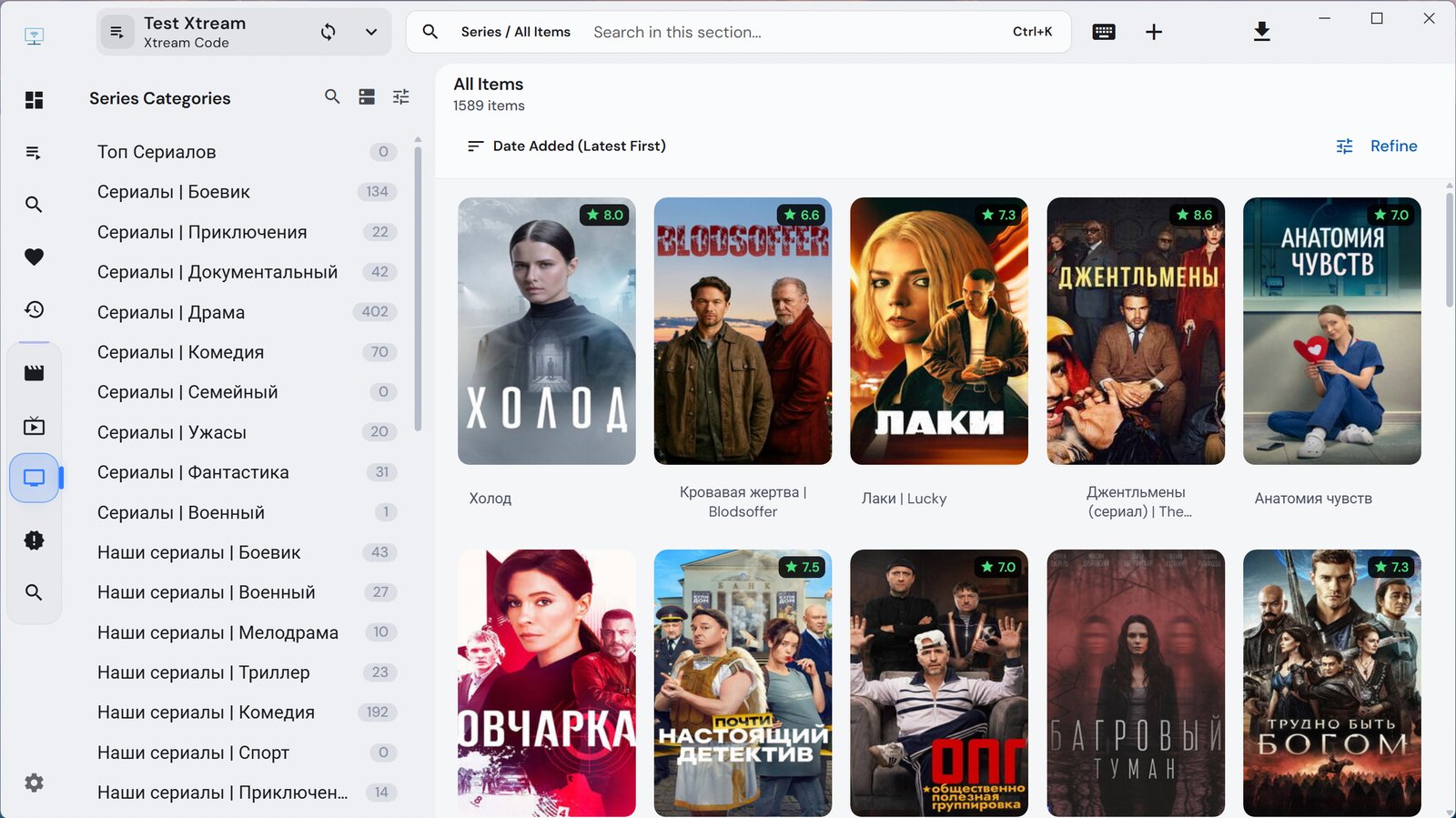
- Sputnik Full and Sputnik Medium — Xtream Codes. One login brings channels, TV guide, catch-up and on-demand. On our test subscription that meant 1,215 channels, 6,509 films and 1,589 series.
- Sputnik Lite and Sputnik Start — M3U. These packages have no on-demand library.
- Parus, VIP Media, Globus — M3U.
- Grand TV — two M3U playlists: one with channels, one with on-demand. The second is added the same way, as a separate playlist.
We provide Xtream Codes to Sputnik TV subscribers only. If you have a different package, your option is an M3U link — that is the standard method for your subscription, not a cut-down one.
Where to find your connection details
Once your subscription is activated, we email you your viewing details. They are always available in your account on entbox.uk, under your subscription, and in our Telegram bot @entbox_shop_bot. For M3U you need the playlist link; for Xtream Codes — username, password and server.
Installation
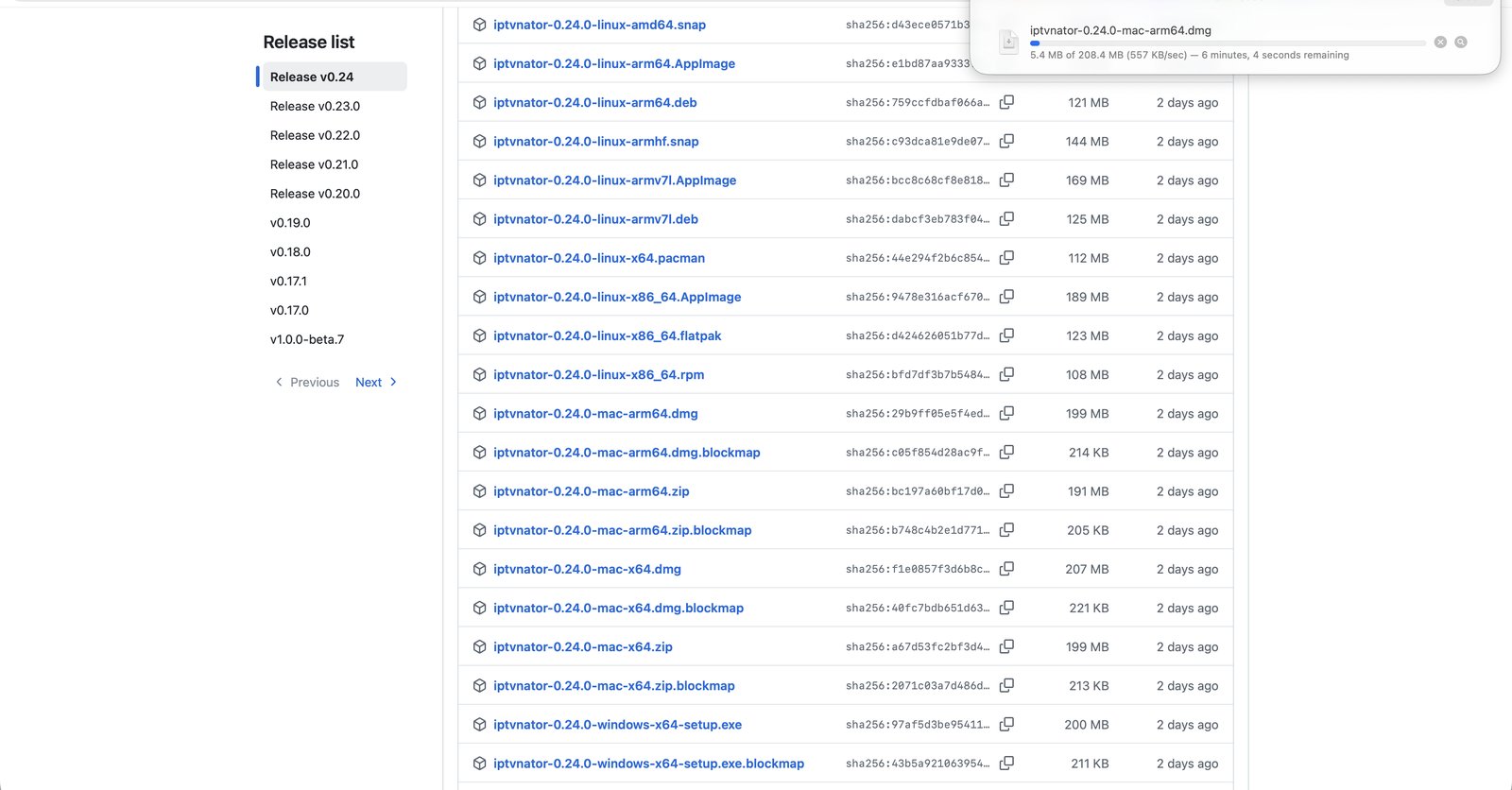
Download the program from the project's releases page on GitHub: github.com/4gray/iptvnator/releases. Open the latest release (v0.24 at the time of writing).
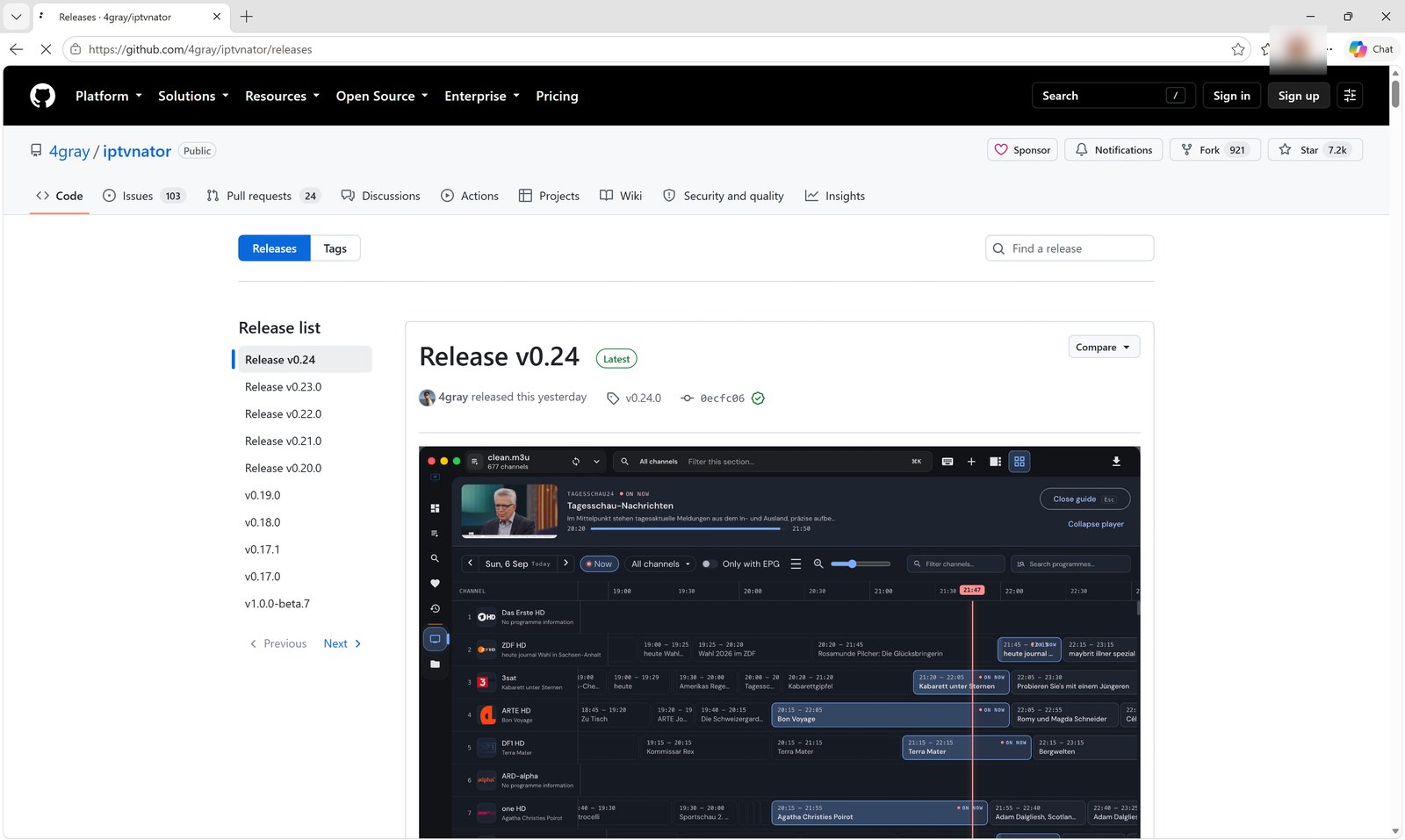
Scroll down to the file list (Assets) and pick yours:
- Windows:
iptvnator-…-windows-x64-setup.exe - Mac with Apple silicon (M1 and newer):
iptvnator-…-mac-arm64.dmg - Mac with Intel:
iptvnator-…-mac-x64.dmg
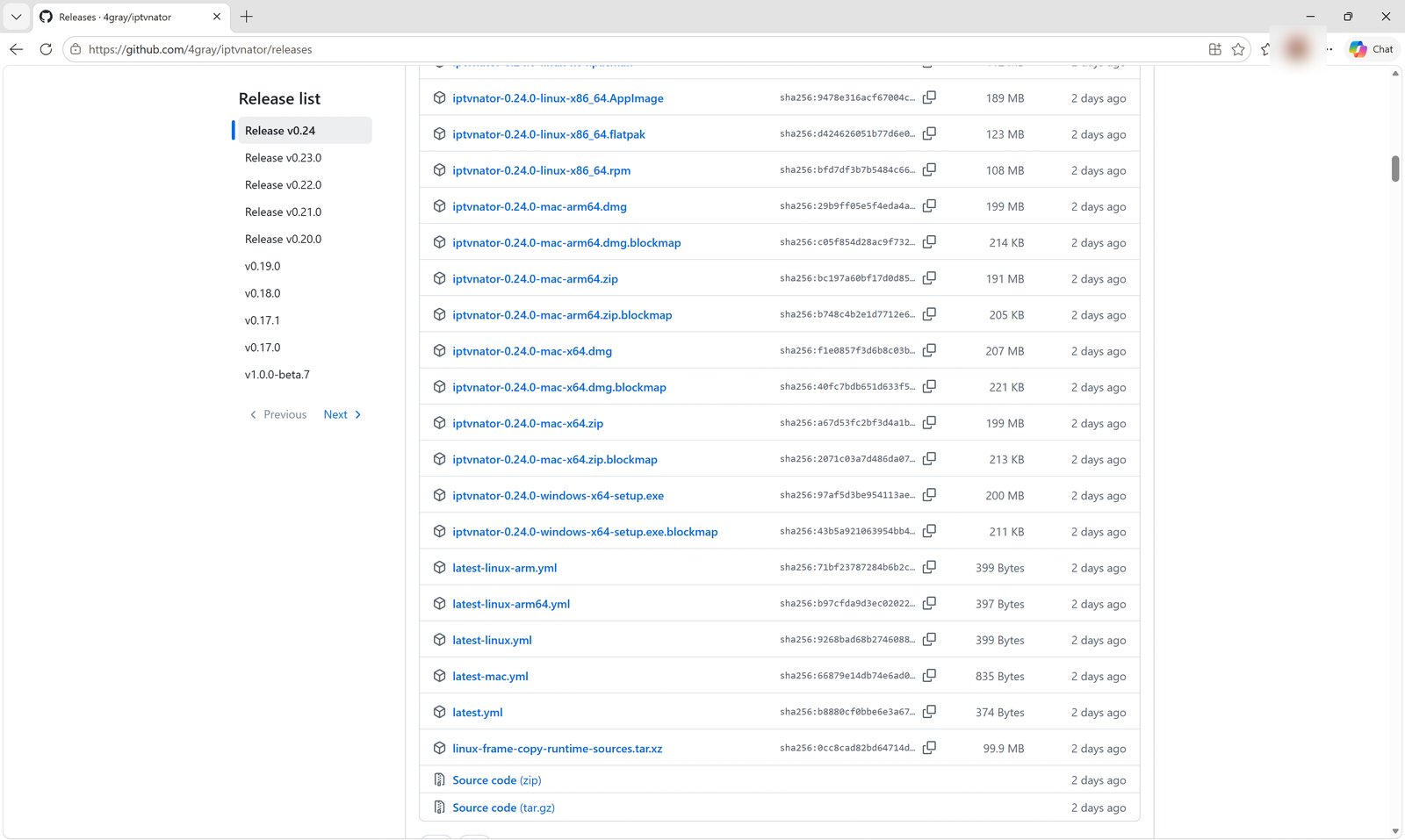
Windows
The browser starts downloading.
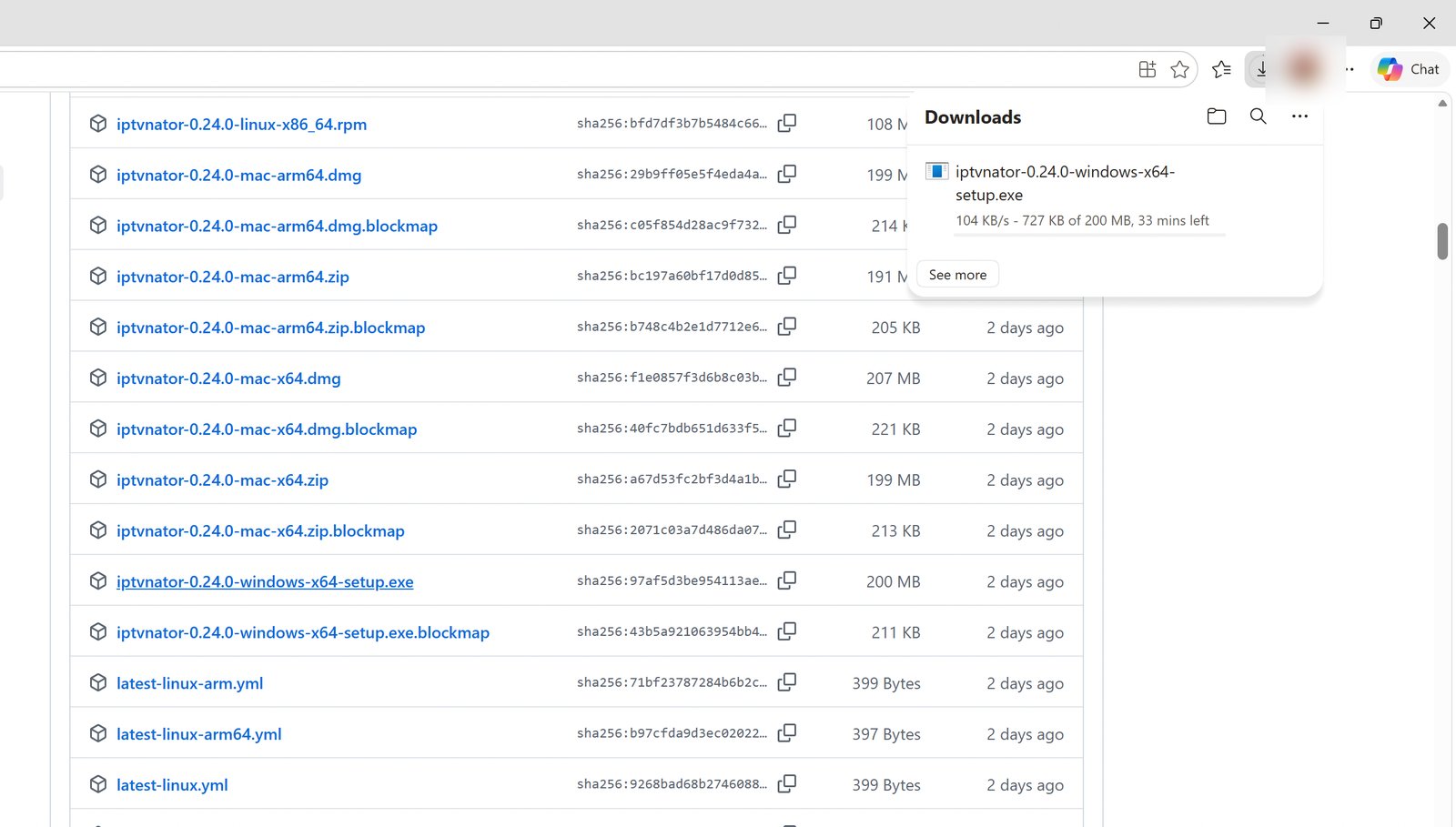
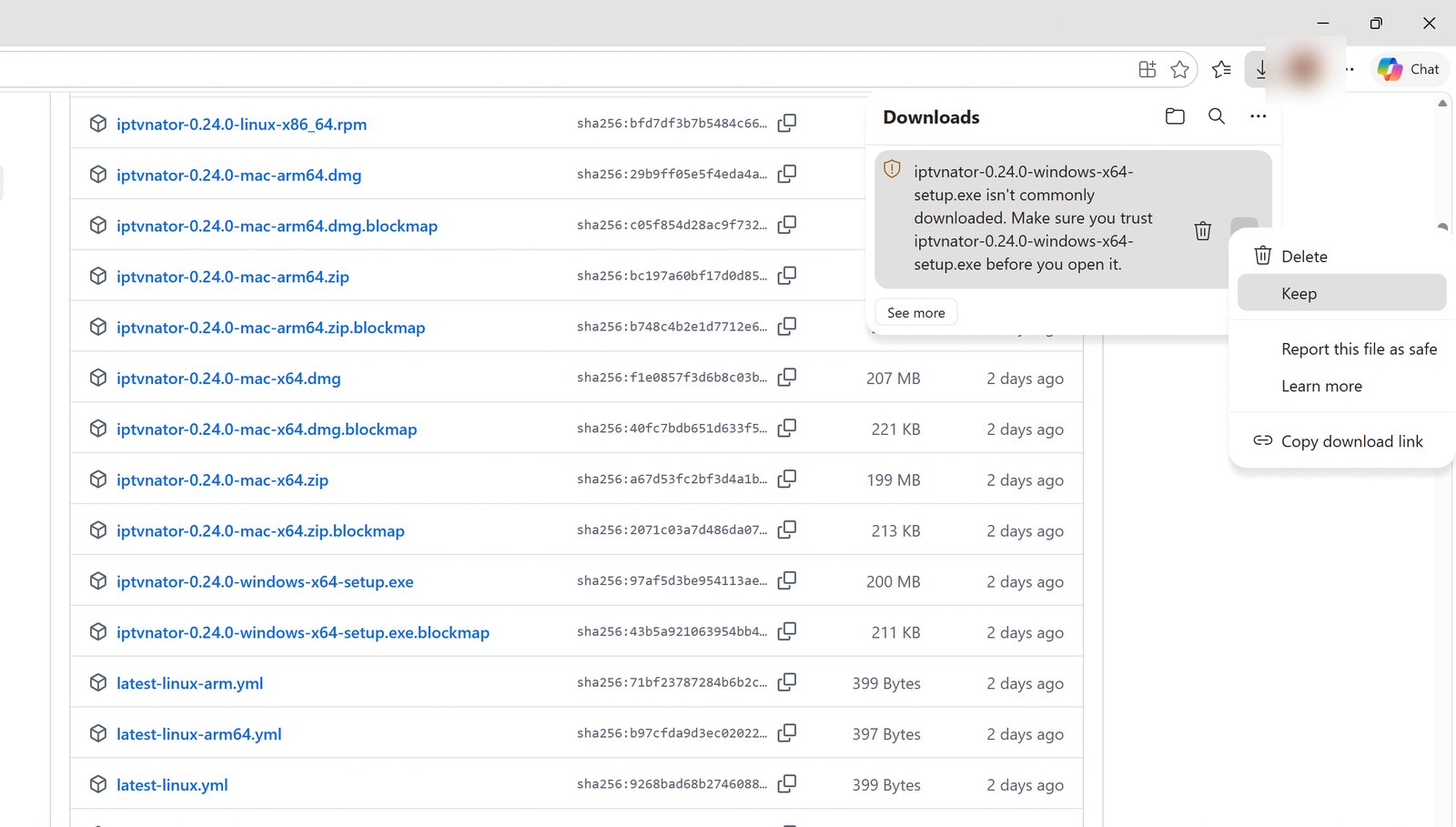
Edge warns that the file "isn't commonly downloaded". This only means the program isn't signed with a paid Microsoft certificate — common for free software.
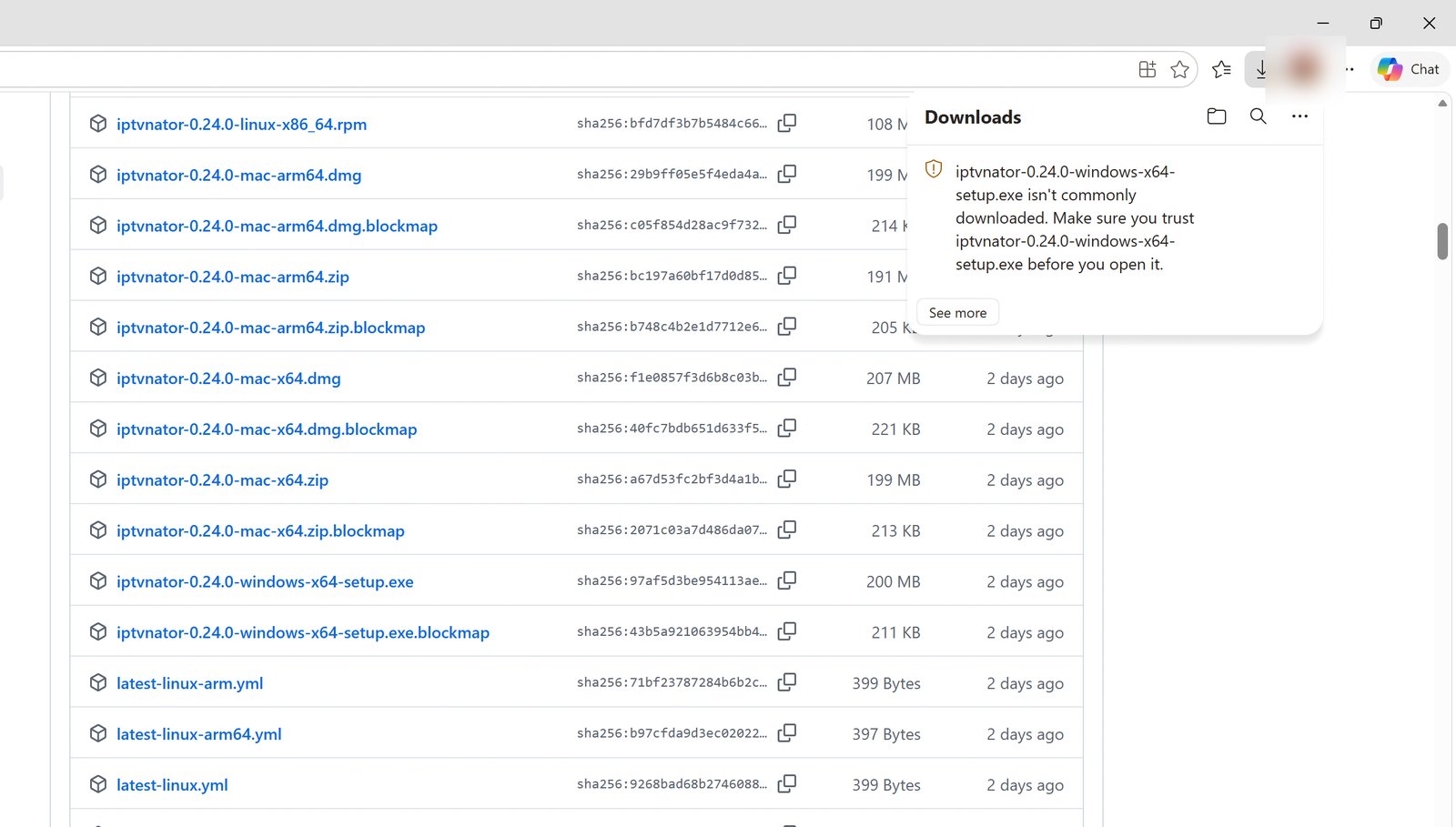
Click "…" next to the file and choose Keep.
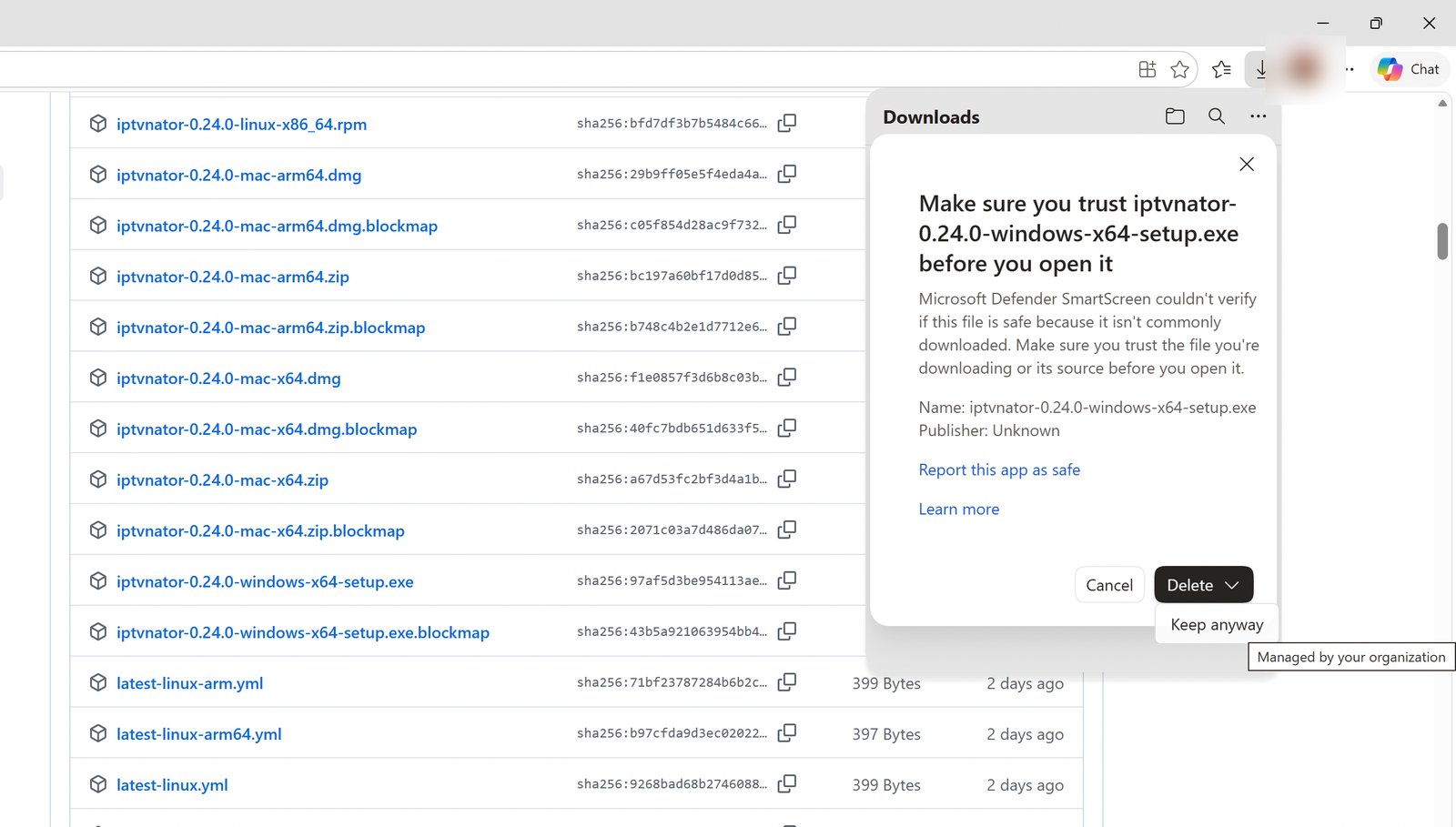
A SmartScreen window appears. Click the arrow next to Delete and choose Keep anyway.
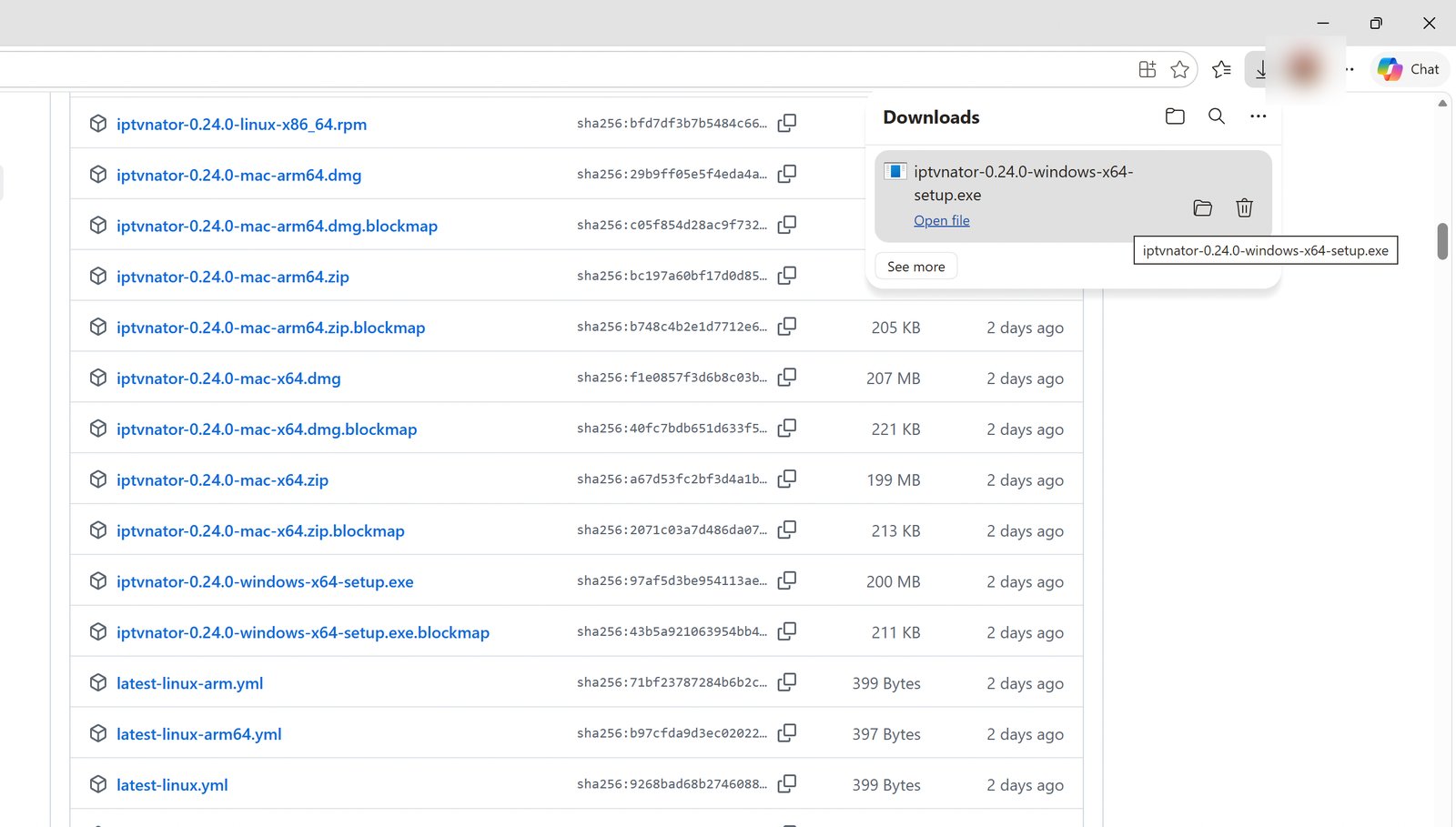
When the download finishes, click Open file.
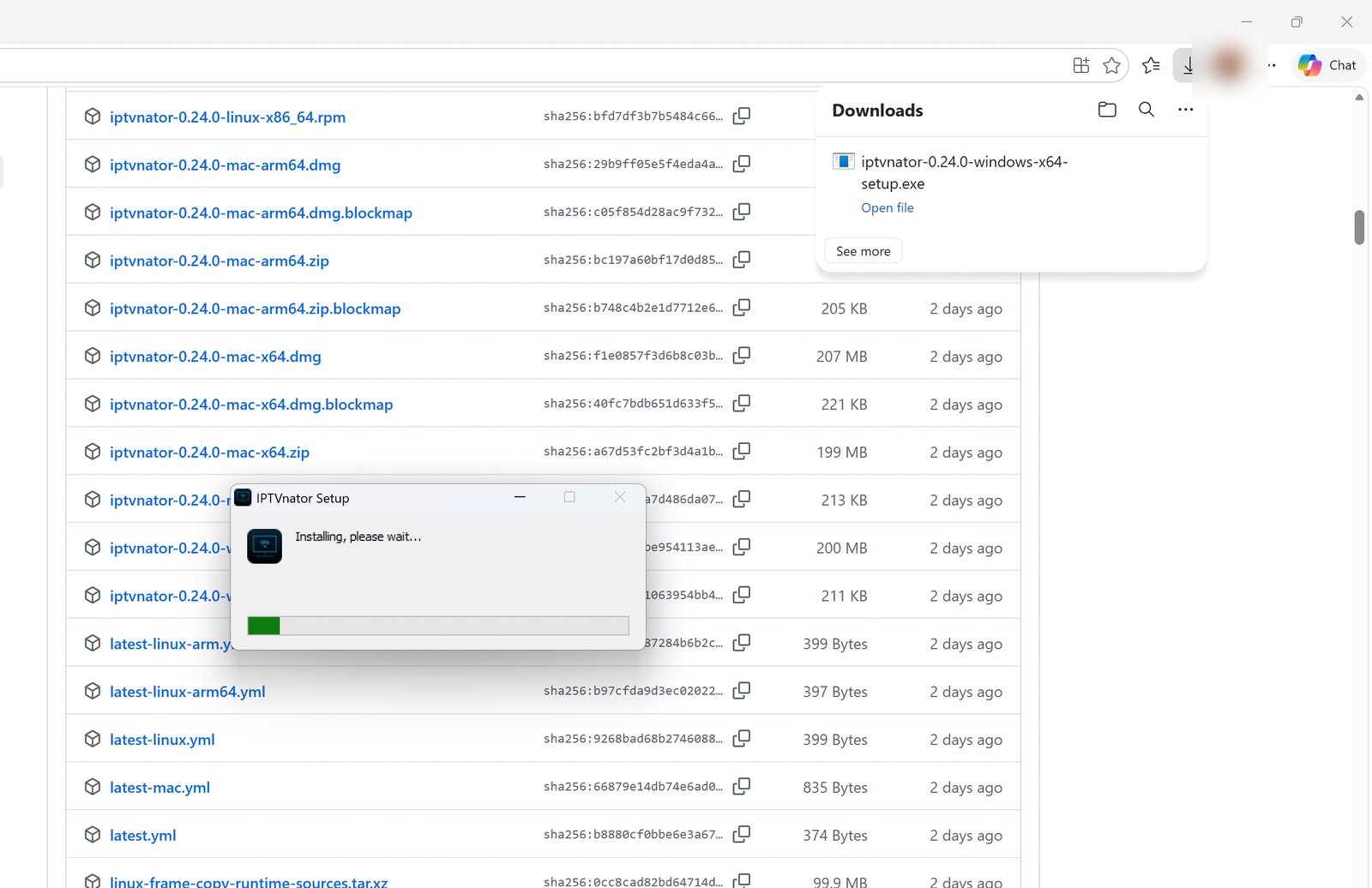
Installation runs by itself, without questions. When it's done, an IPTVnator icon appears on your desktop.
Mac
Download the .dmg file for your processor.
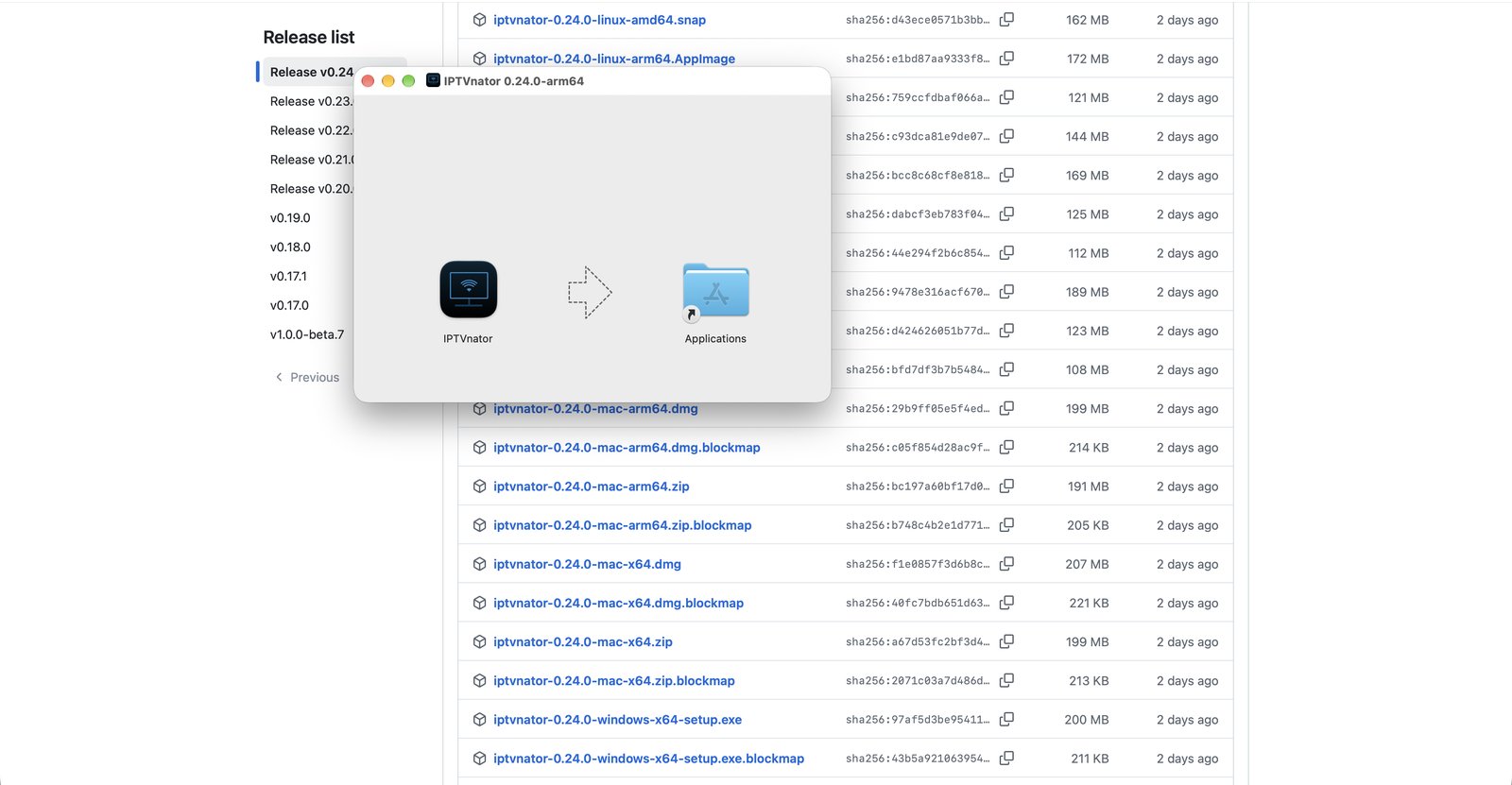
Open it and drag the IPTVnator icon into the Applications folder.
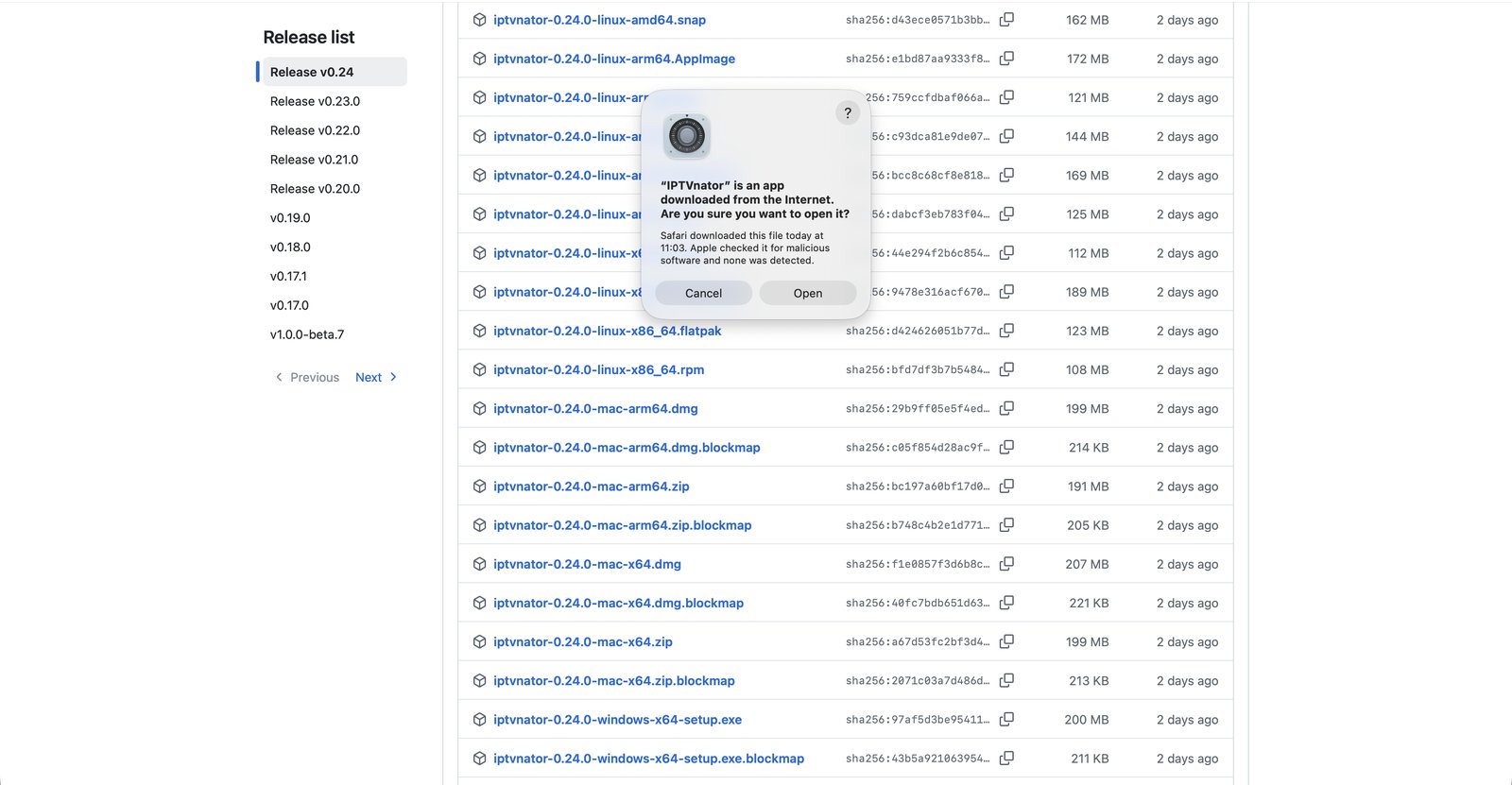
On first launch macOS asks whether you want to open an app downloaded from the internet. Apple has already checked it — click Open.
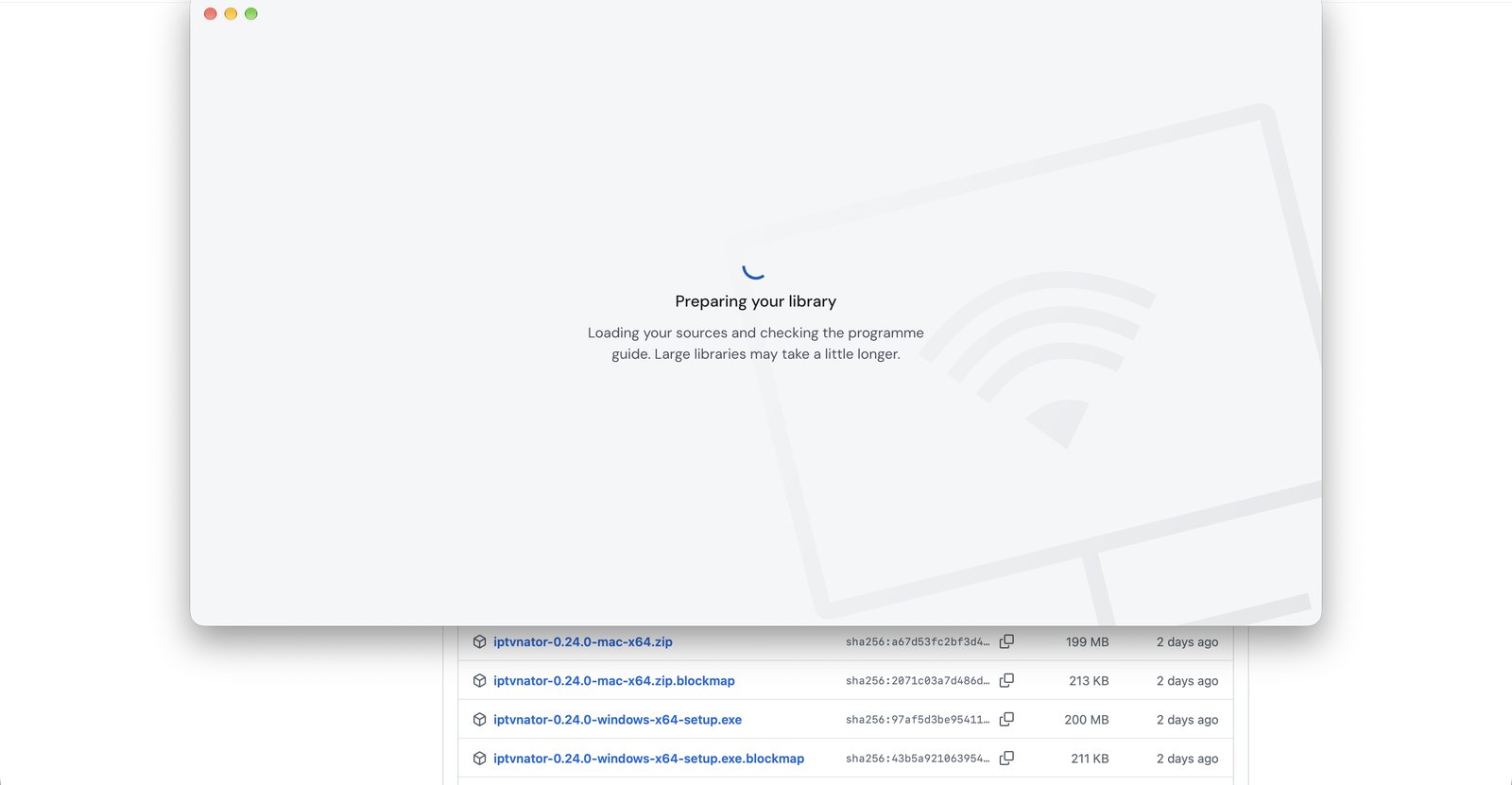
On start-up the program prepares its library — this takes a few seconds.
Linux
For Linux computers and laptops, the same page has .deb, .rpm, AppImage, Snap and Flatpak builds.
Adding an M3U playlist
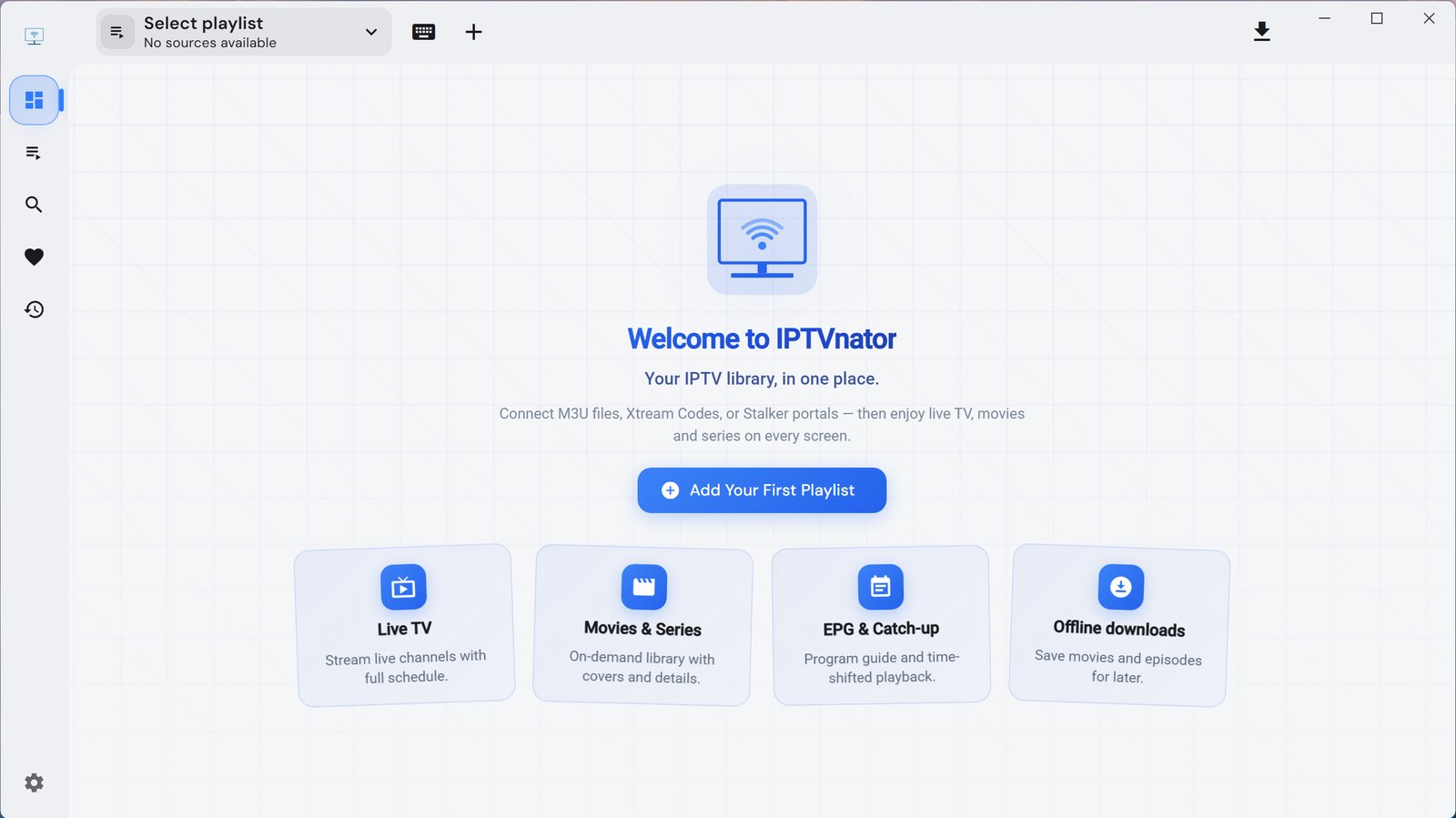
On first launch, click Add Your First Playlist.
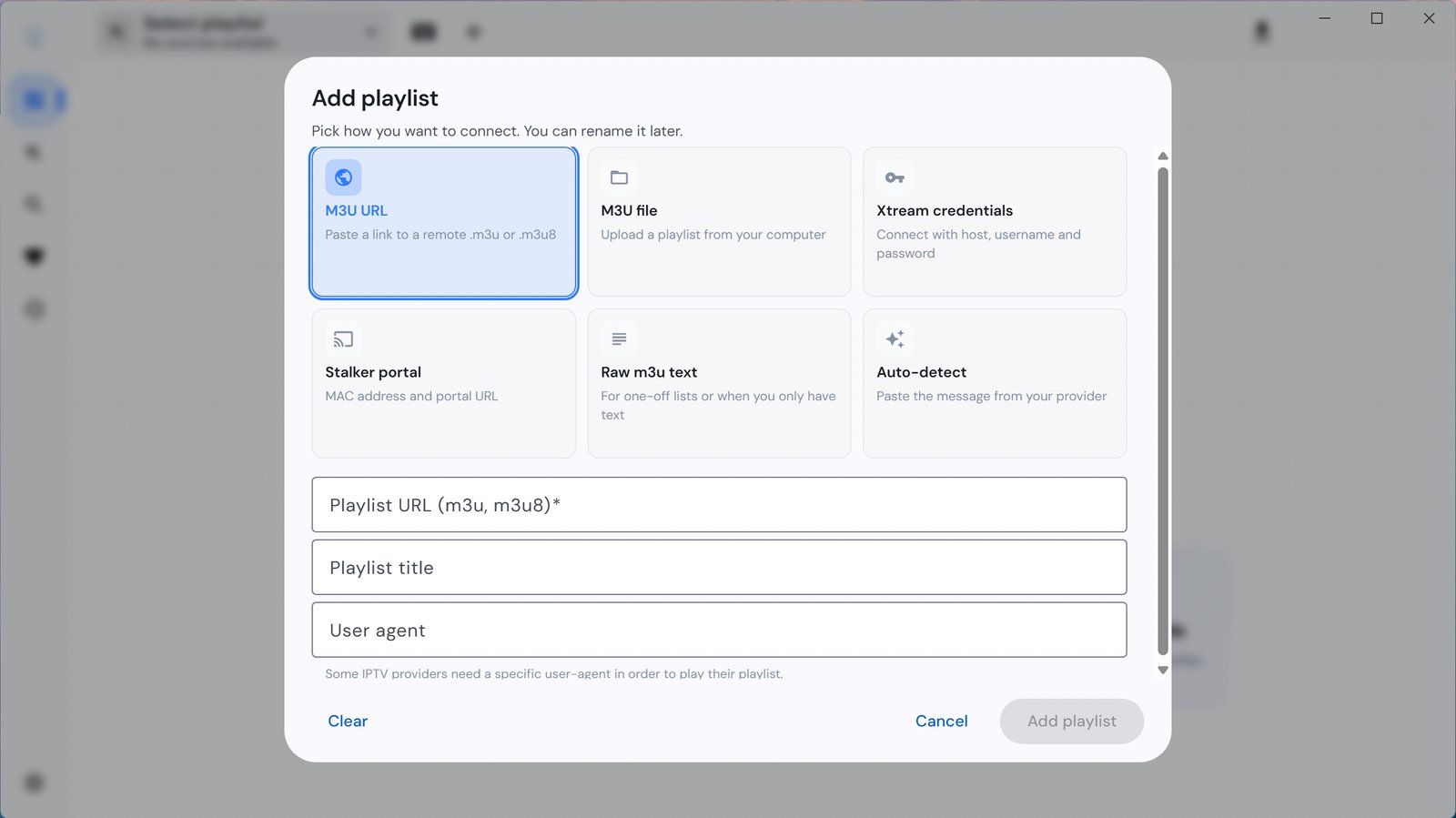
Choose M3U URL.
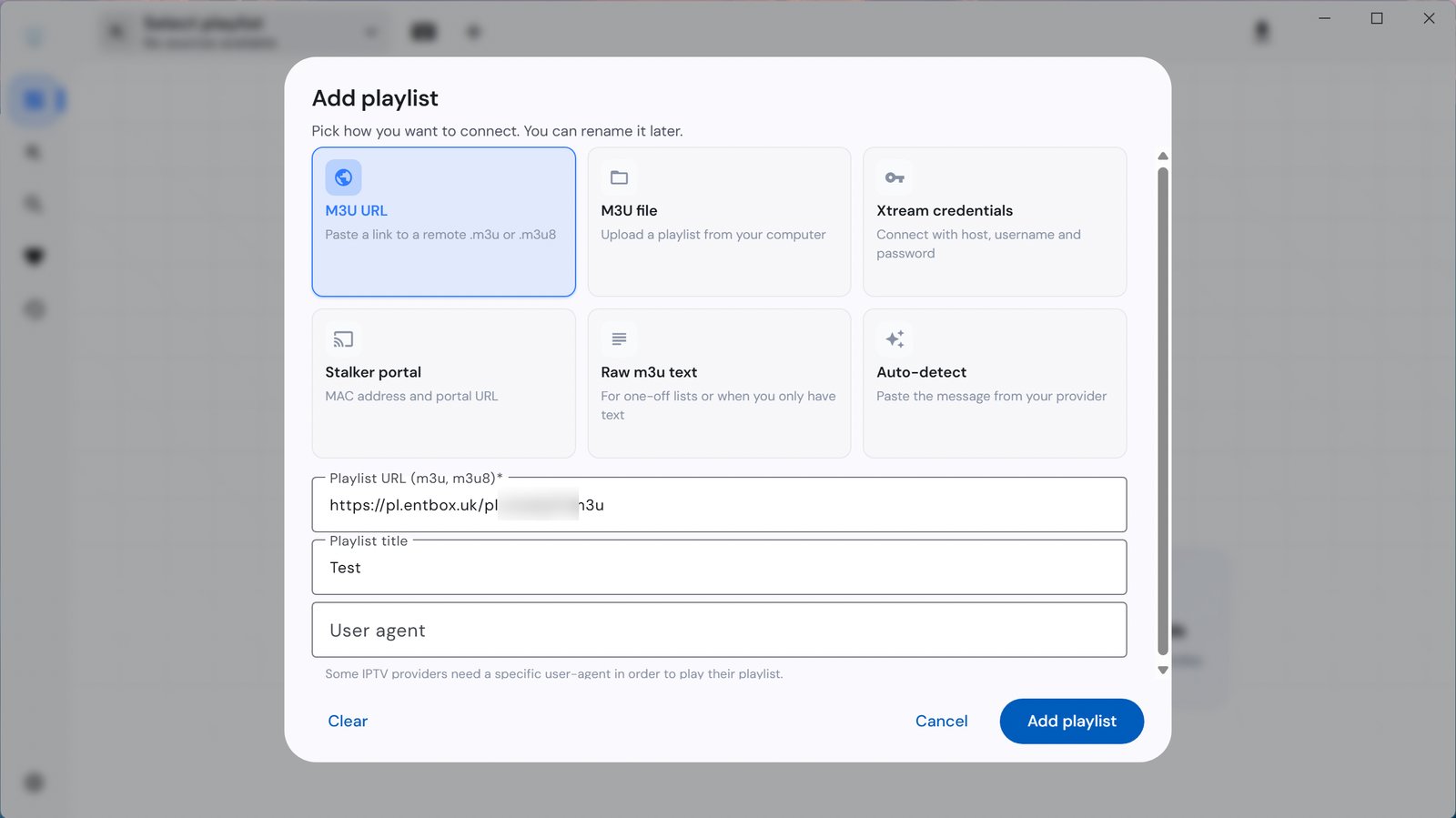
Paste the playlist link exactly as it appears in your details, give it any name under Playlist title and click Add playlist.
The TV guide loads by itself — you can see the EPG IMPORT window in the corner. There is no need to add a separate guide link.
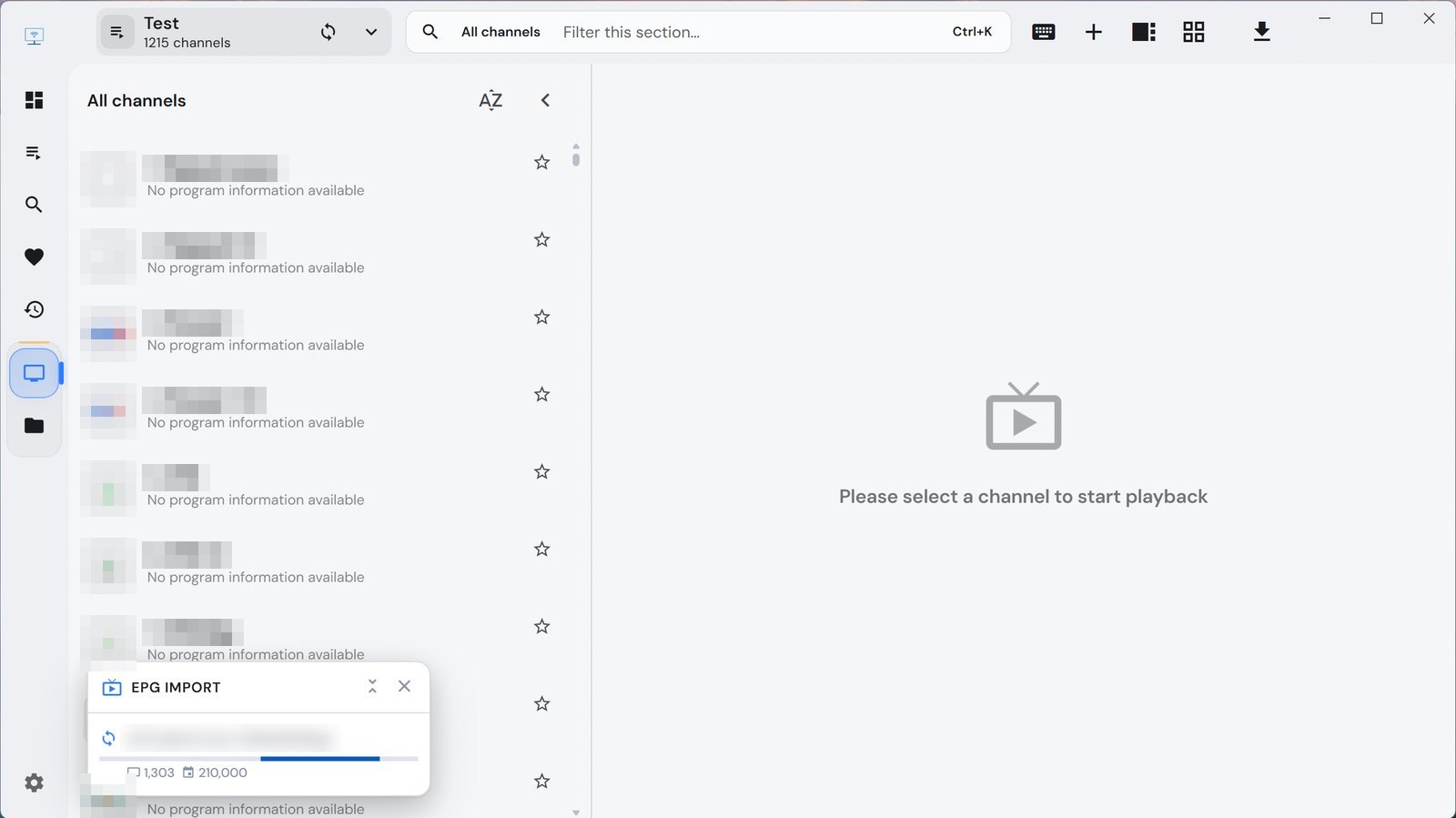
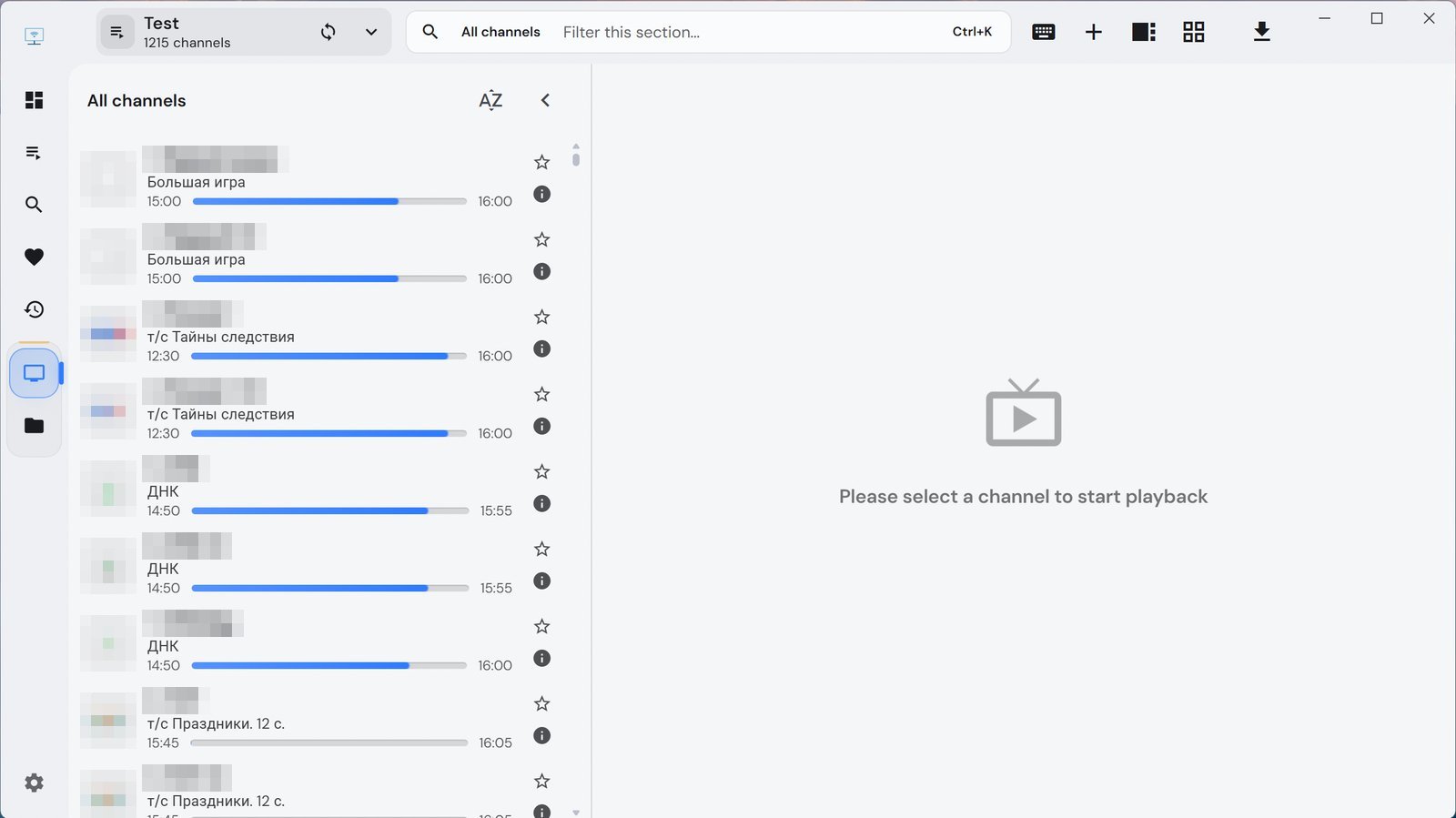
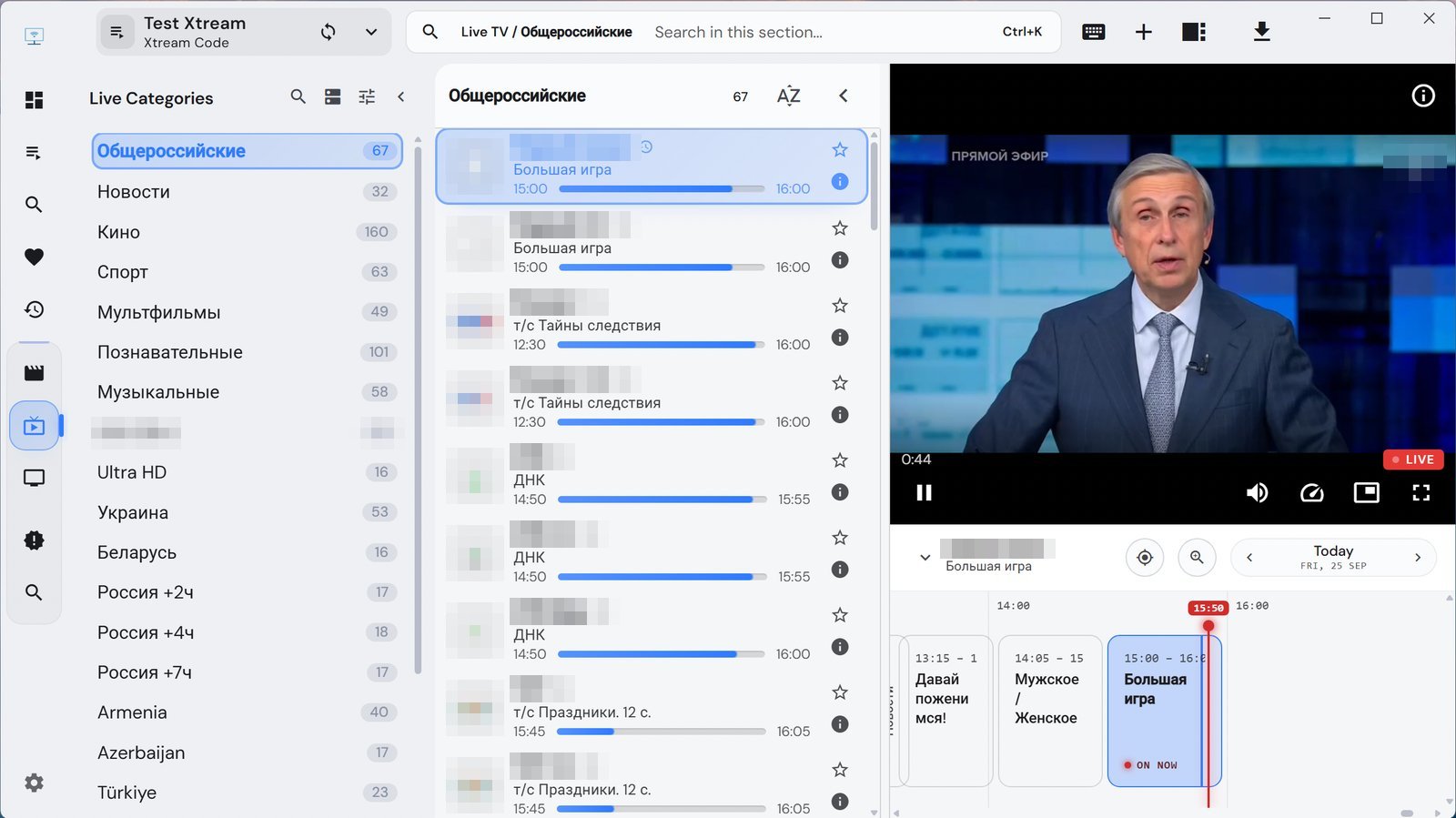
Done: the channel list is on the left, each showing the current programme and how much of it is left.
Xtream Codes — Sputnik Full and Medium
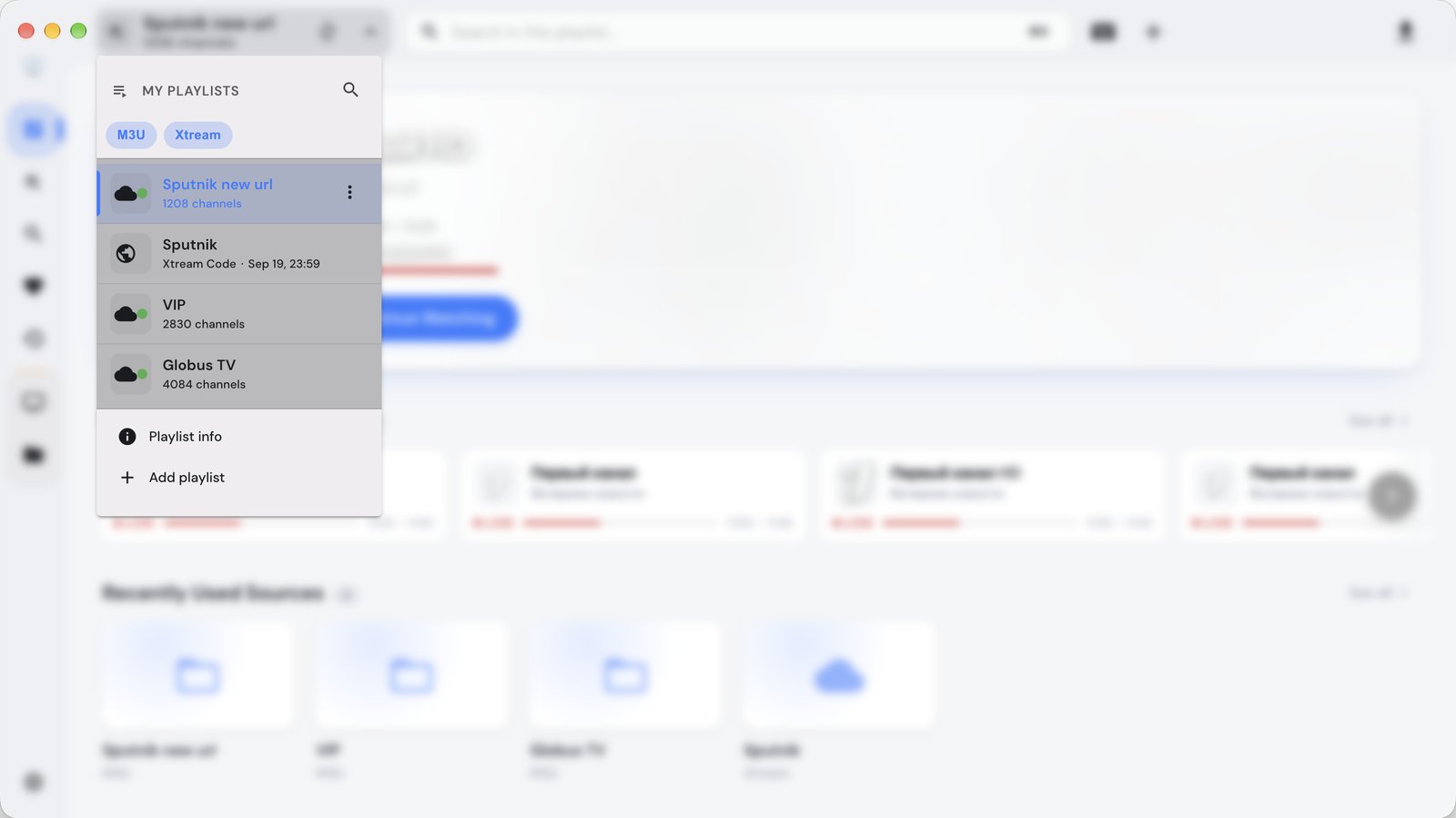
If you already have a playlist, add a new one through the playlist menu: click the name of the current playlist at the top left to open My playlists, then Add playlist at the bottom. This is also where you switch between playlists.
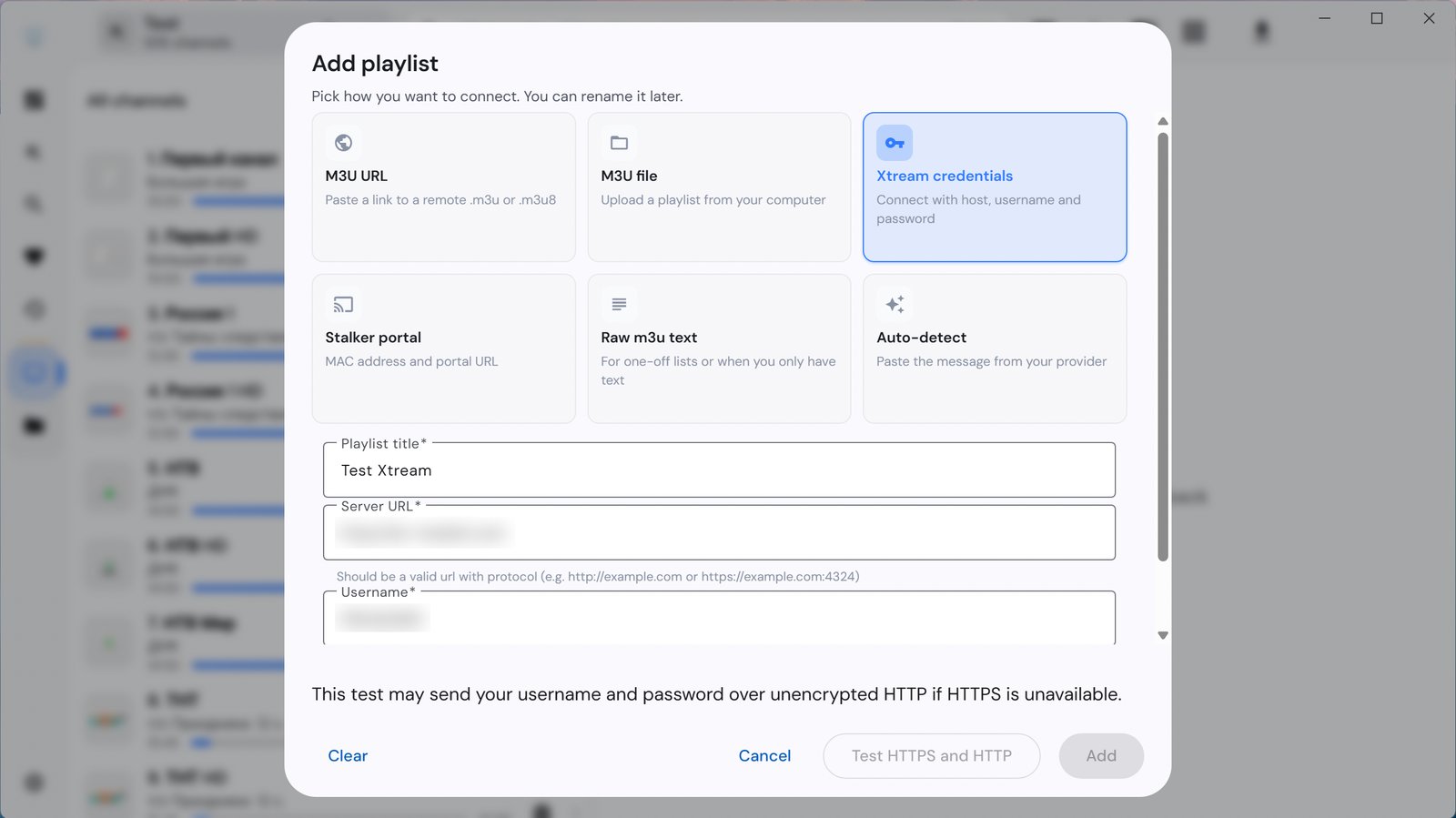
Choose Xtream credentials. Fill in Playlist title (any name), Server URL (including http://), Username and Password. Then click Test HTTPS and HTTP and Add.
The note that details may be sent over HTTP is a standard warning from the program, not an error.
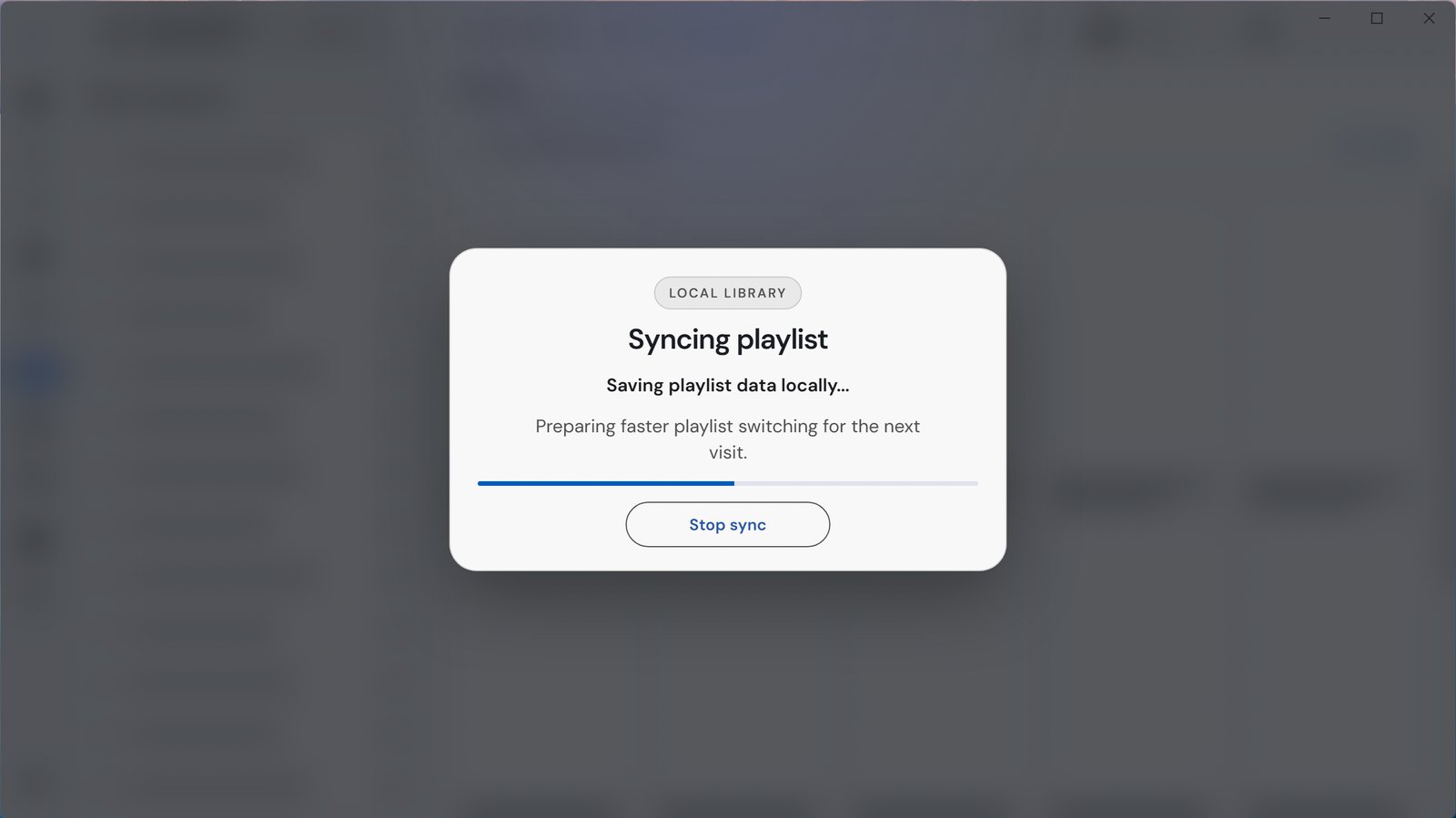
The program downloads the playlist and saves it on your computer. The first time takes a minute or two; after that switching is quick.
What you get
The icon bar on the left holds the sections. Live TV — channels by group:
Movies:
Series:
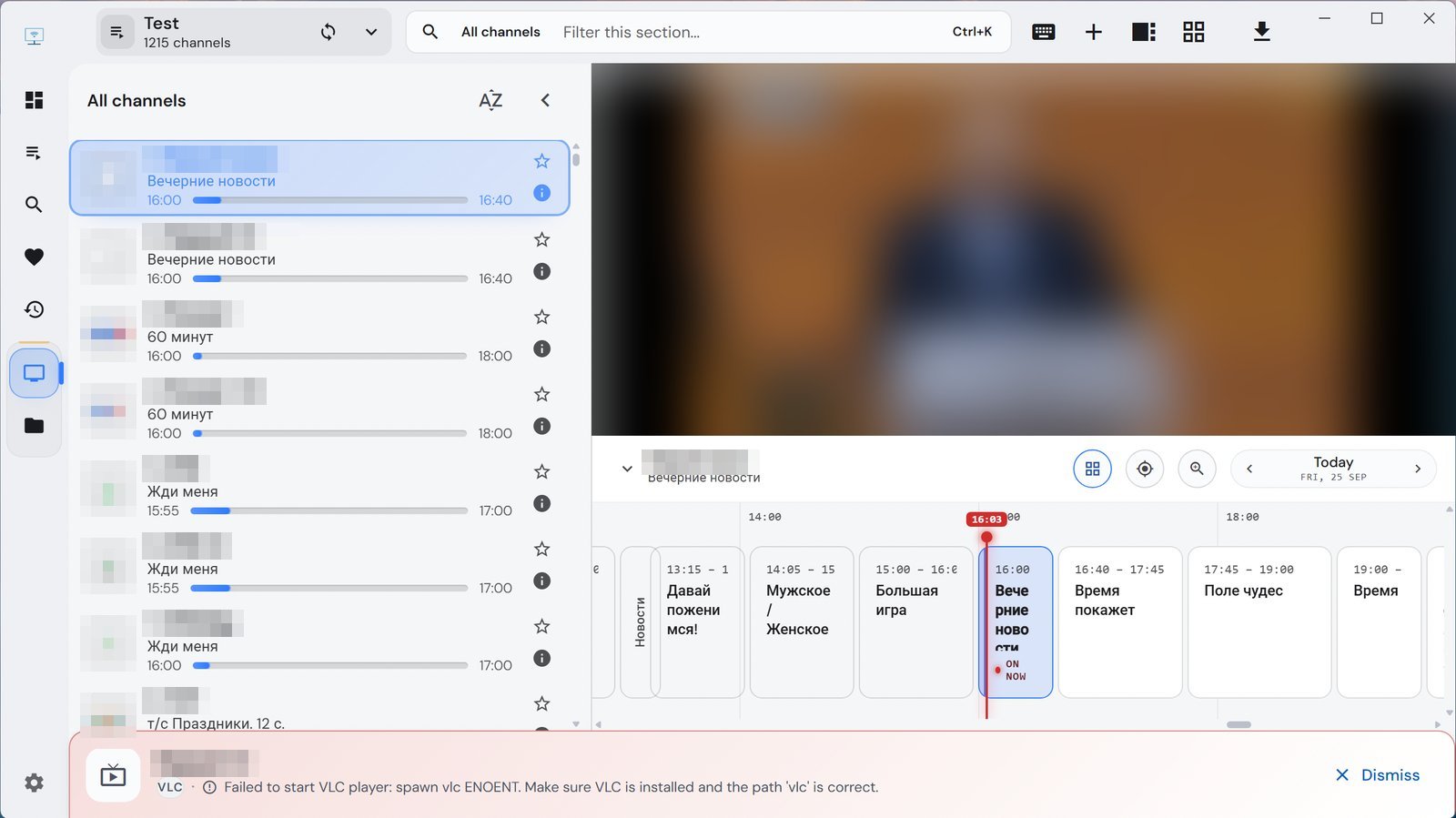
Click a channel and it plays on the right, with a TV guide strip below the player.
Catch-up
In the strip below the player, click a programme that has already aired — it starts from the archive. FROM ARCHIVE appears above the player, and Return to live takes you back to the live broadcast.
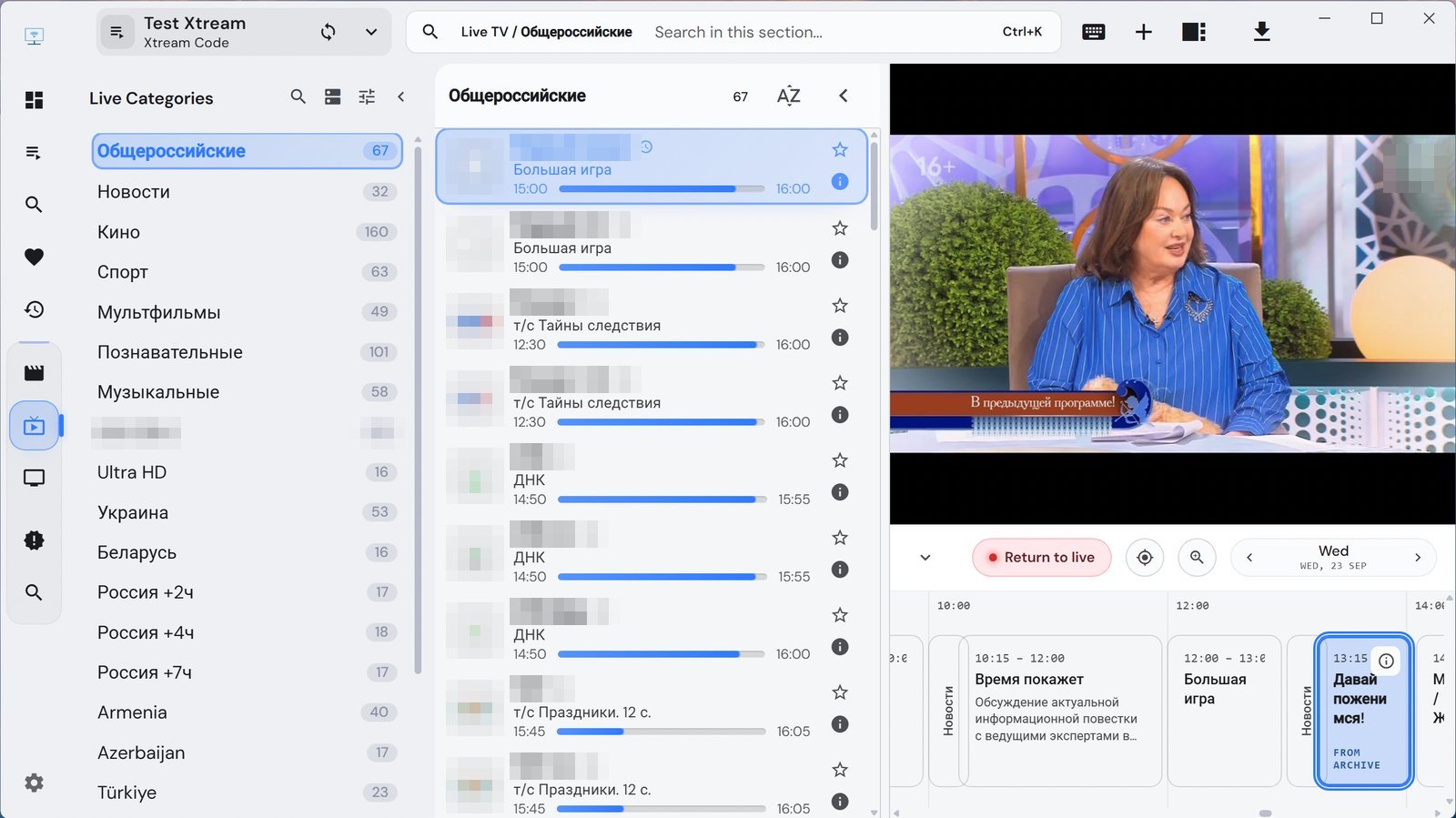
To go back to earlier days, use the date arrows on the right above the strip — programmes from yesterday and before open the same way.
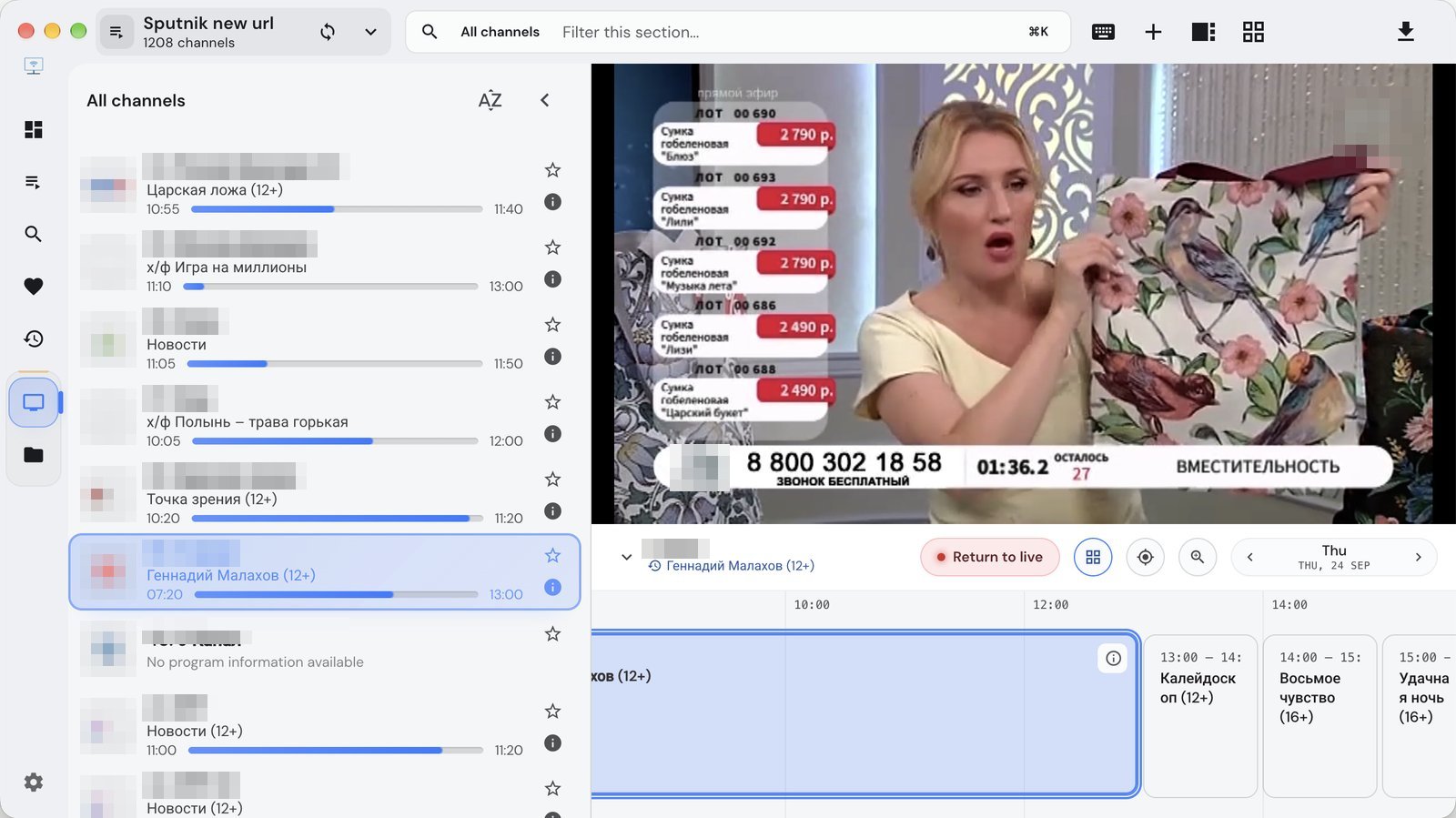
How far back catch-up goes depends on the package: Sputnik — 7 days (Start has no catch-up), Parus — 4 days, VIP Media — 5 days, Grand — 14 days, Globus — up to 7 days depending on the channel.
TV guide grid
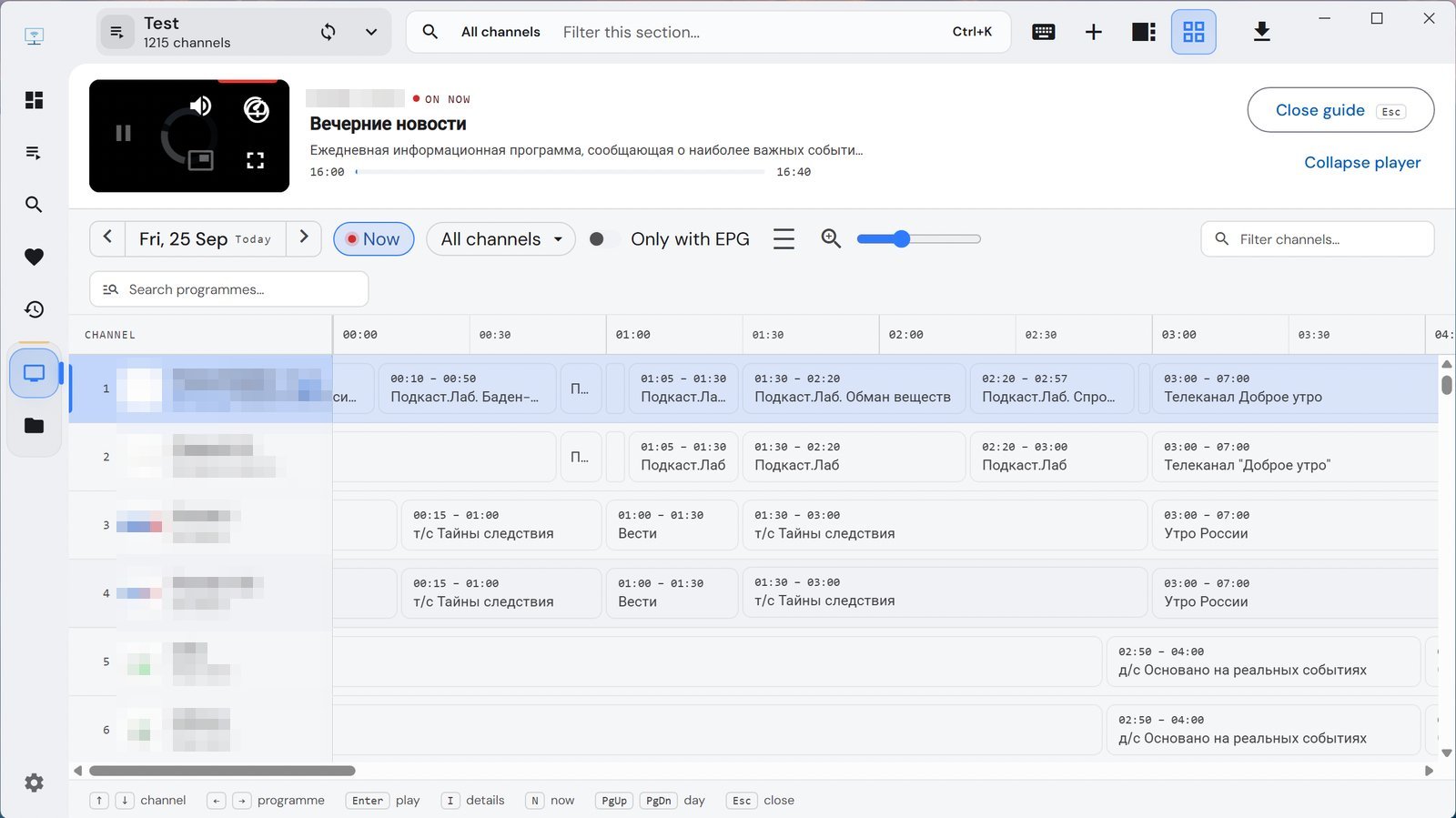
The four-squares button at the top of the window opens the guide for all channels at once, like a newspaper listing. ↑↓ switch channels, ←→ programmes, Enter plays, N jumps to now, PgUp/PgDn change the day, Esc closes the grid. The Only with EPG switch shows only channels that have a guide.
VLC player — recommended
IPTVnator can hand the video over to VLC, a free player that copes better with different stream formats and keeps the picture more stable.
- Download VLC from videolan.org and install it.
- In IPTVnator, open Settings (the gear at the bottom left) → Playback → Video player and choose VLC.
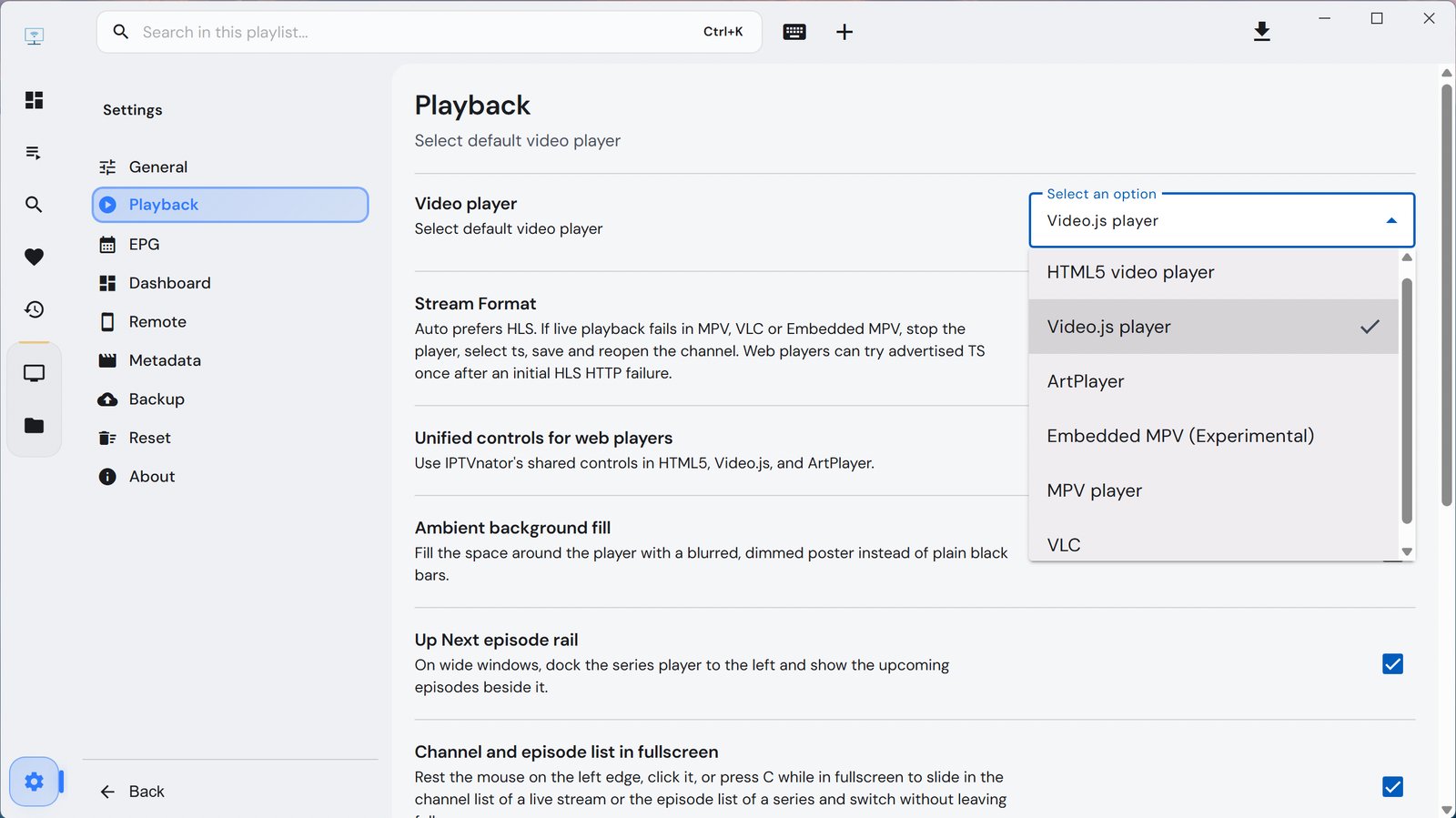
Now you pick the channel, catch-up programme or film in IPTVnator and watch it in a separate VLC window.
If you see the error Failed to start VLC player, VLC isn't installed. Install it and restart IPTVnator.
Sound: 5.1 or stereo
Many channels carry more than one audio track. In VLC, switch tracks in the Audio → Audio Track menu.
If voices are quiet or missing while music and effects are audible, the 5.1 track is probably playing and your speakers don't support it. It's not your subscription — switch to stereo.
On-demand
Films and series are included in Sputnik Full and Medium (via Xtream Codes) and in Grand TV (as a separate playlist). VIP Media has no on-demand library in any package.
No installation: the web version
If you can't install the program — someone else's computer, a work laptop, a phone or tablet — open player.entbox.uk in your browser. It's the same IPTVnator, running in the browser.
- Live TV works, including HD channels.
- There is no catch-up, on-demand or Xtream Codes. That is a browser limitation, not your subscription: the installed program has everything.
- Parus TV and Grand TV channels don't play in the browser.
- If a channel won't open, its menu has Copy stream URL — copy the link and open it in VLC.
Small things that cause confusion
- After any change on our side — new subscription, package change, move to another server — delete the playlist and add it again with the new details.
- The playlist name doesn't affect anything.
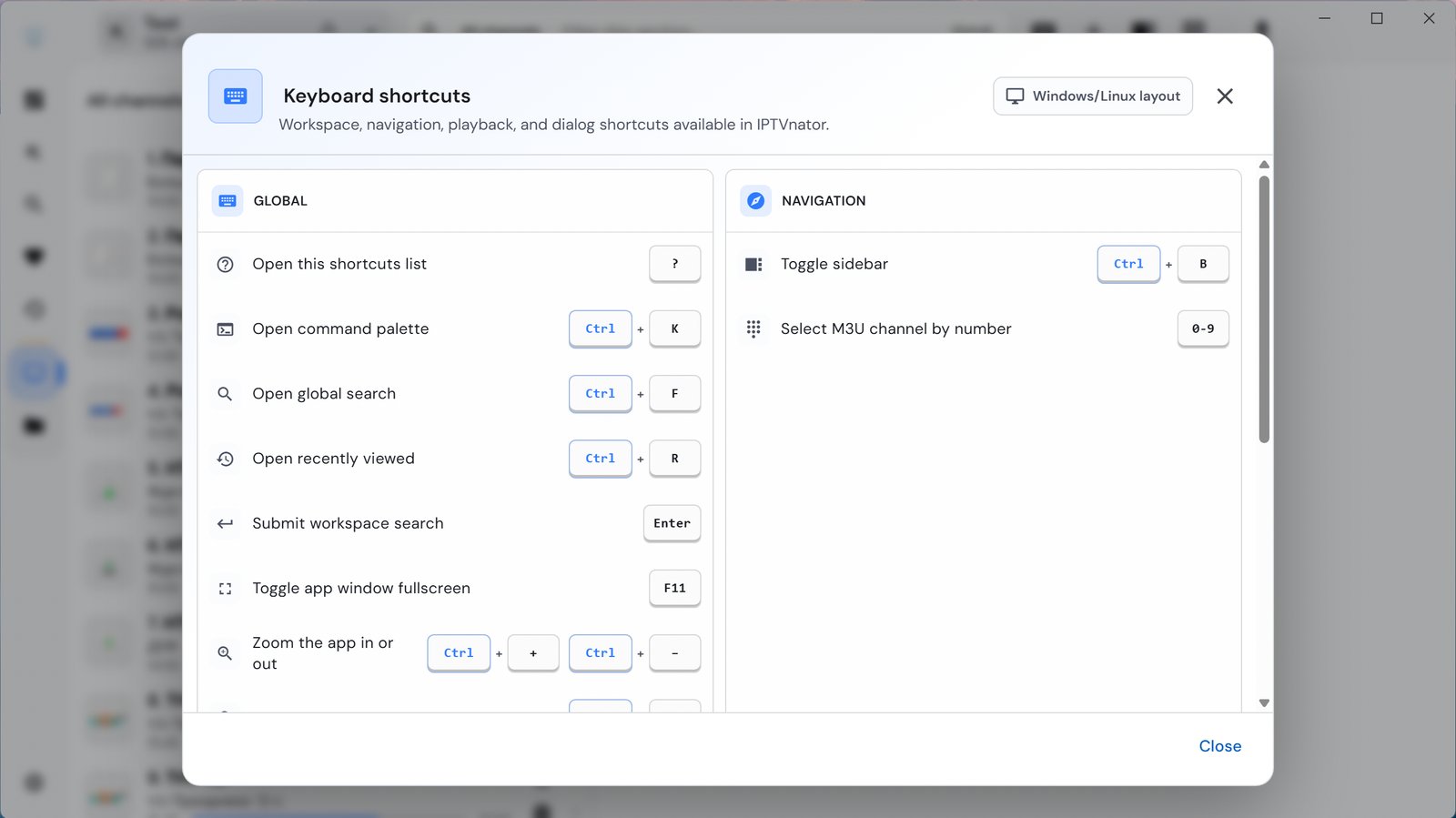
- The ? key opens the list of all keyboard shortcuts.
If something doesn't work, email us at support@entbox.uk or message @entbox_shop_bot with your subscription number (S0xxxx) and tell us your computer: Windows, Mac or Linux.