
Sometimes the app you need is not in your TV box's own store. That is what Downloader is for: you type a short code, it fetches the installation file from the developer's own site and starts the install. This is the normal route for Amazon Fire TV owners and for many cheaper TV boxes.
Below is the whole path, screen by screen, shot on a real Android TV device. Five minutes the first time, two steps every time after that.
Codes for our players
- TiviMate — 272483
- Televizo — 474318
Both apps are also in Google Play. If your store finds them by name you do not need Downloader at all — install them from the store. The codes are for devices with no store, or where the app simply does not show up.
ClouDDy does not install by code. It is in the device's own app store — search for "ClouDDy". On Amazon Fire TV, where the store does not carry it, we give a short address for Downloader: entbox.uk/clouddy.
Step 1. Install Downloader itself
On an Android TV box or TV set, open Google Play and search for Downloader — by AFTVnews, an orange icon with a white down arrow. Press Install.
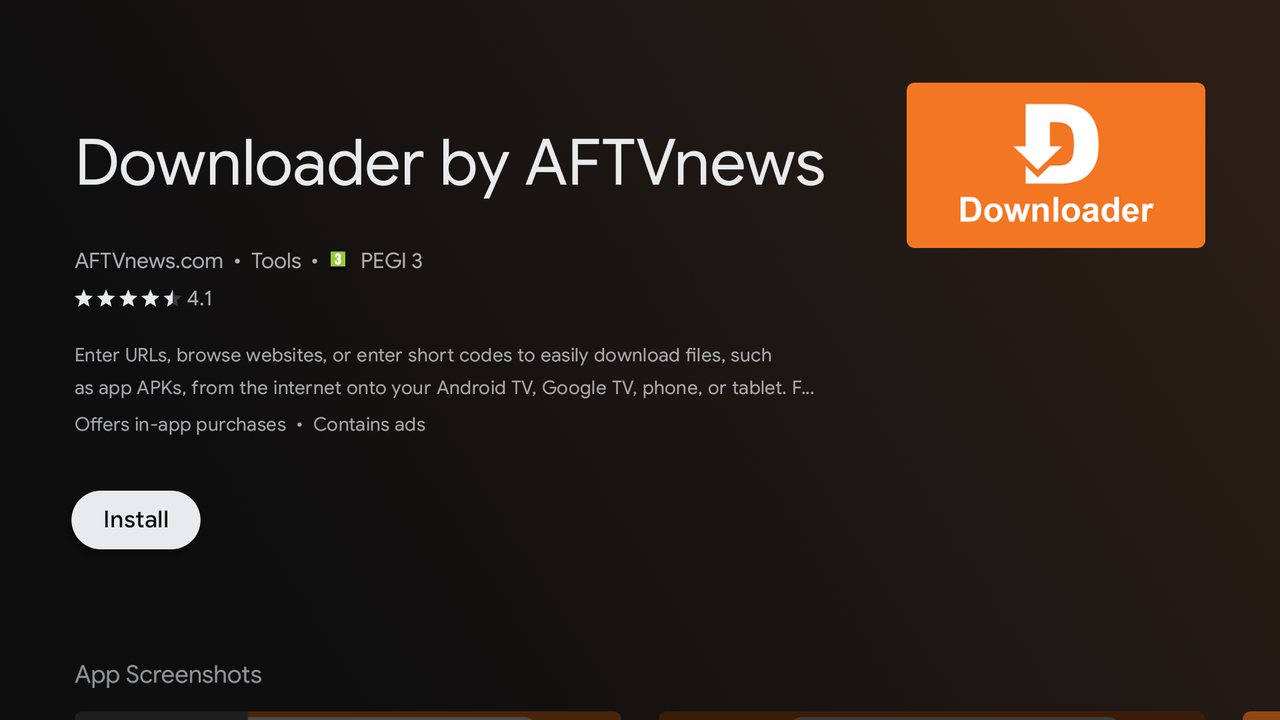
On Amazon Fire TV you do the same in the Appstore. If the search does not find it, go to Appstore → All Categories → Utilities. One caveat for Fire TV: your Amazon account has to be complete — name, address and a payment card. Without that the device refuses to install even a free app, and it looks like an unexplained error.
A heads-up: Downloader opens on its author's news site and shows ads. That is normal, the app is free. All we need from it is the address field in the very top bar.
Step 2. Allow Downloader to install apps
You do this once. Skip it and the installation stops with a "blocked" message.
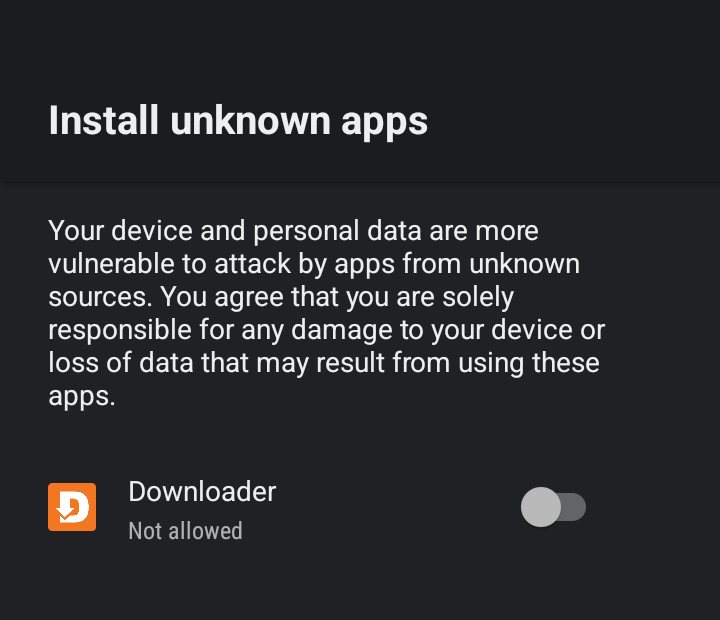
The screen is called Install unknown apps. The quickest way there is to start the installation and let the system offer to open the settings for you; otherwise look for it in your device settings, under security and app access. Find Downloader in the list: while the switch is off, the line underneath reads Not allowed.
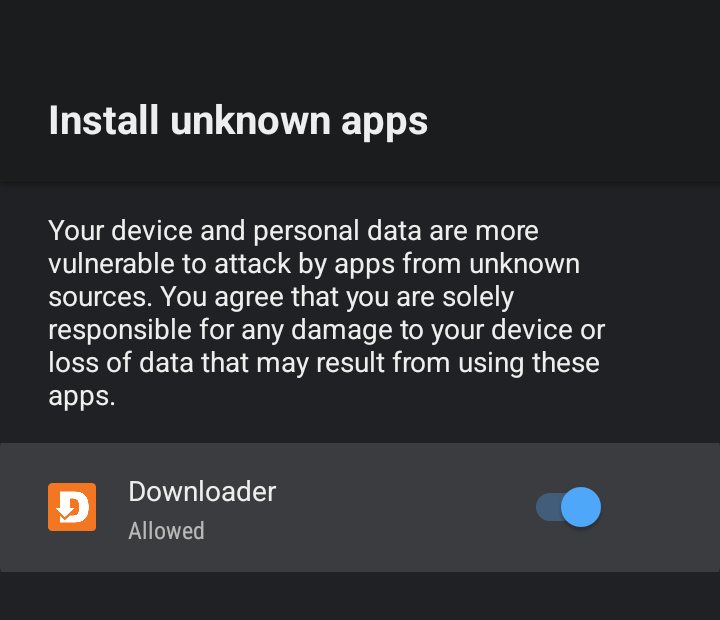
Turn the switch on and the label changes to Allowed. You will never need this screen again.
Step 3. Enter the code
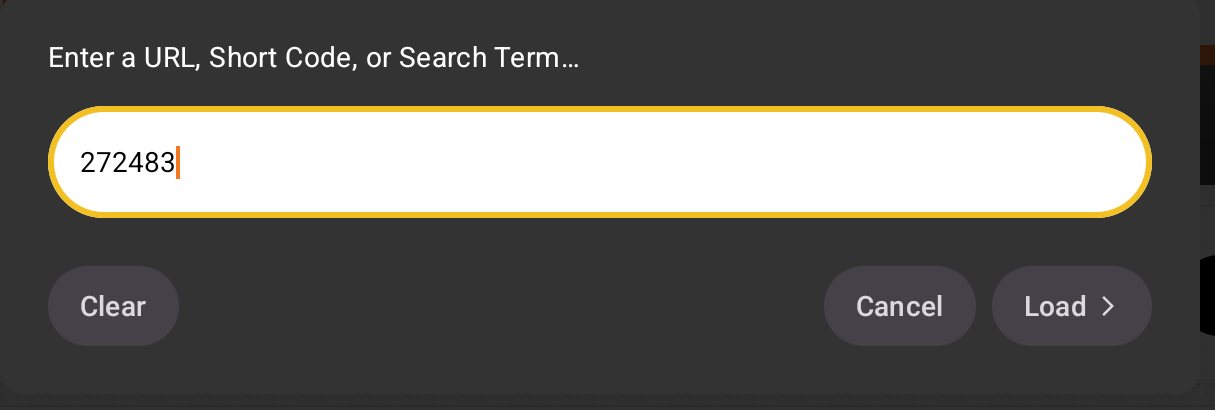
Click the top bar — the one that says "Click here to enter a URL, Short Code, or Search Term…". An input window opens, and the field takes either a short code or a full file address. The hint inside the field says exactly that: Ex: "AFTVnews.com" or "12345" or "Downloader App".
Type the code of the app you want — 272483 for TiviMate, say — and press Load. Clear empties the field, Cancel closes the window.
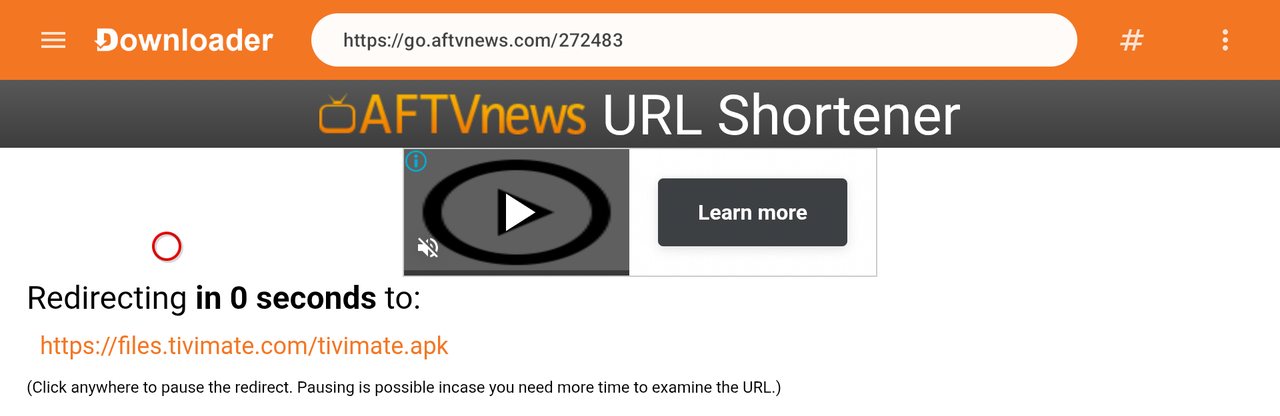
What happens next is worth seeing for yourself: the code is a short link. Downloader opens go.aftvnews.com with your code, and that redirects to the real file address on the developer's own site — files.tivimate.com/tivimate.apk for TiviMate, files.televizo.net for Televizo. There is no third party anywhere in that chain.
Step 4. Wait for the download
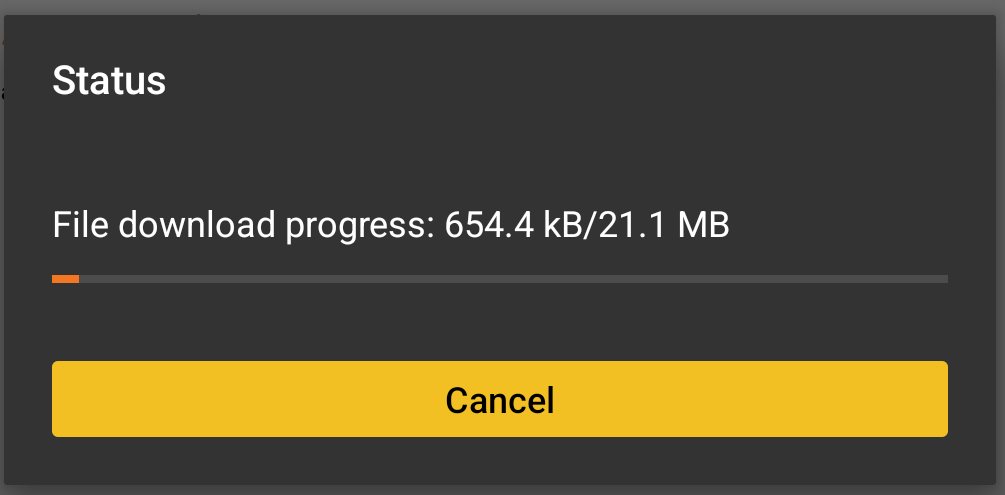
A Status window appears with a progress bar and the file size — about 21 MB for TiviMate. On a slow connection it takes a couple of minutes. If the connection drops, the counter starts over; just enter the code again.
Step 5. Install
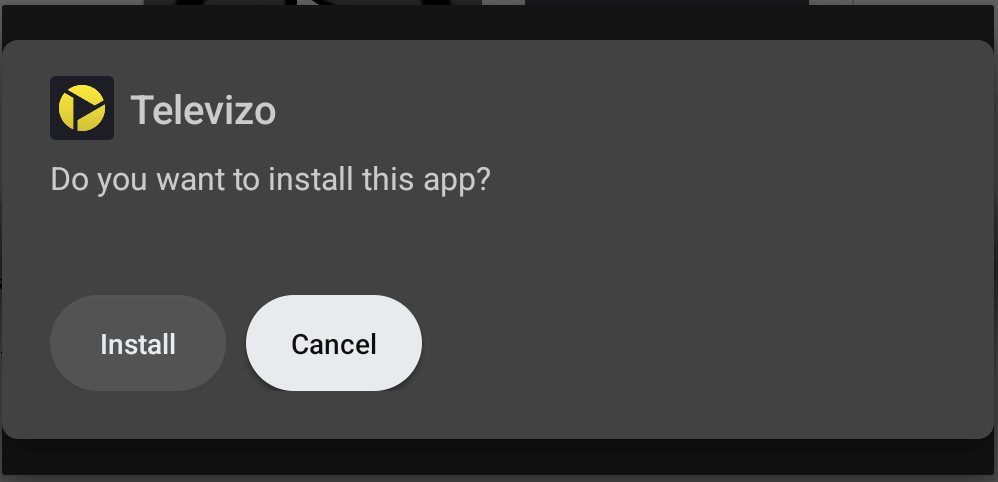
Once the file is down, Downloader opens the installer by itself. The question is simple: Do you want to install this app? — press Install.
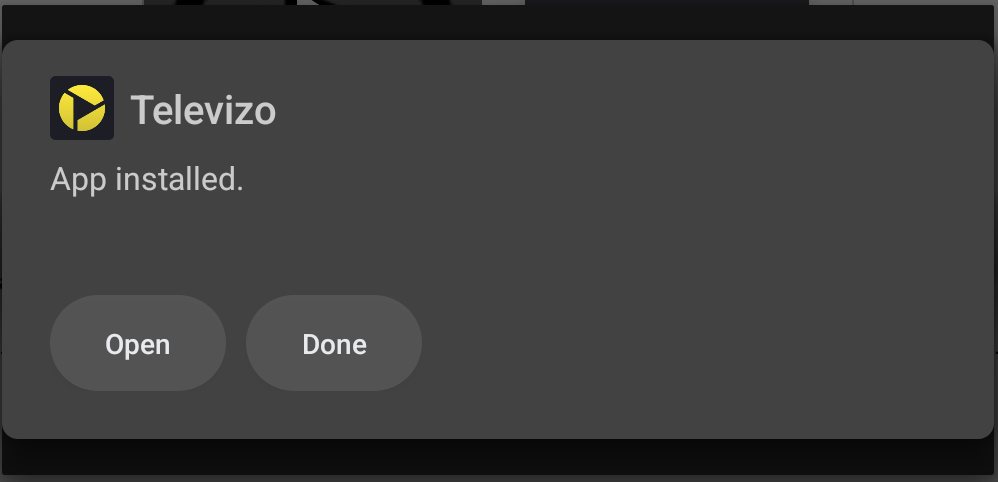
Half a minute later you get App installed with two buttons: Open starts the app right away, Done just closes the window.
Step 6. Delete the installation file
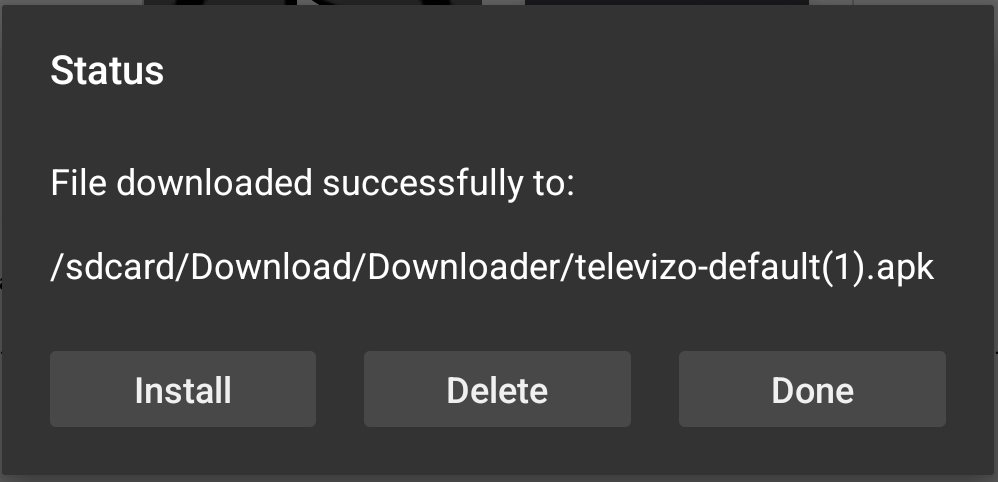
After installing, Downloader shows where it put the file — usually /sdcard/Download/Downloader/. Three buttons here: Install (install it again), Delete (remove the file) and Done (leave it).
Press Delete and confirm. The app is already installed and the file only eats storage, which TV boxes never have much of. If you ever need to install the same app again, every download is kept in the Files section of Downloader's side menu.
If the app is already installed
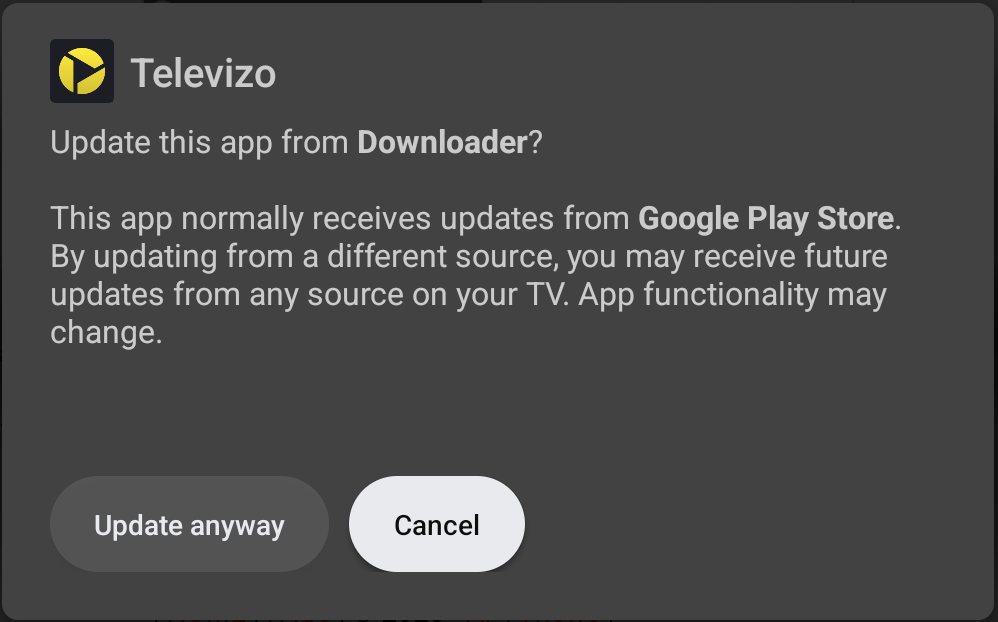
Then the system offers an update instead, and warns you that the app normally updates from Google Play while you are installing it from somewhere else: "Update this app from Downloader? This app normally receives updates from Google Play Store…" — buttons Update anyway and Cancel.
If you bought the app or a subscription in Google Play, press Cancel and update through the store instead: a build from another source may not see your purchase.
A note for Amazon Fire TV: September 2026
If you are on Fire TV and the Install unknown apps list is empty, or Downloader never shows up in it, that is not your mistake. In August Amazon shipped a Fire TV settings update that broke this list, which made granting the permission impossible. On 11 September Amazon confirmed it is a bug and that the fix arrives as an automatic system component update within a week.
To check for it: Settings → My Fire TV → About → Check for updates. Your system version number may not change — it is a separate component that updates.
If you would rather not wait, write to us: on most Android TV devices the app you need is right there in Google Play and Downloader is not needed at all.
What comes next
The app is installed but empty: players carry no content of their own. The next step is adding your subscription's playlist, and that is a separate illustrated guide: "How to set up IPTV on Android devices: TiviMate and Televizo".
We email your viewing details once the subscription is active, and they are always available in your account on entbox.uk, in the subscription details.
If something does not work
- "Installation blocked", or the installer never opens — the permission from step 2 is missing. Check that the switch is on for Downloader and reads Allowed.
- The code does nothing, no page opens — check the digits, and check that the box is online: open something in its store or browser.
- The download keeps starting over — the connection is dropping. Use a cable, or move the box closer to the router.
- Not enough space — delete earlier downloads in the Files section of Downloader's menu.
- The app installed but you cannot find it — it is in the full app list. On Fire TV bring it forward: highlight it in the list, press the menu button on the remote and choose Move to Front.
If you get stuck, write to support@entbox.uk with your subscription number (S0xxxx), the model of your device and the step you stopped at. With those three lines we can answer straight away, without a round of questions.