
Both apps do the same job — they play the channels and films that come with your Entertainment Box subscription. Neither provides any content of its own: you add your own playlist, and everything appears. TiviMate is built for a remote and lives on TV boxes and Android TV sets; Televizo also runs on a phone or a tablet. Below, both apps are shown on a real Android TV box, screen by screen.
Both are in Google Play. If your store does not show them, they install through the Downloader app by code: TiviMate — 272483, Televizo — 474318. The whole procedure is in a separate guide, Downloader: how to install an app on your TV box by code.
Which playlist type you need — your package decides
This is the part people get wrong most often, and it is not a matter of taste.
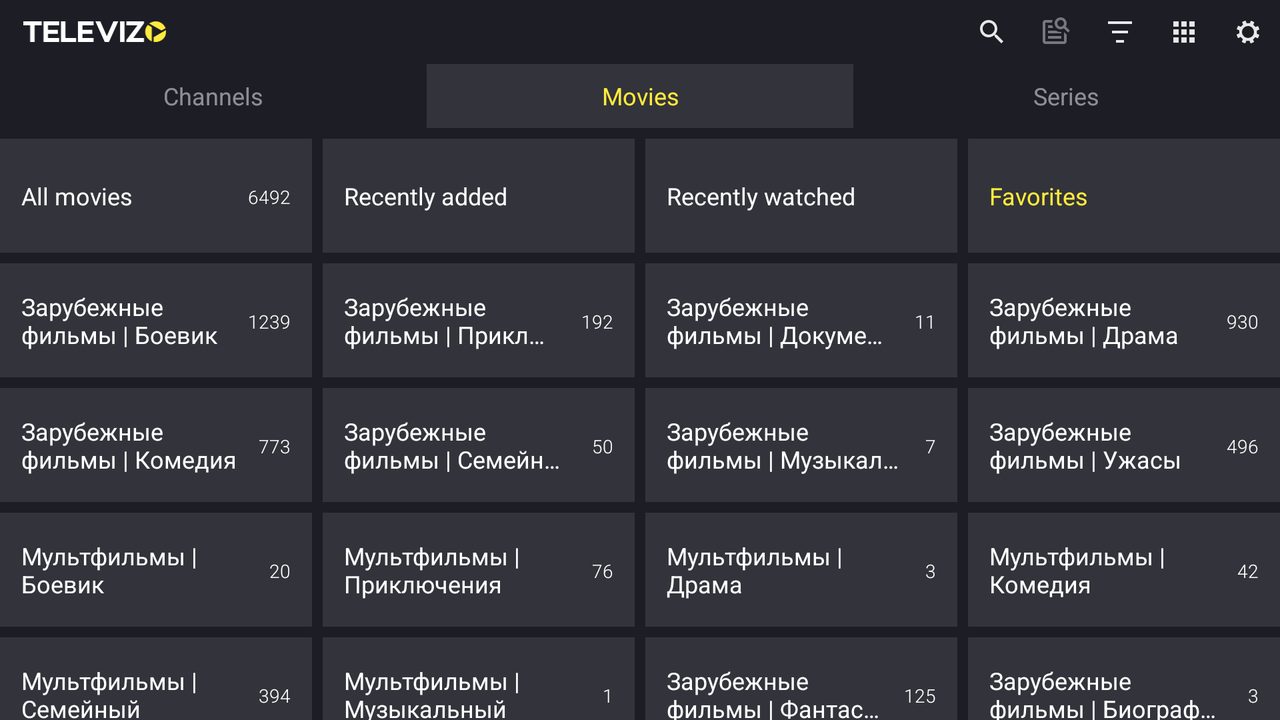
- Sputnik Full and Sputnik Medium — Xtream Codes. One playlist brings in channels, the film library, the programme guide and the catch-up archive. On our test subscription that was 1209 channels, 6492 films and 1643 series from a single entry.
- Sputnik Lite and Sputnik Start — M3U. There is no film library in these packages, so there is nothing for Xtream to add.
- Parus, VIP Media, Globus — M3U.
- Grand TV — two playlists: an M3U for the channels and a separate M3U for the film library. The second one is added as a VOD playlist (no TV channels).
Xtream Codes is provided to Sputnik TV subscribers only. If your package is not Sputnik, use the M3U link — it is the normal way for your subscription, not a downgrade.
The typical complaint "the film library is missing" almost always means a Sputnik Full or Medium package was added as M3U. The fix is to delete the playlist and add it again as Xtream Codes.
Where to find your connection details
After we activate your subscription we send you the viewing details by email, and the same details are always available in your account at entbox.uk, in the subscription information. For M3U you need the playlist link; for Xtream Codes you need Username, Password and Server.
TiviMate: adding an M3U playlist
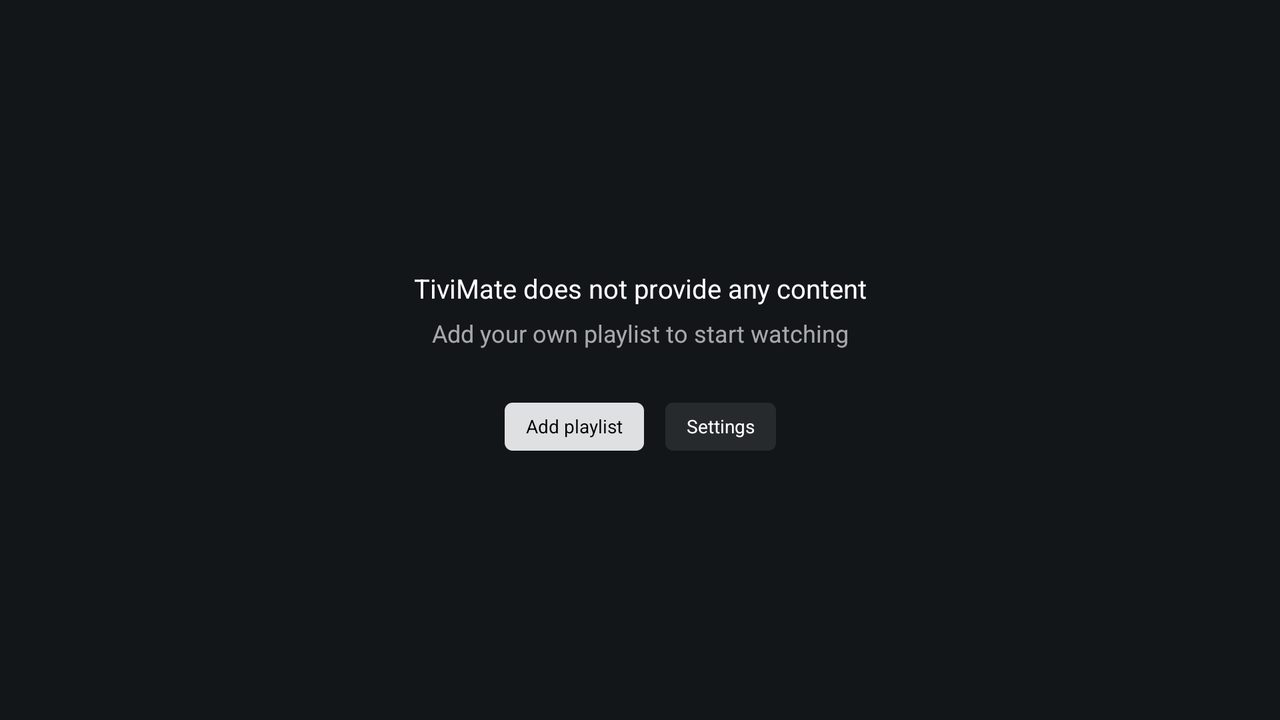
A freshly installed TiviMate says it provides no content and offers Add playlist.
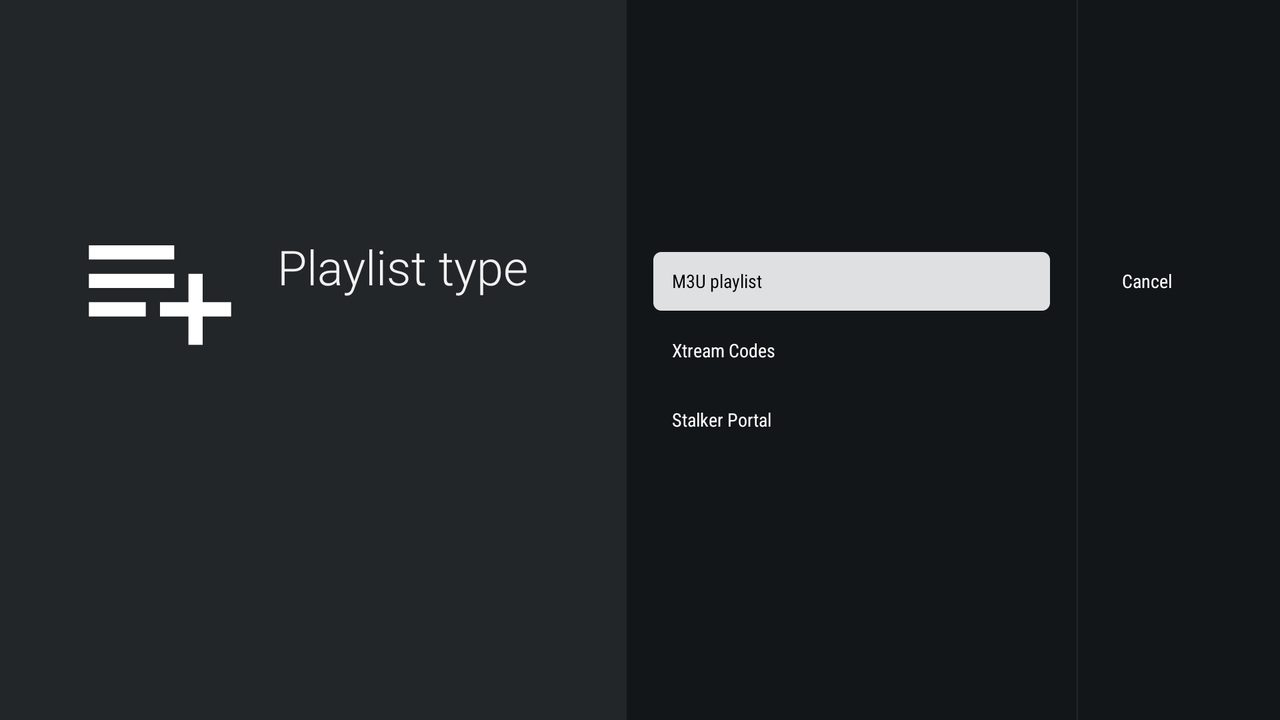
M3U playlist is the first item and is already selected.
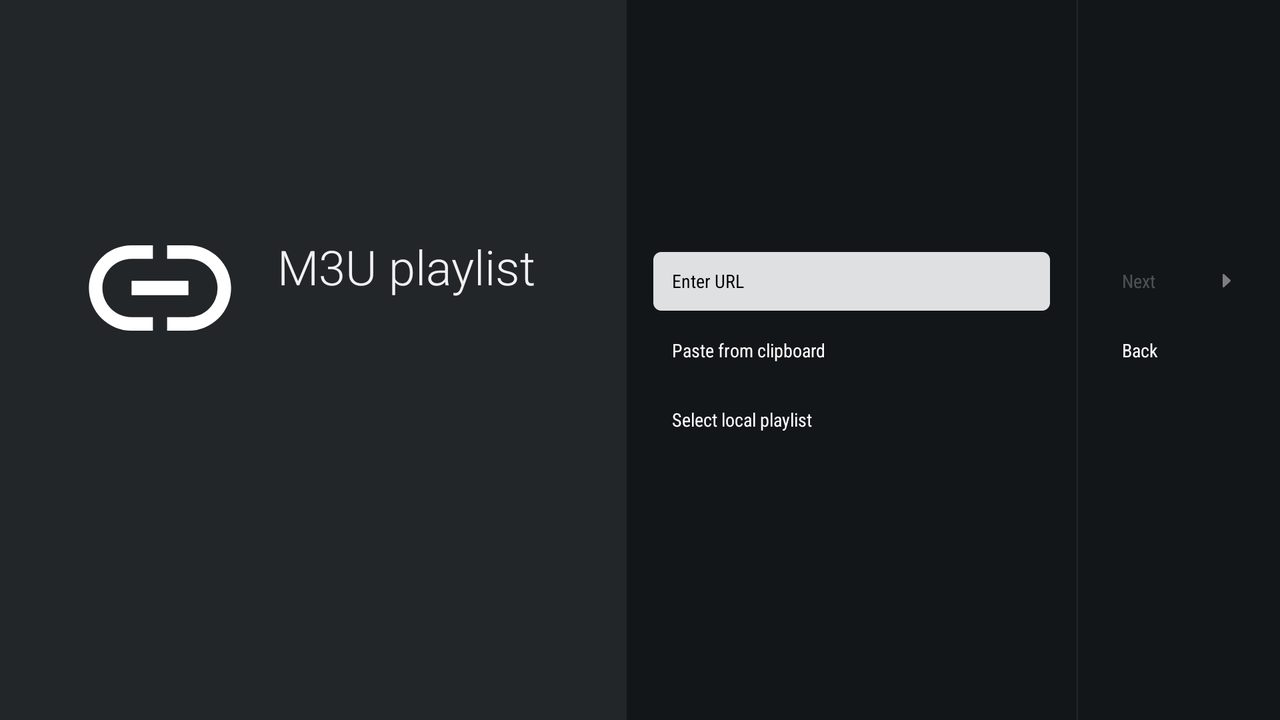
Choose Enter URL and type in the playlist link.
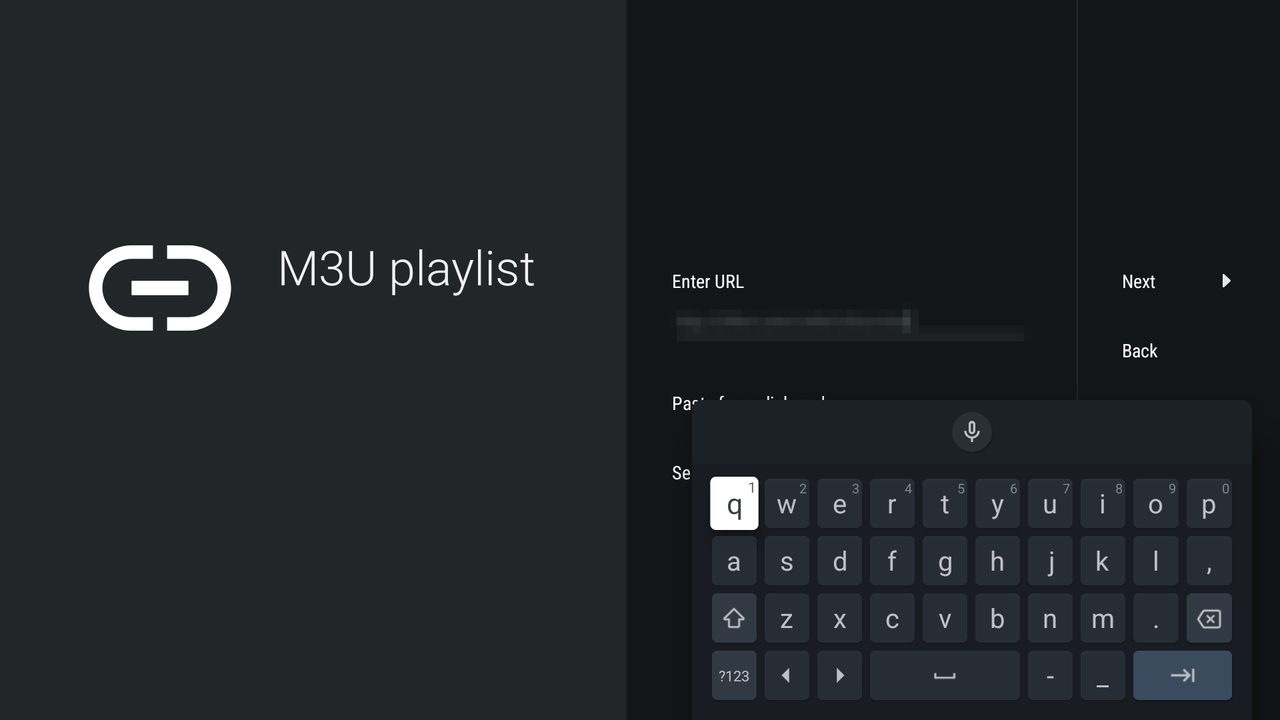
Type it exactly as it appears in your details, including http://. Then press Next — the app downloads and processes the playlist.
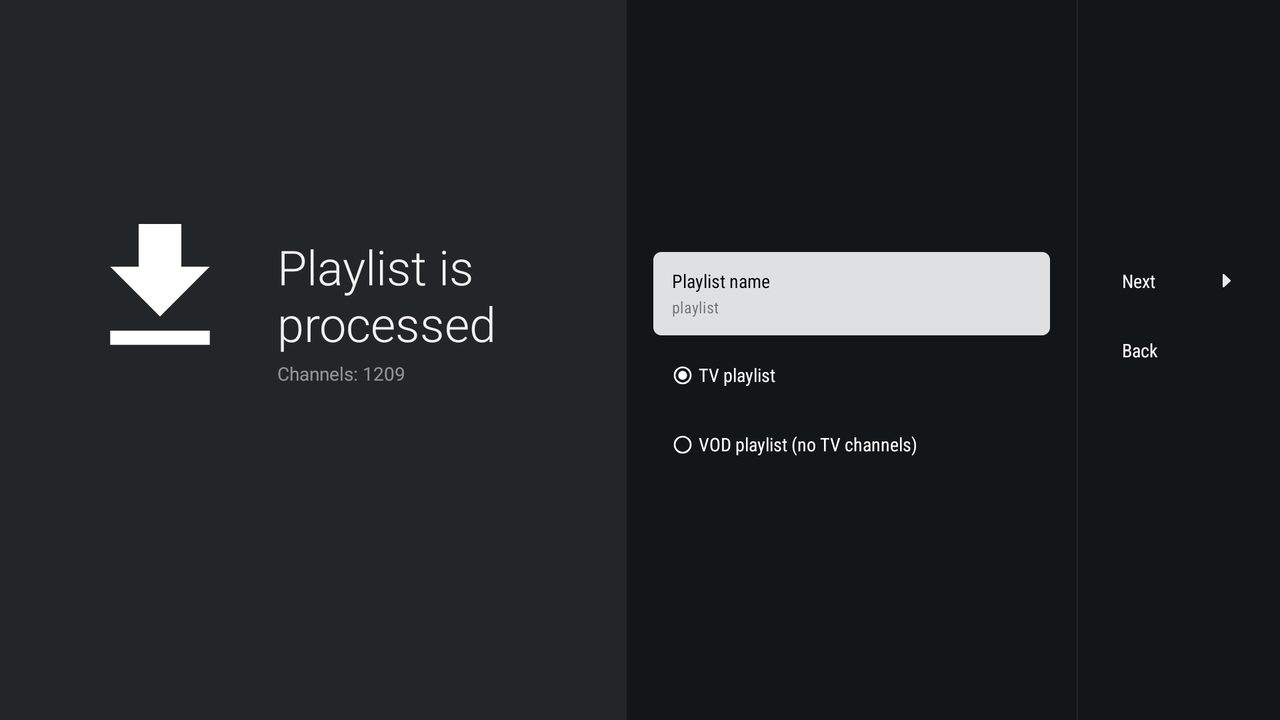
Here is what an M3U playlist brings: channels only, no films and no series. Below the name there is a switch — TV playlist or VOD playlist (no TV channels). Leave TV playlist for the channels; the VOD option is for a separate film-library playlist, which is how a Grand TV library is added.
Note for Grand TV subscribers: two playlists means TiviMate needs its paid version, because the free one allows a single playlist. Televizo has no such limit — see below.
TiviMate: Xtream Codes (Sputnik Full and Medium)
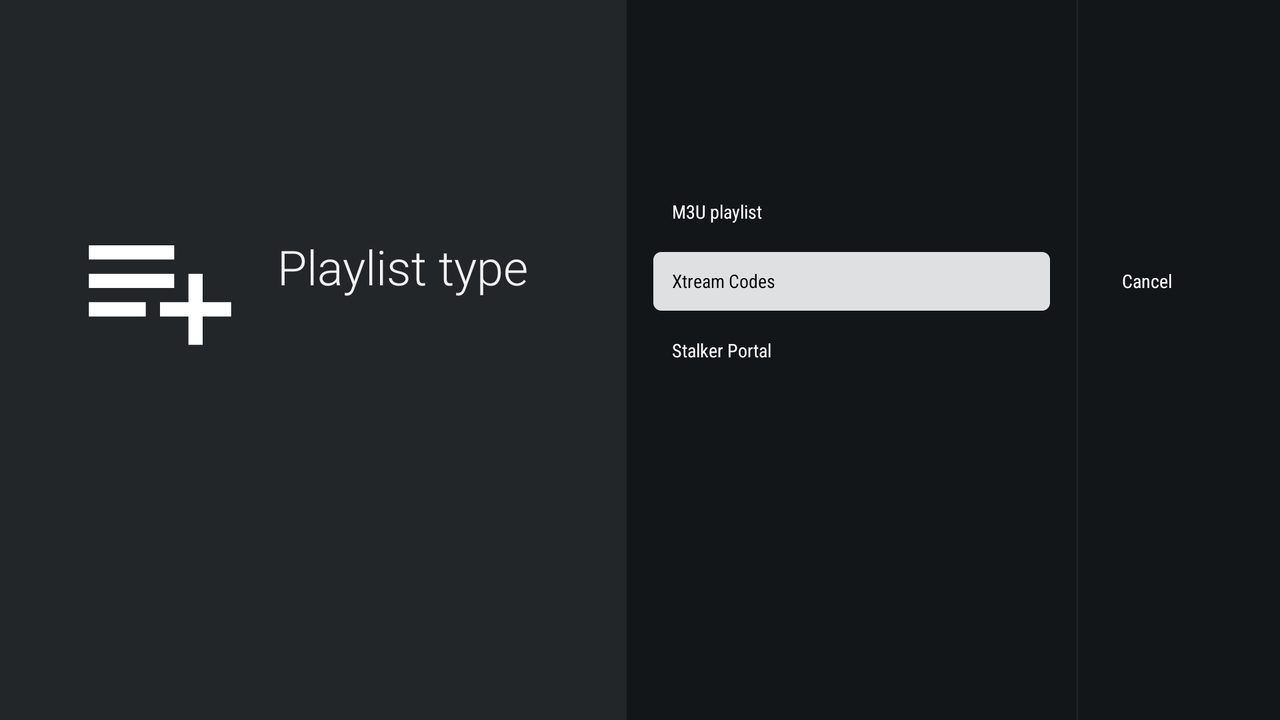
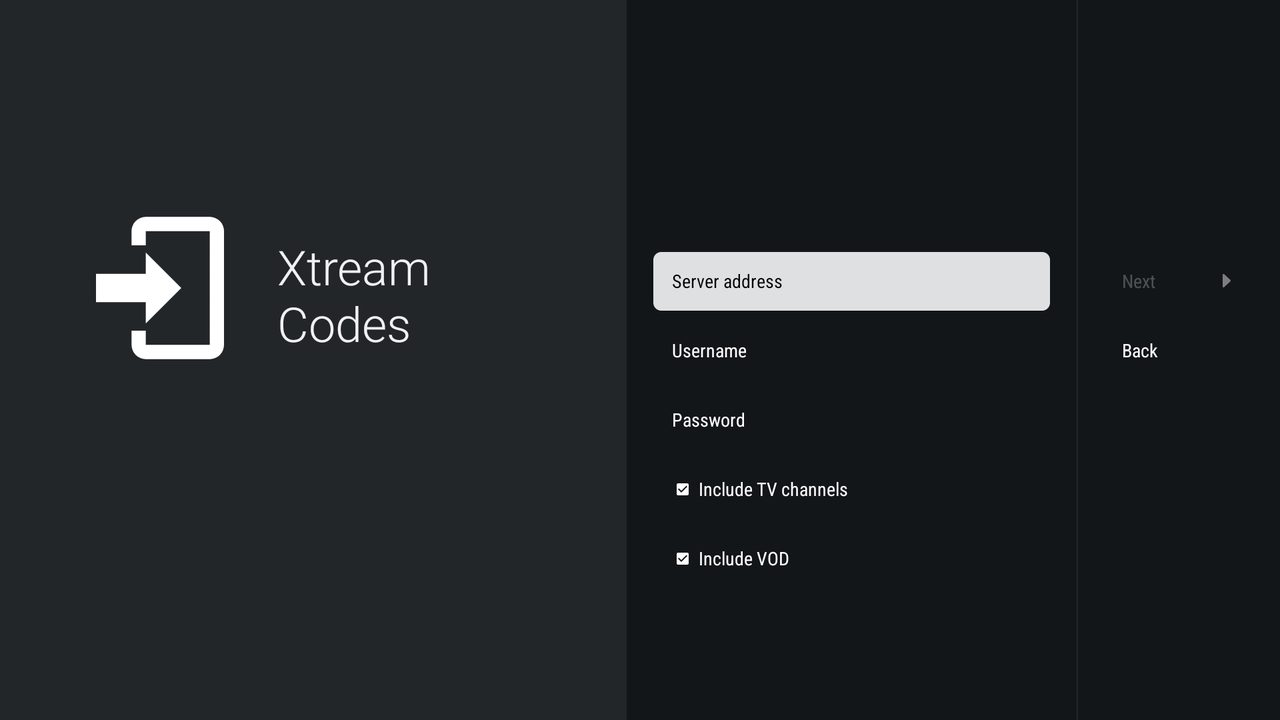
Fill in Server address, Username, Password. Leave Include TV channels and Include VOD ticked — that is what brings the film library in. The OK button moves you to the next field.
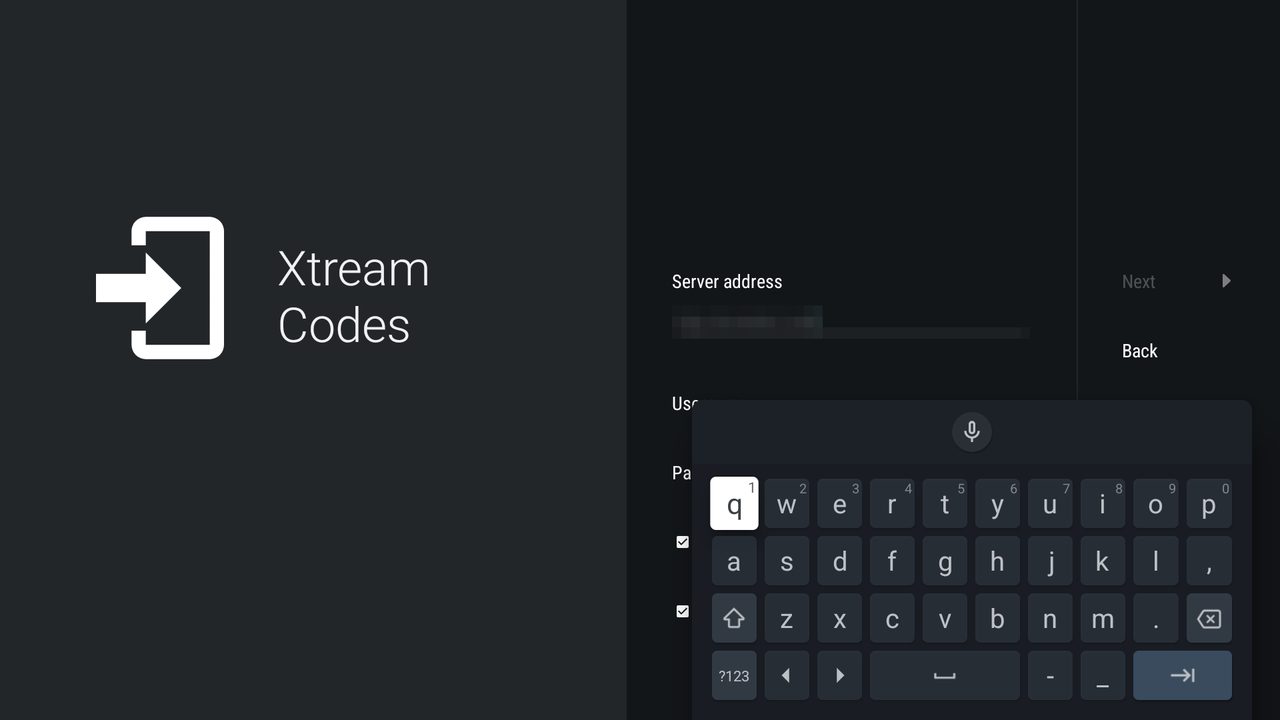
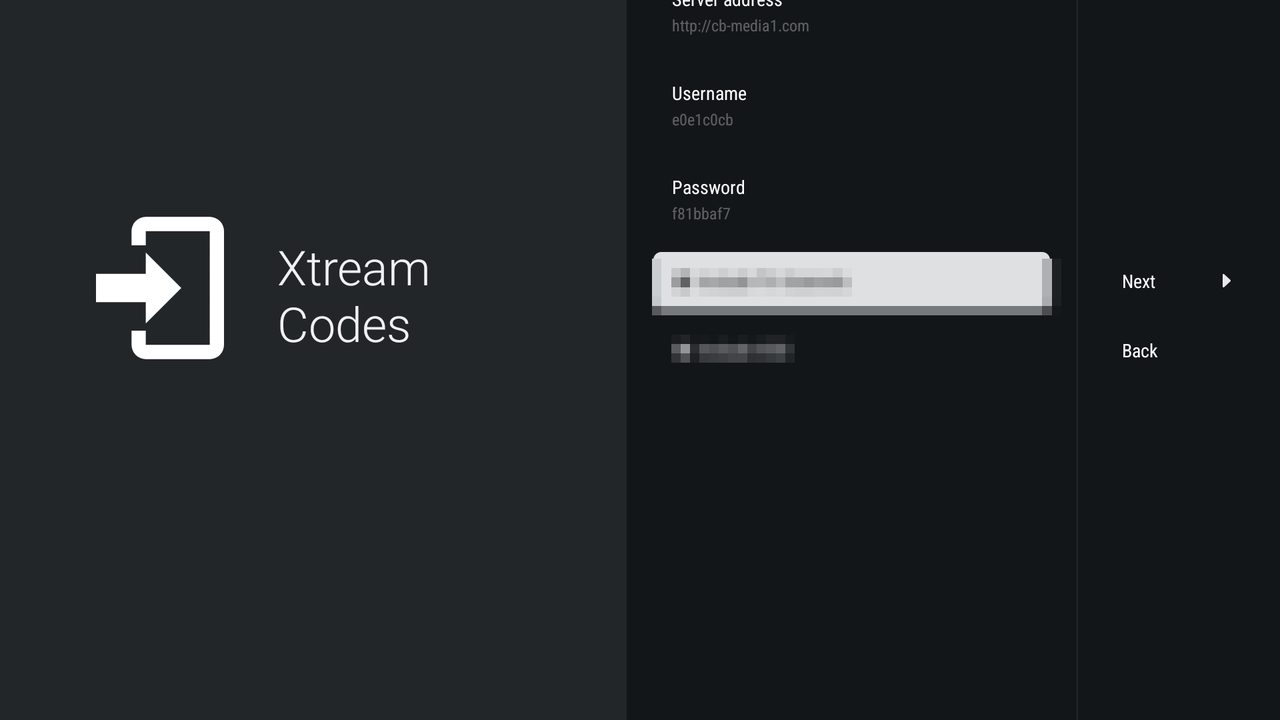
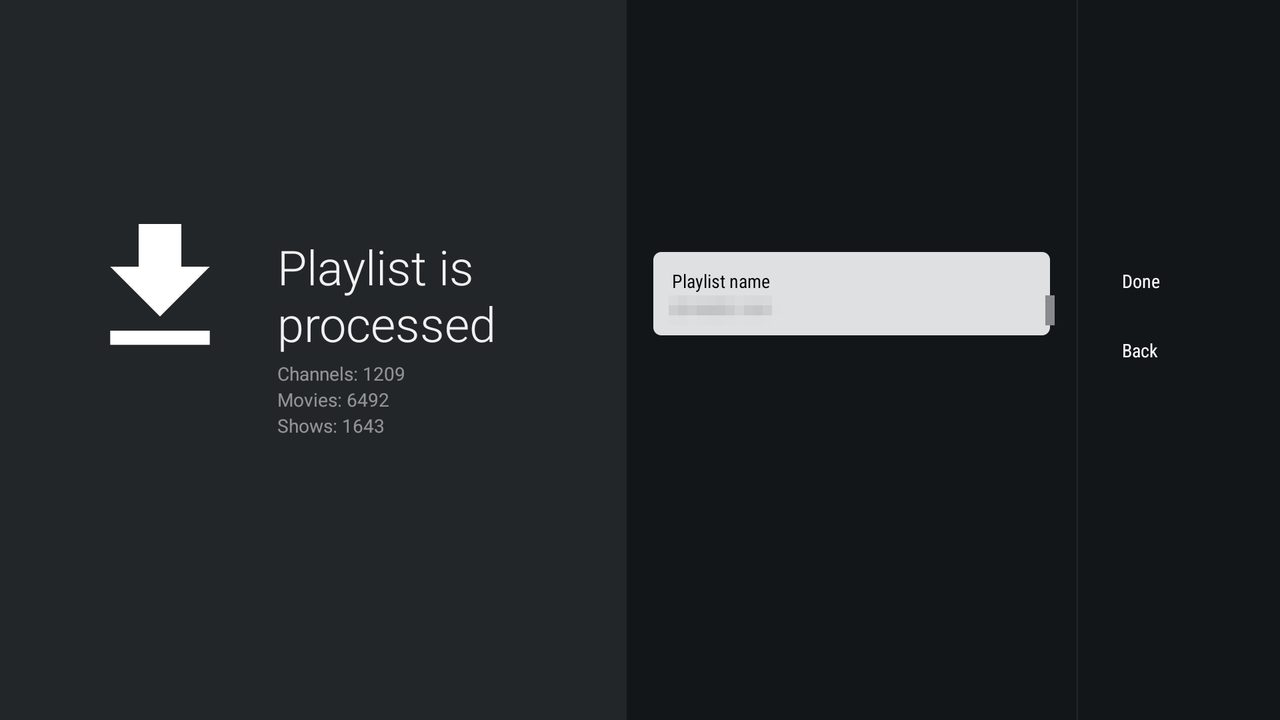
After Next the app processes the playlist and reports what arrived: channels, films and series. The name can be anything — it changes nothing. TiviMate suggests the server address; replace it with something of your own.
What you get
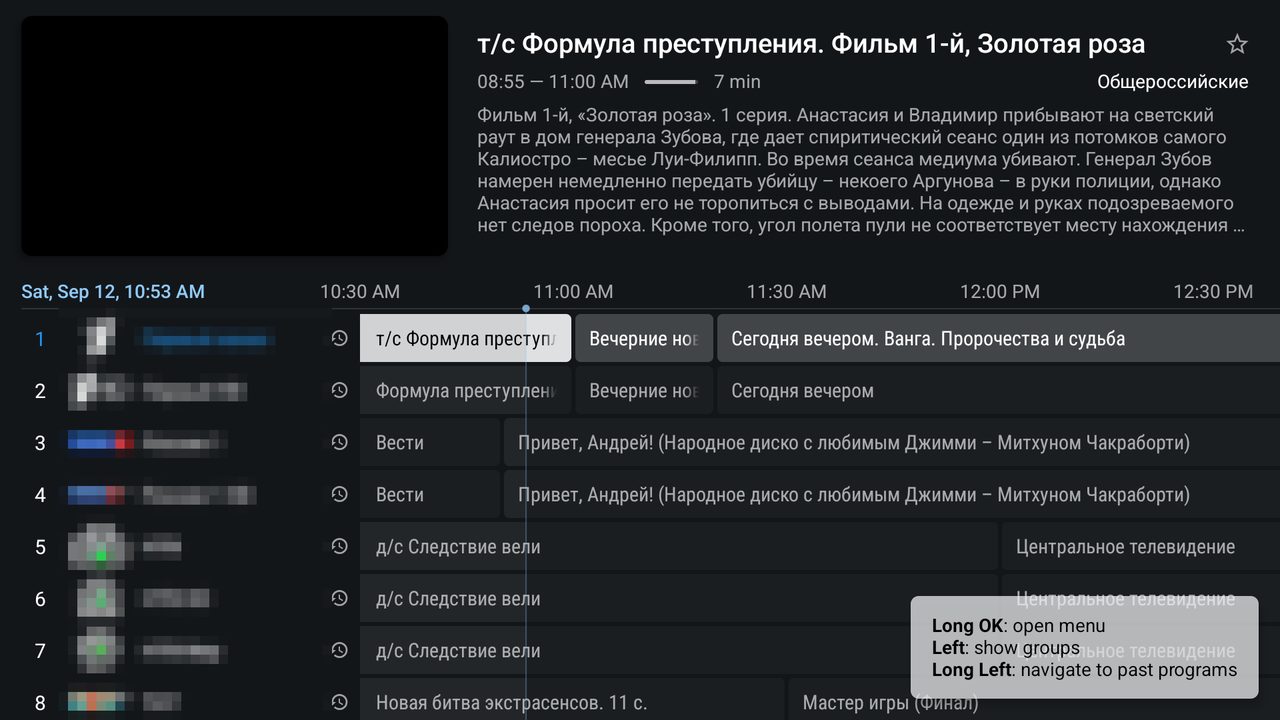
The programme guide is TiviMate's main screen. It filled itself in — with Xtream Codes you do not add the EPG link separately.
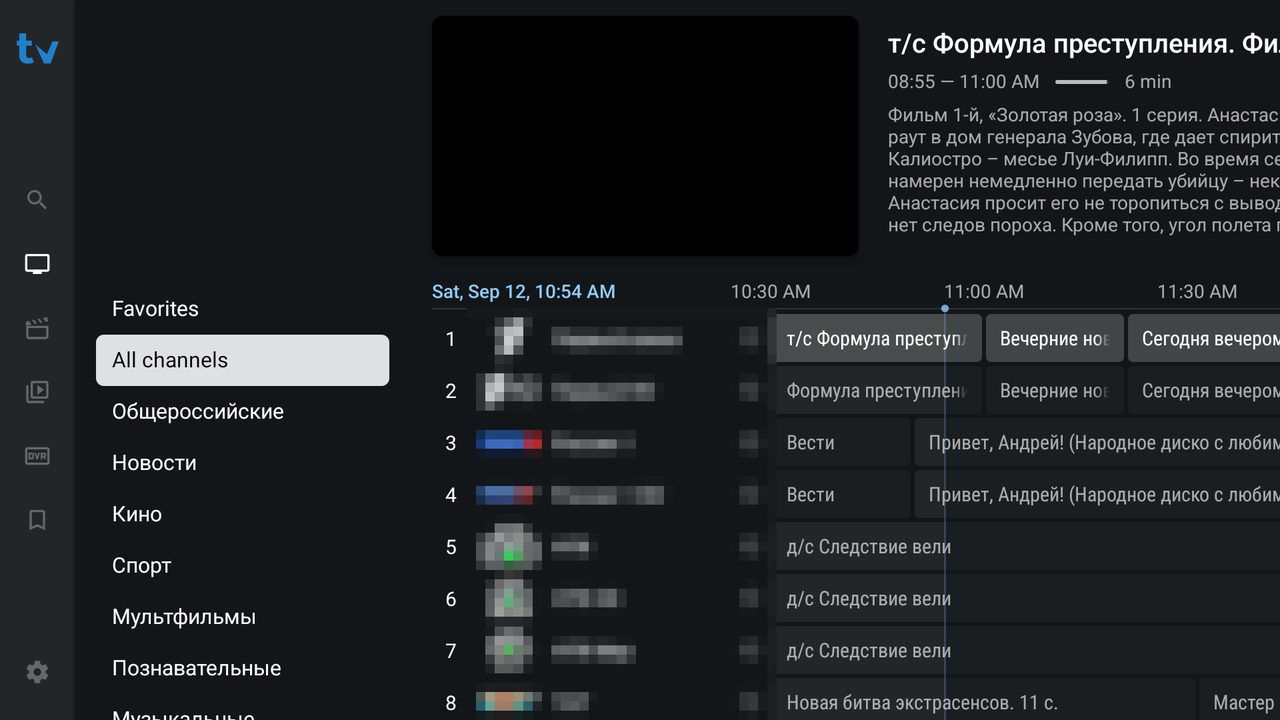
Press Left for the group list, and Left again for the icon bar: search, TV, Movies, Shows, Recordings, My list, Settings.
Watching from the archive in TiviMate
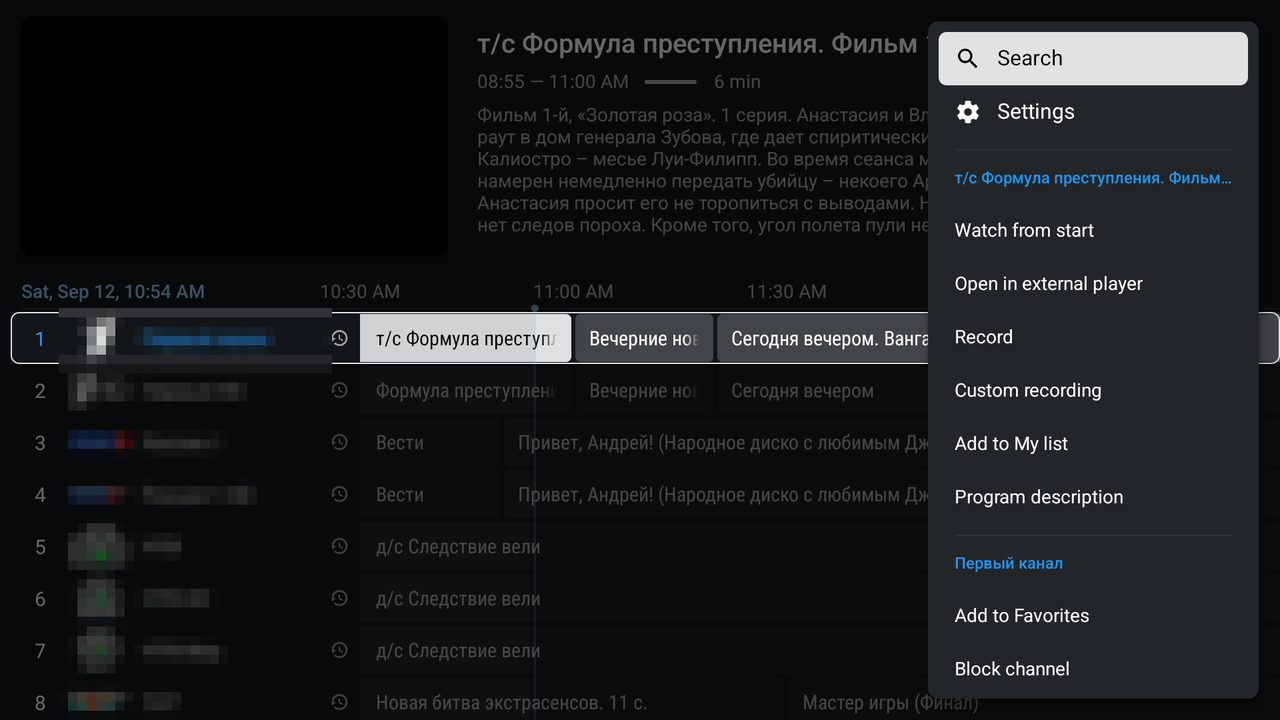
The clock icon next to a channel means the archive is available. Hold OK on the current programme and choose Watch from start. To reach earlier programmes, hold the Left arrow in the guide: the timeline travels back, and you pick a programme and press OK.
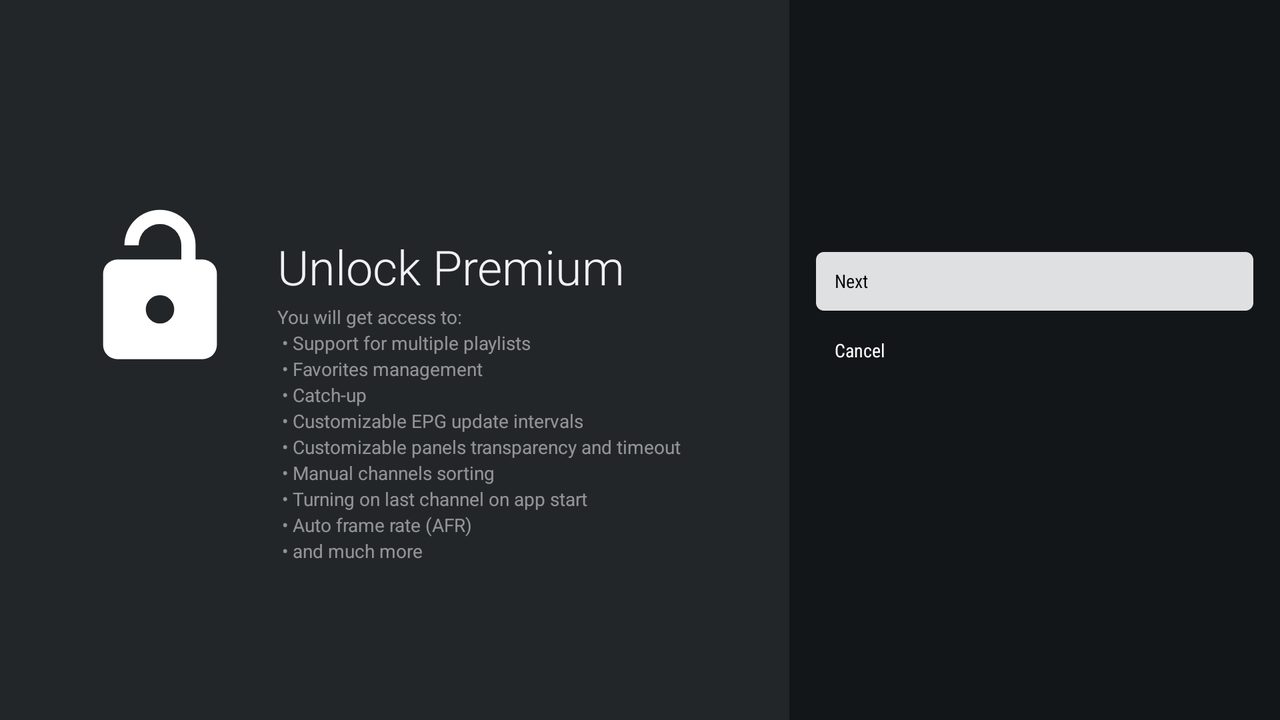
The archive in TiviMate is a paid feature. The free version plays live channels, shows the guide and the film library and allows one playlist. Premium adds the archive, multiple playlists, favourites management, manual channel sorting and automatic frame rate.
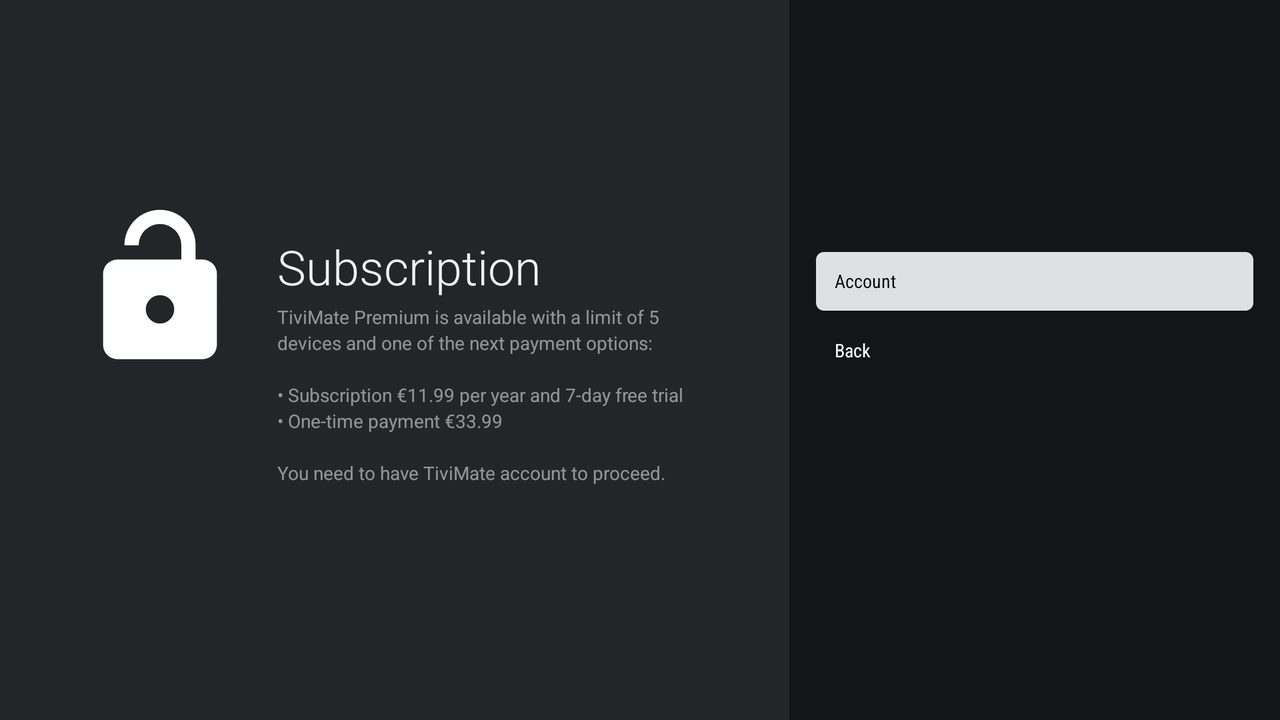
TiviMate Premium costs €11.99 per year with a 7-day free trial, or €33.99 once, for up to 5 devices, and needs a TiviMate account. This is the app developer's price and has nothing to do with your Entertainment Box subscription.
Televizo: M3U playlist, and the archive is free
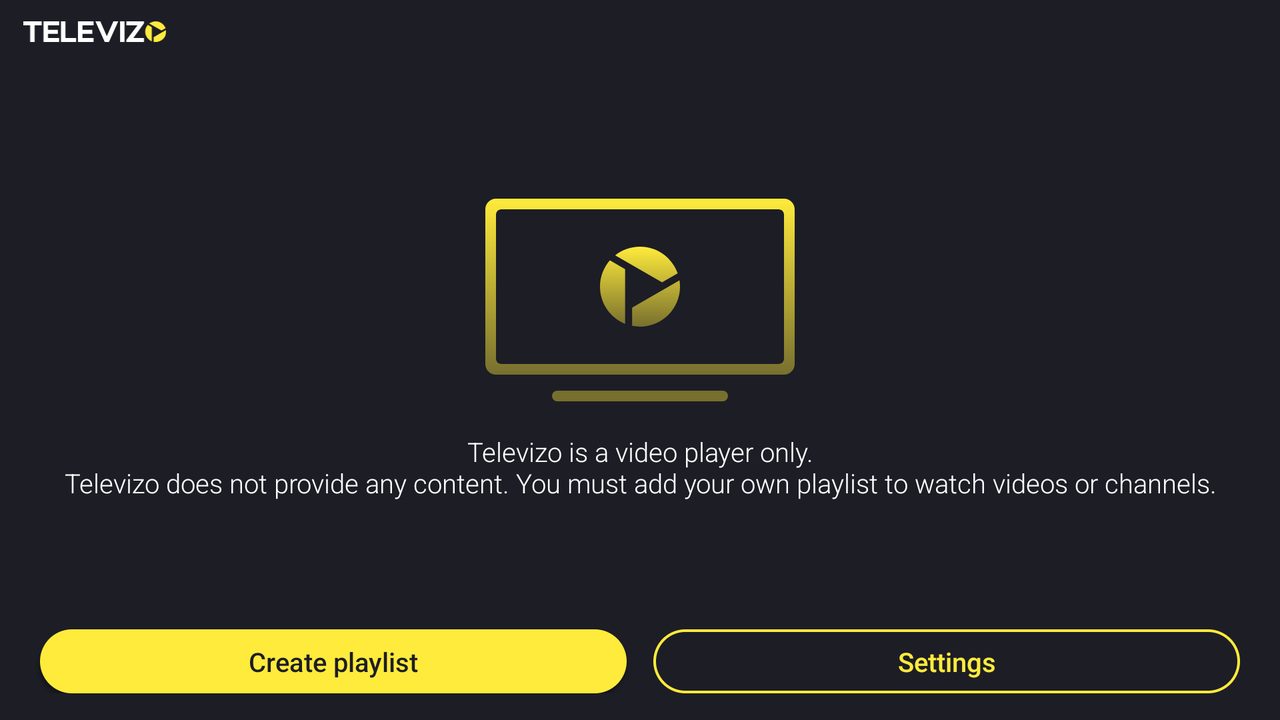
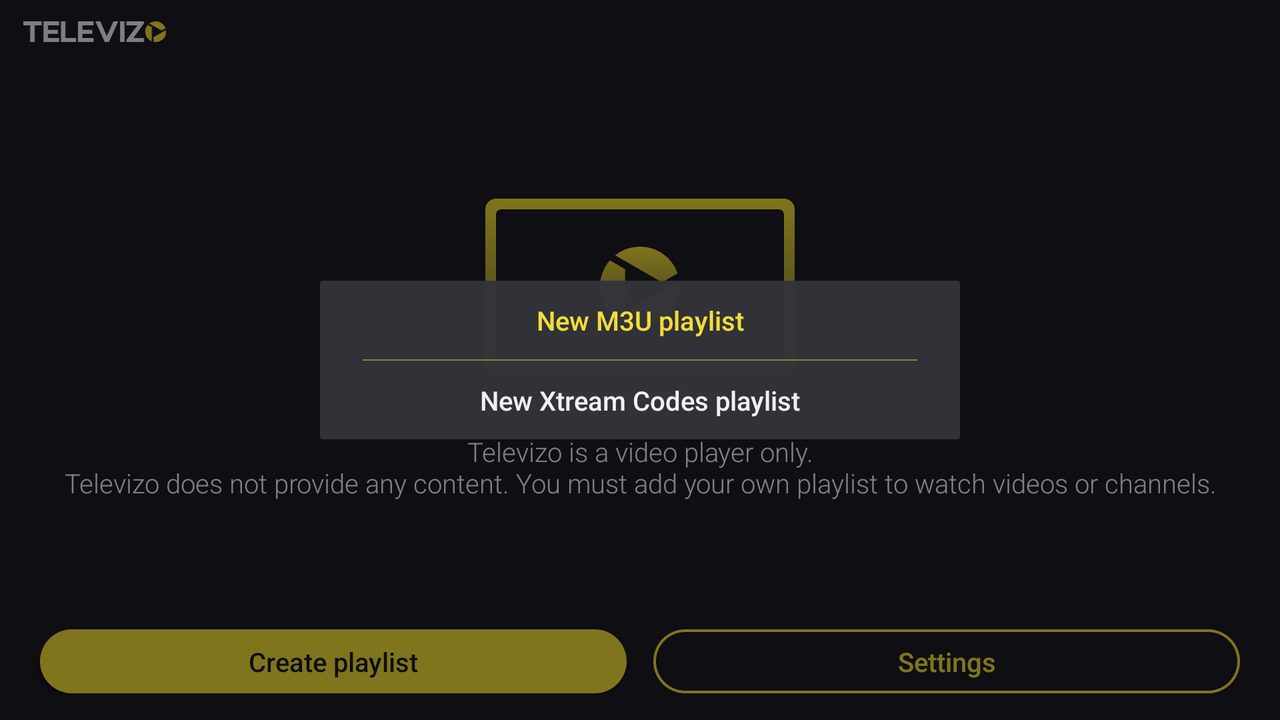
Press Create playlist and choose New M3U playlist.
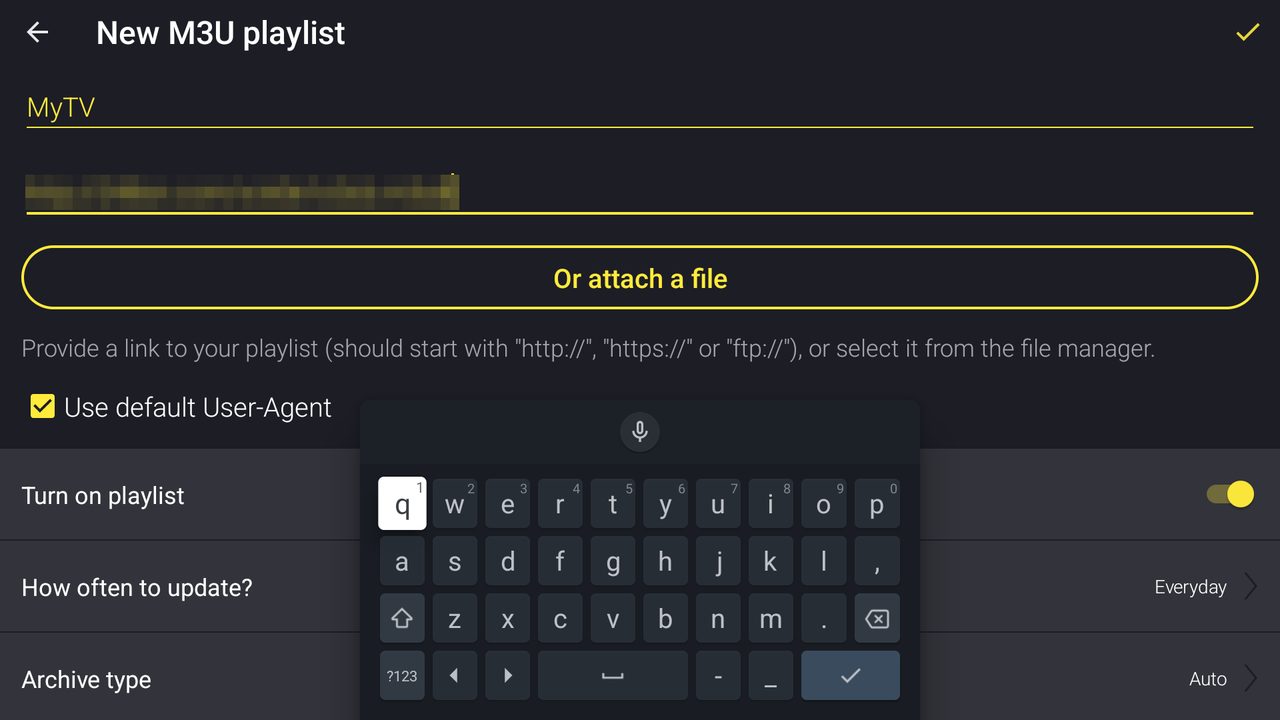
Give it a name and paste the playlist link. How often to update can stay on Everyday, and Archive type on Auto. Save with the tick in the top right corner. Televizo will warn that it is not responsible for playlists that do not work — everybody sees that message once, it is normal.
Lower down in the same form there is the archive type (Auto) and the number of archive days. Auto usually works it out; if the archive does not appear, set the number of days to your package's archive depth.
Televizo allows several playlists at no cost, so the film library goes in as a second playlist and costs nothing.
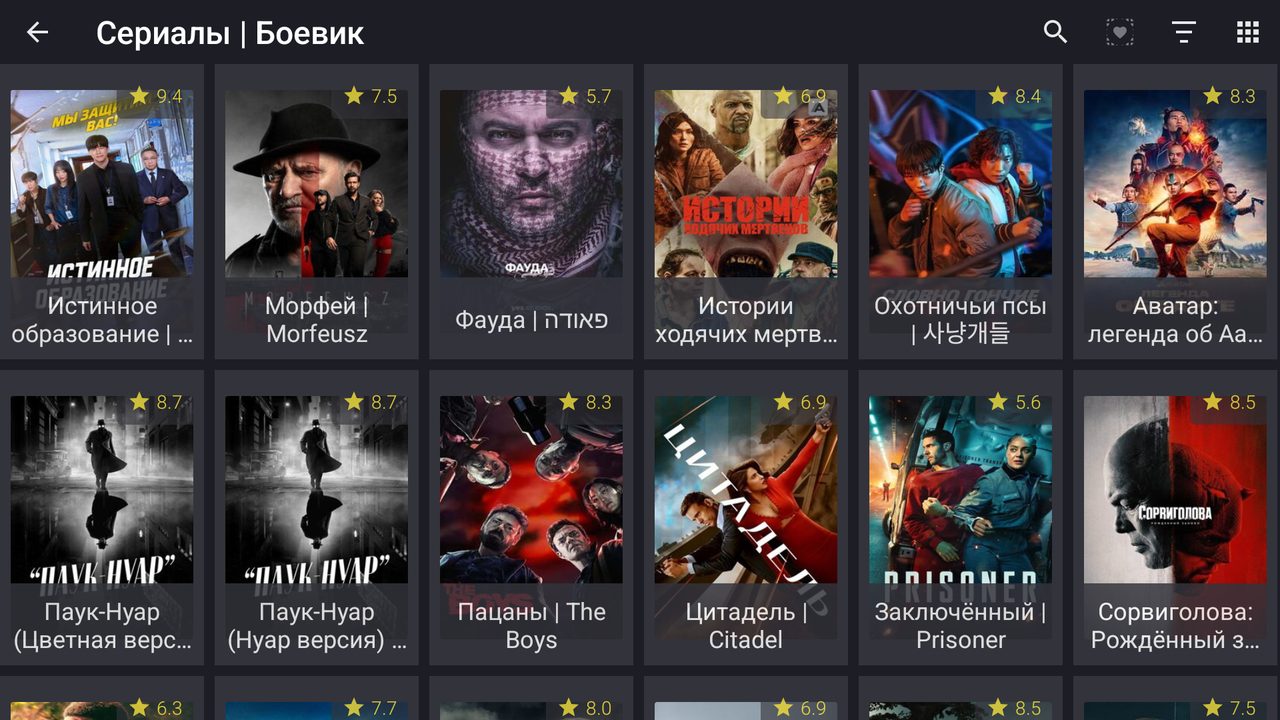
The film library in Televizo is a separate playlist, and one switch decides whether it works. Create the second playlist as a New Xtream Codes playlist, enter the same username, password and server, and then turn the Include channels switch off. Left on, the library will not work. You then have two playlists — channels and library — and you switch between them by pressing the playlist name in the main menu.
Televizo: Xtream Codes (Sputnik Full and Medium)
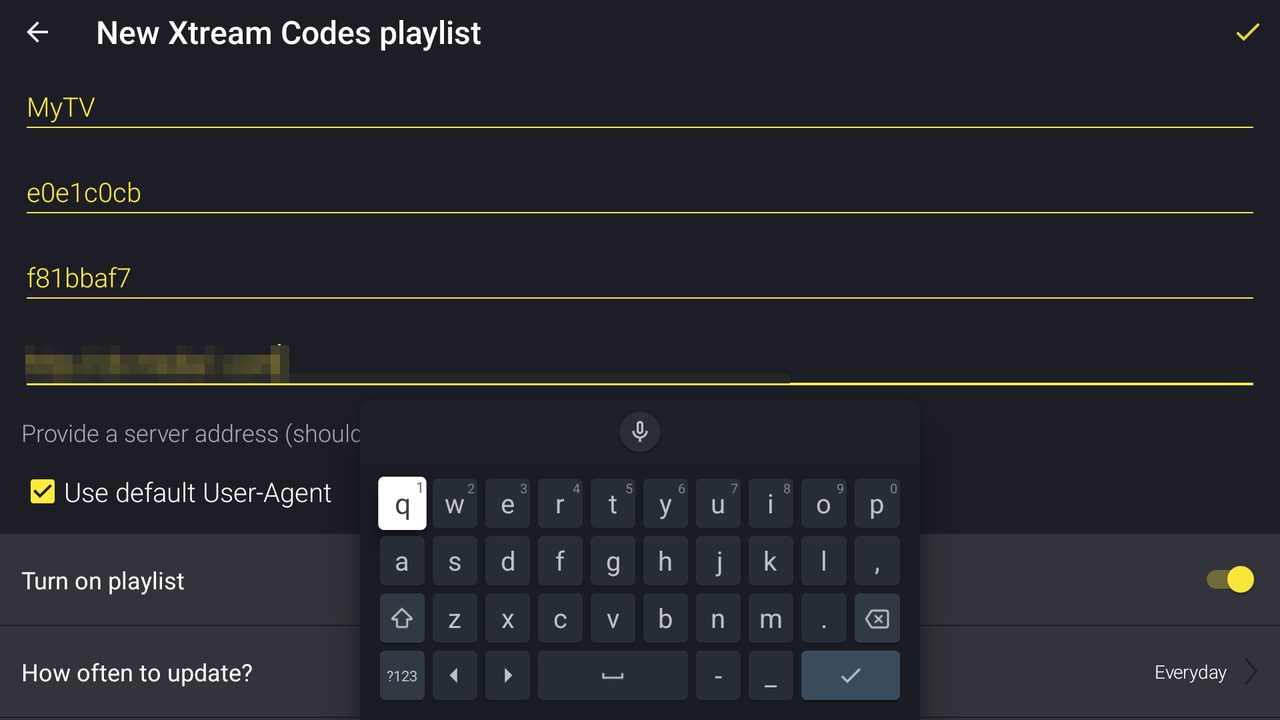
Careful — the field order differs from TiviMate. The name comes first, then Username and Password, and the Server address is last. People who have already set up TiviMate type the address into the first field out of habit.
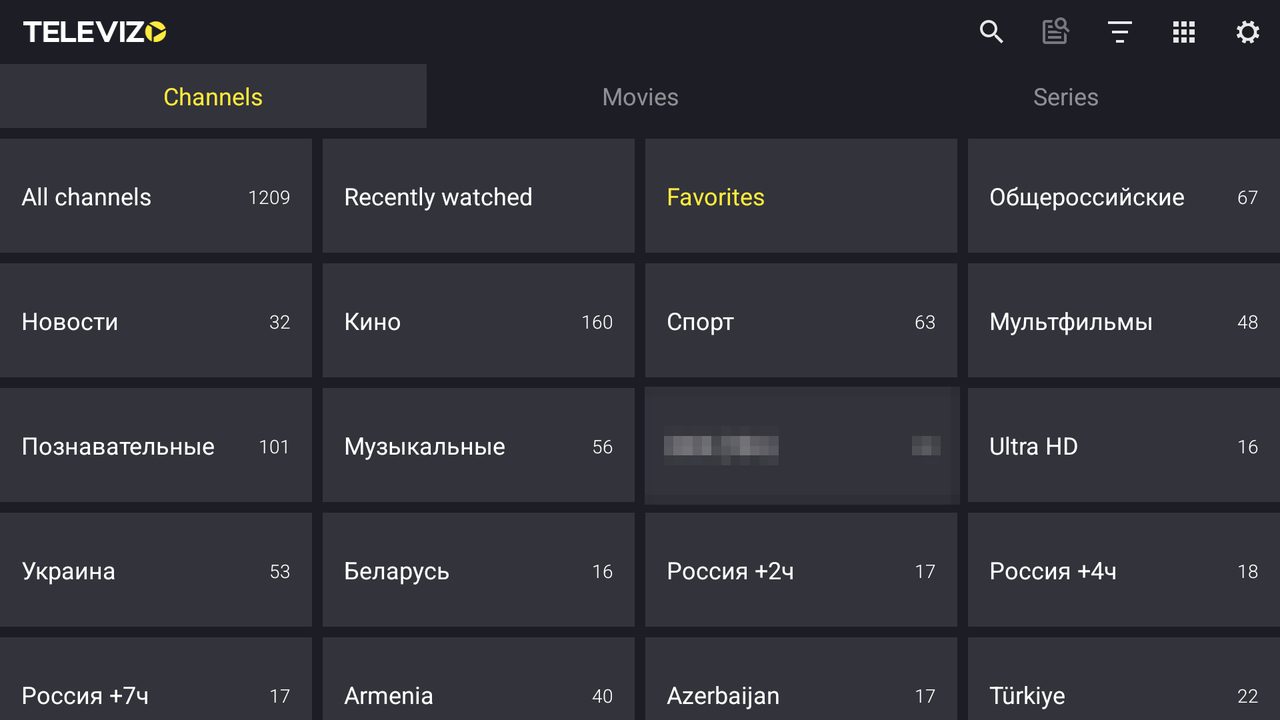
Three tabs appear: Channels, Movies, Series. With an M3U playlist the last two would not be there at all.
The archive in Televizo
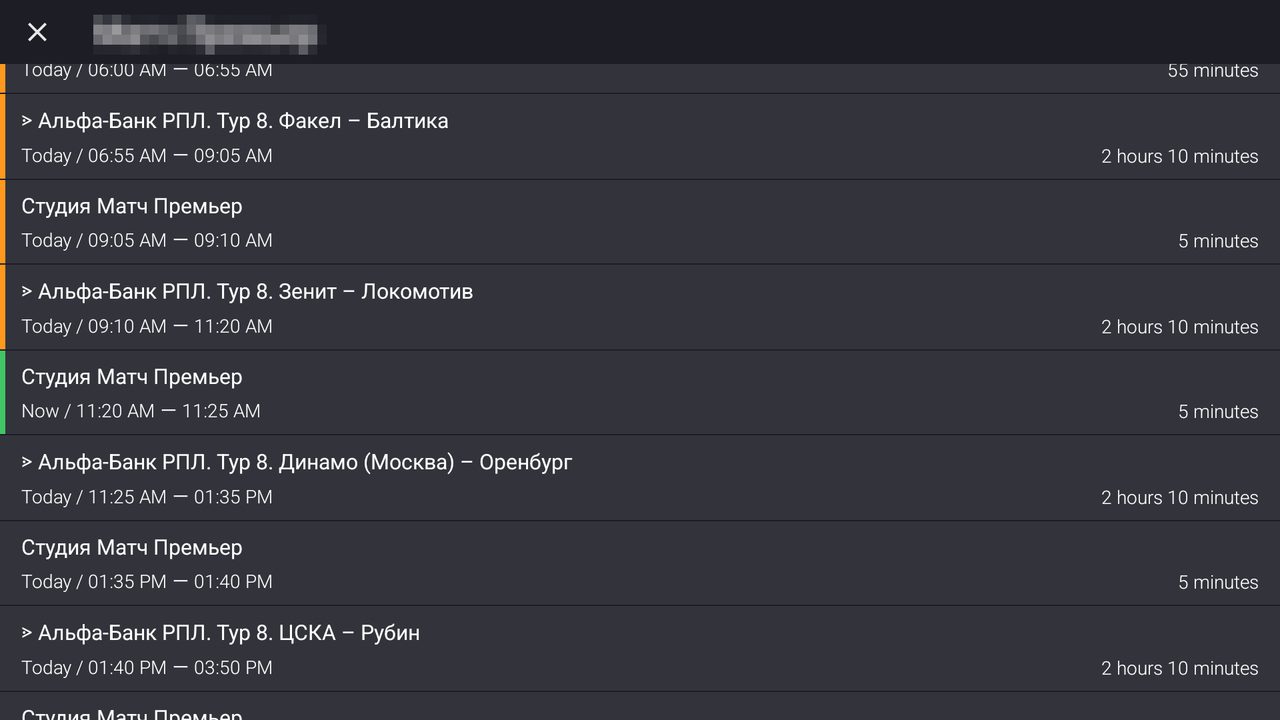
Hold OK on a channel and choose Program guide. Programmes with an orange bar on the left are available from the archive; the current one is green and marked Now; programmes with no bar are in the future.
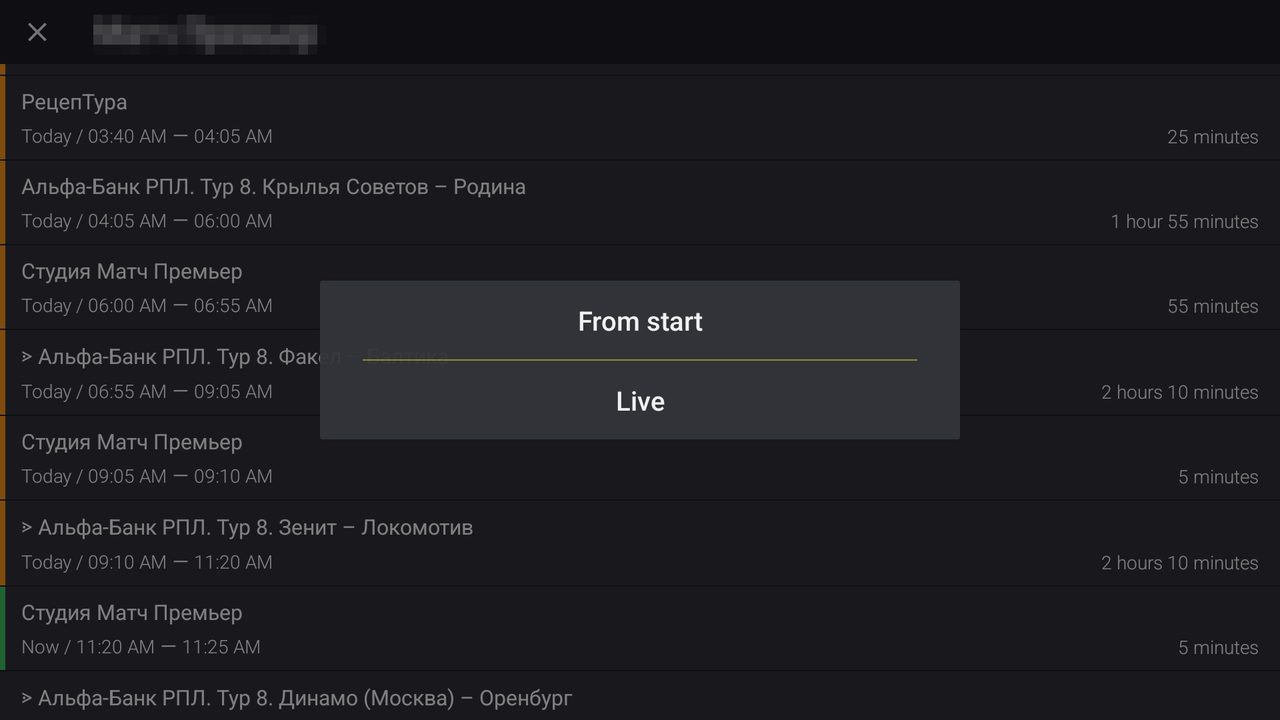
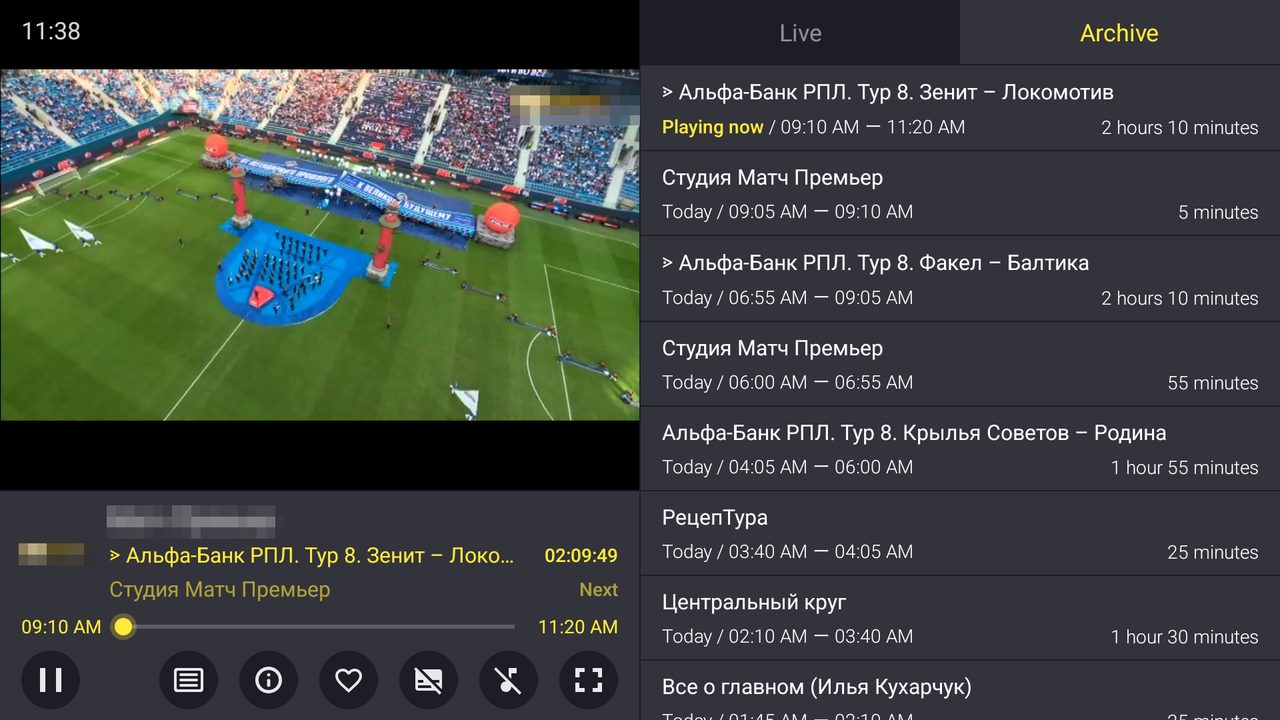
The player shows the programme's own timeline, and on the right you switch between Live and Archive. One press of Back shows "Press again to exit the archive" — a confirmation, not an error.
How far back the archive goes depends on your package: Sputnik 7 days (no archive on Start), Parus 4 days, VIP Media 5 days, Grand 14 days, Globus up to 7 days depending on how much a channel is watched. This is set by the broadcaster, so it is the same in any app.
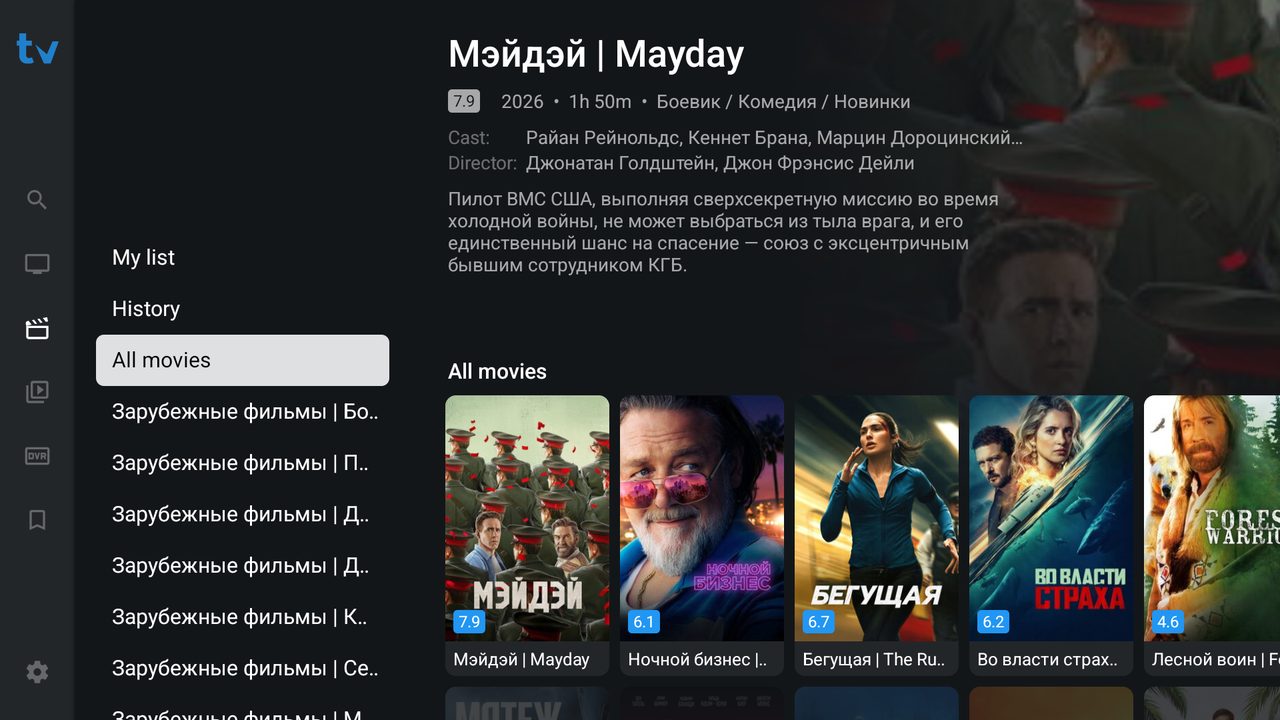
The film library
Sound: 5.1 or stereo
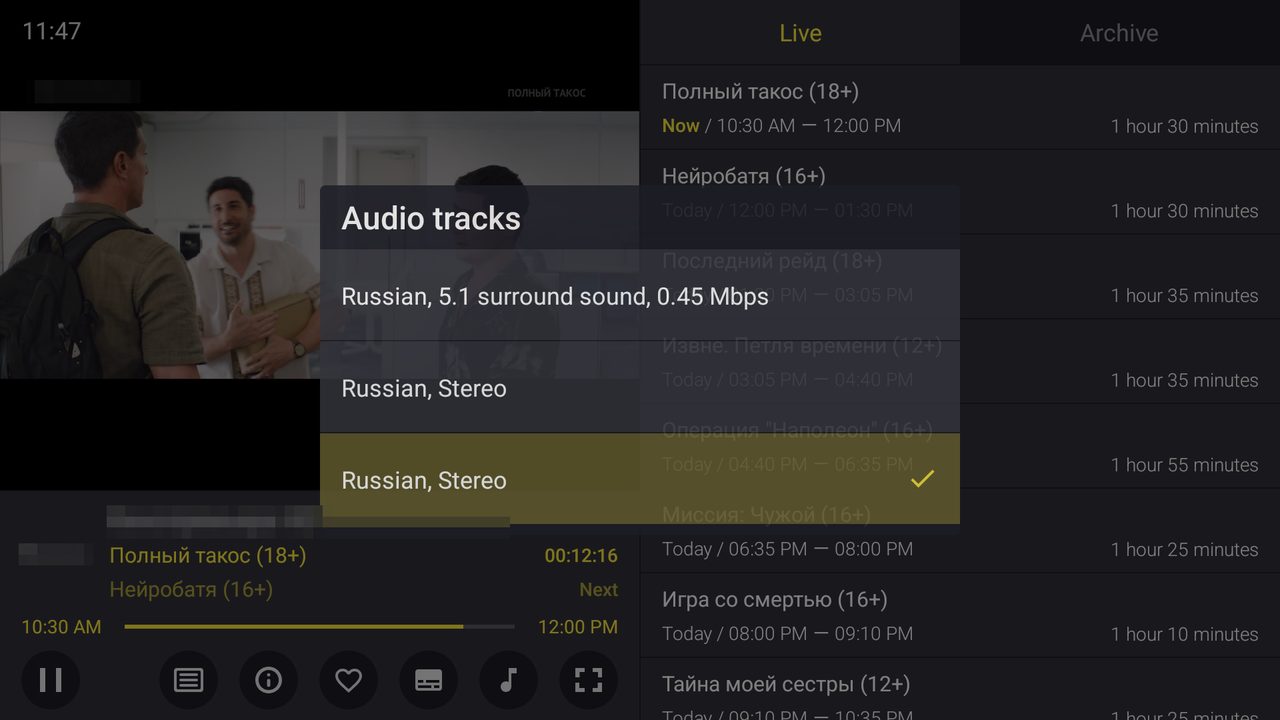
Many channels carry more than one audio track. In the player controls the note icon opens Audio tracks.
This is worth knowing if the sound seems wrong. On a 5.1 surround track, a TV or soundbar that cannot decode multichannel audio often plays the music and effects while the voices are quiet or missing entirely. The subscription is not at fault — switch the track to Stereo in this window and the dialogue comes back. A crossed-out note icon means the channel has a single track, which is not a fault either.
Small things that confuse people
- After any change on our side — a new subscription, a package change, a move to another server — delete the playlist in the player and add it again using the new details. Restarting the app is not enough: the old playlist keeps pointing at the old data.
- In TiviMate, Back twice closes the app. The guide is the home screen: the first Back opens the side menu, the second quits. Full-screen playback is reached by pressing OK on a channel that is already playing.
- The name of the playlist changes nothing. Call it whatever you like.
- Adult channels come as a separate group. Both apps can hide a group and lock channels with a PIN, in Settings.
If something does not work, write to us at support@entbox.uk with your subscription number (S0xxxx) and tell us which app and which device you are using — that usually saves a round of questions.