How to use the ClouDDy player
1. What ClouDDy is
The ClouDDy cloud media player is made for watching TV channels comfortably on a range of devices. Look for the ClouDDy widget in Google Play and in the app stores on Samsung, LG, Philips, Sony, Toshiba, Sharp, Panasonic, TCL, Haier, AOC, BenQ, AXEN, Blaupunkt, BRÜHM, BOE, CVTE, ERGO, Hisense, Medion, Metz, Vestel and UMC televisions. You can also use the ClouDDy app on Windows and Apple computers and on Dune HD and Mag players. Download links for those devices:
- Windows: files.clouddy.online/windows/setup.exe
- macOS: files.clouddy.online/mac/setup.dmg
- Linux: files.clouddy.online/linux/setup.run
- Android / Android TV: files.clouddy.online/android/latest.apk
- Samsung Tizen: files.clouddy.online/samsung/tizen.wgt
Full installation instructions are on our website under Setting up viewing (for a laptop or desktop — entbox.uk/setup/browser). If your platform is not on the list, write to our support chat.
2. Signing in to ClouDDy for the first time
Once the player is installed, register it with the details we sent you (email and password). We set the player up in advance, so you can start using it straight away. ClouDDy has no built-in playlists — to watch anything you must order a channel package subscription on our website.
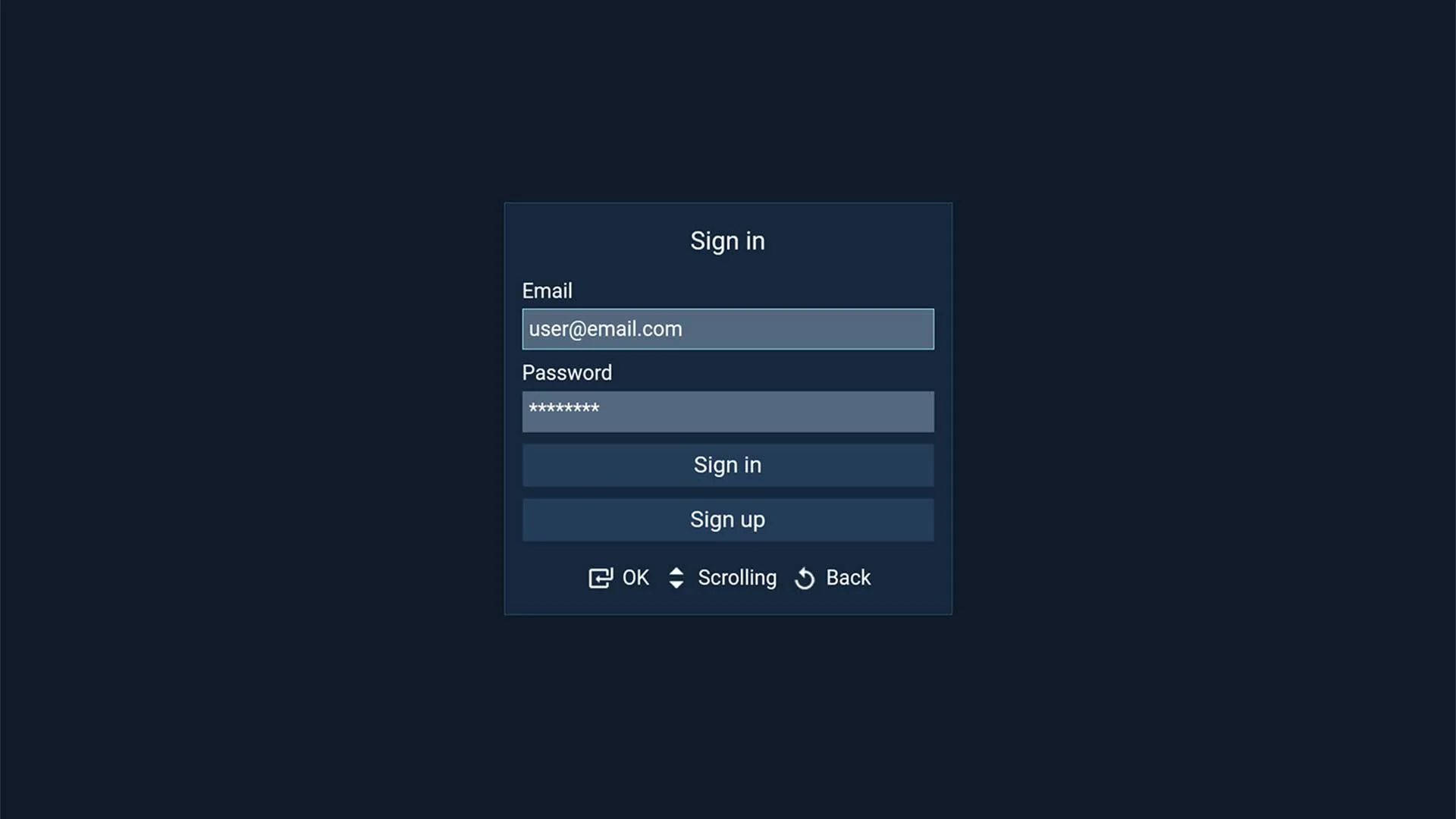
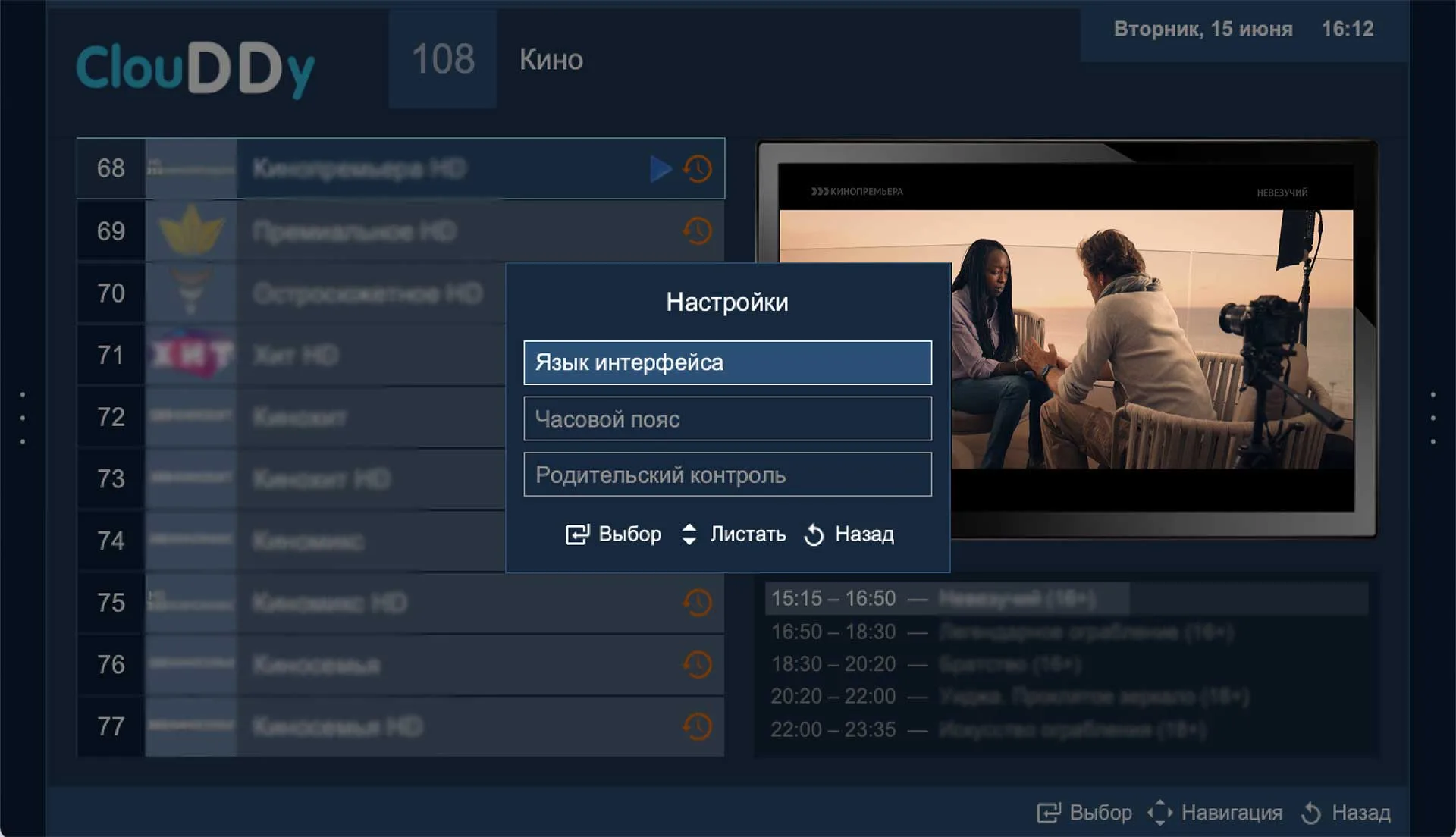
The first time you open ClouDDy you will be asked to choose the interface language and the time zone. Choosing the right time zone matters — the TV guide depends on it. You can change these settings at any time under "Main menu" — "Settings" in the left-hand panel. And do set a password for adult channels if children have access to the television.
3. The main ClouDDy window
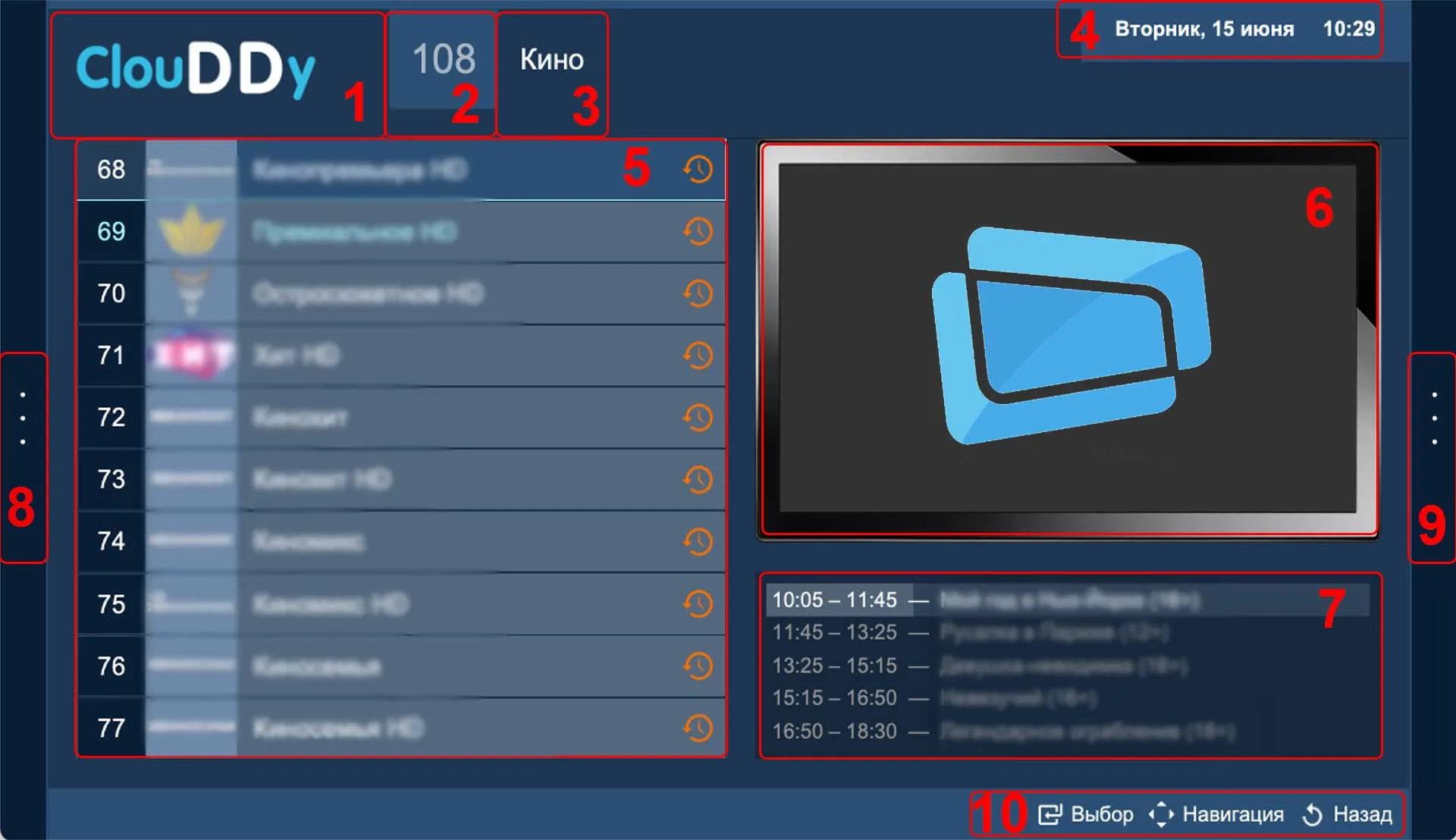
When ClouDDy starts you see the main window. The numbers on the diagram mark:
- the app logo
- the number of channels in the selected category
- the current category the channel list is filtered by
- the current date and time
- the channel list
- the preview window for the selected channel
- a short TV guide for the selected channel
- the left-hand menu panel
- the right-hand menu panel
- the function button panel
 — this icon means the channel is in your favourites.
 — this icon means the channel has an archive you can watch.
4. The function button panel (10)
 — confirm an action, start watching
 — go back one step or leave the app
 — move through the channel list, switch to the right or left menu panel
The function button panel in full-screen mode
 — pause. Playback resumes automatically using the TV archive
 — switch between buttons
 —
—
 — jump one minute using the TV archive. Can also be done by swiping left or right on the screen.
 — leave full-screen mode
 — change the picture scale
 — choose the audio track
 — show or hide subtitles
 — close the function and information panel
5. The left-hand menu panel (8)
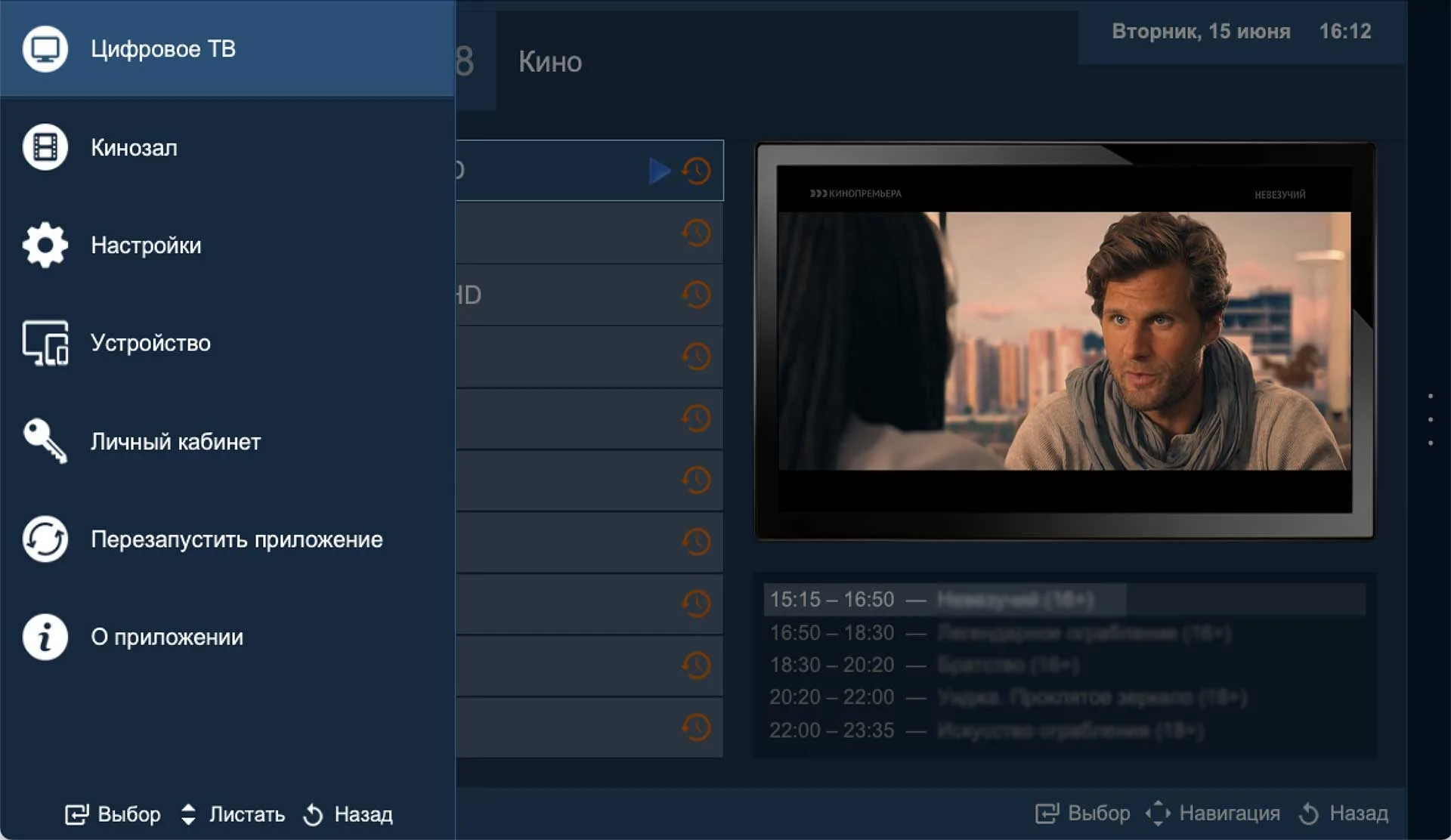
From the left-hand panel you can change the interface language and time zone, set or change the parental control password, and see information about your device and the app. You can also restart the app and open your account from here.
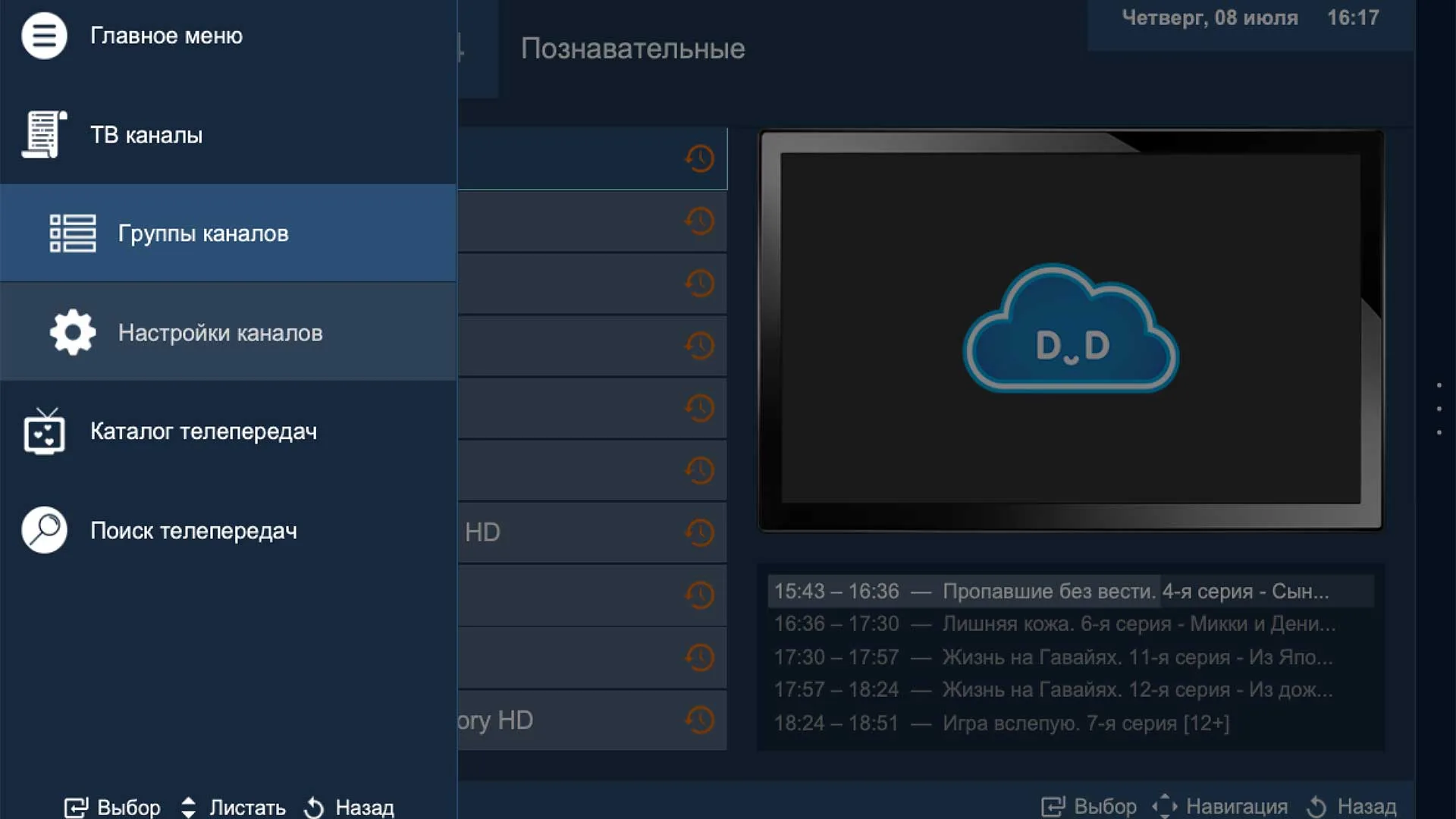
The same panel lets you pick a channel group to watch, for example SPORT, look through the TV guide, or search for a particular programme. Search covers all channels and archives.
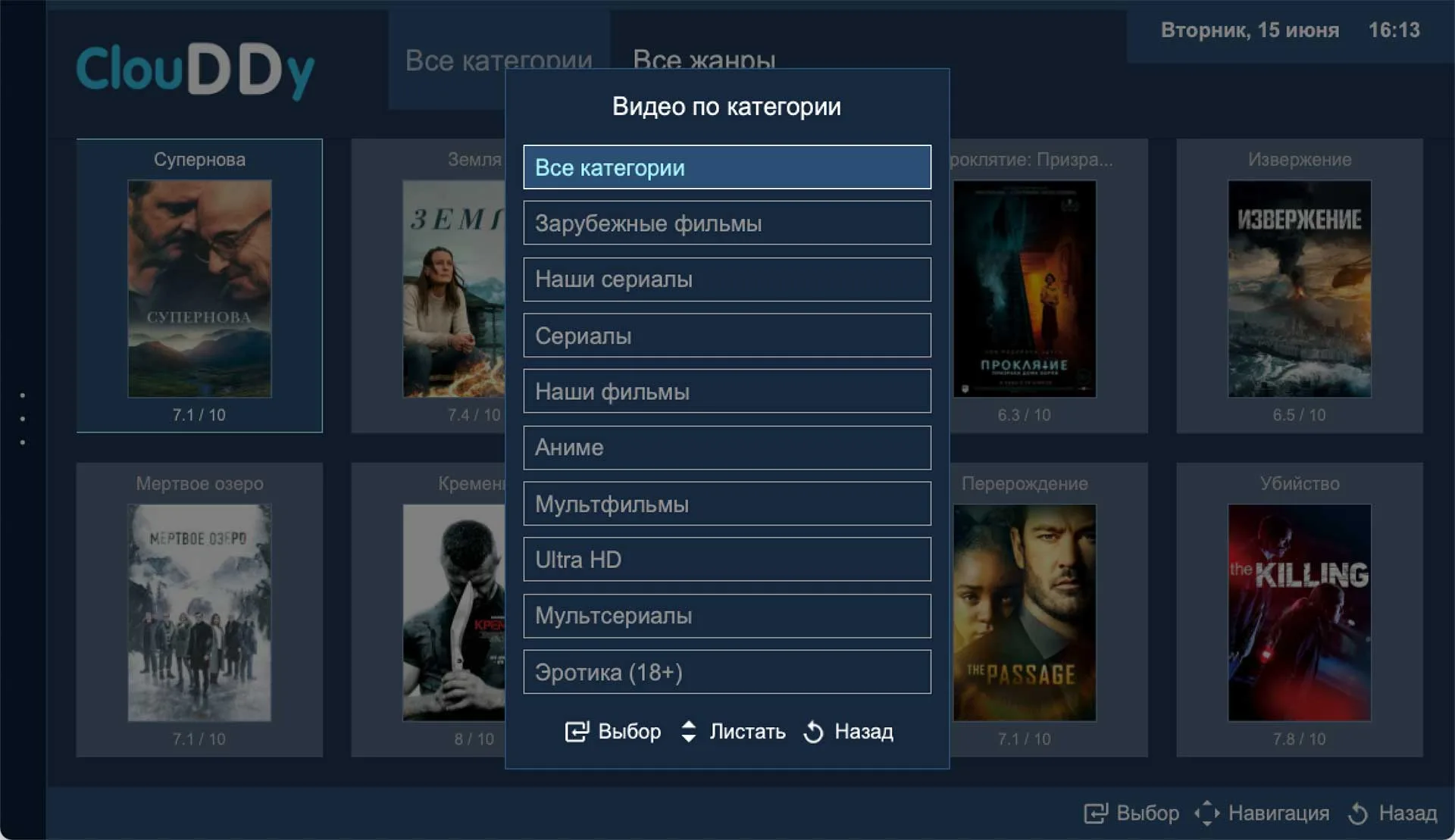
Customers on Sputnik TV and Grand TV can open the Cinema section to watch films and series from the media library. To return to live TV, choose "Digital TV".
6. The right-hand menu panel (9)
The right-hand panel is the context menu for the selected channel. From it you can look at the channel's TV guide and archive recordings, add the channel to favourites, or set parental control on it.
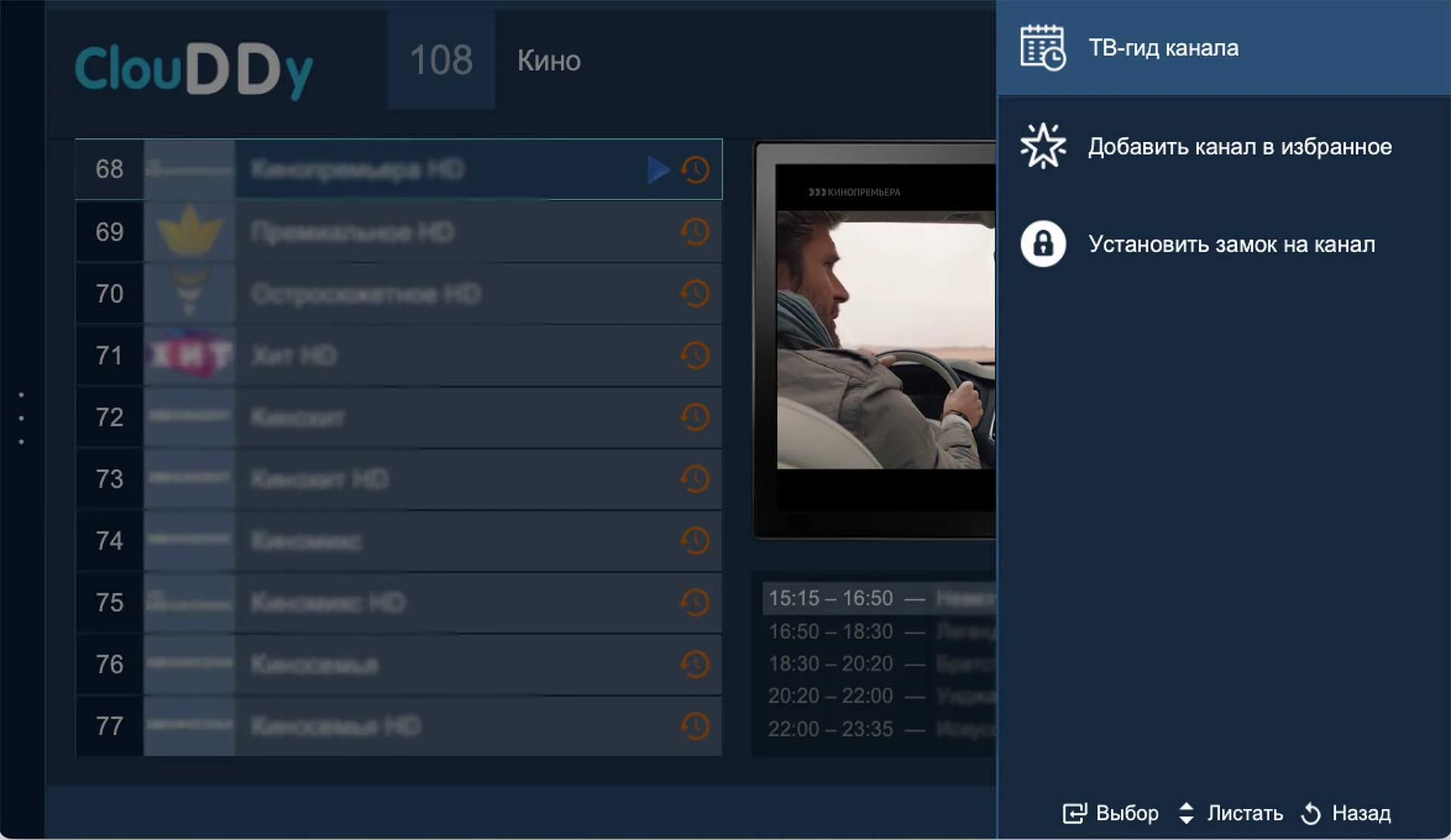
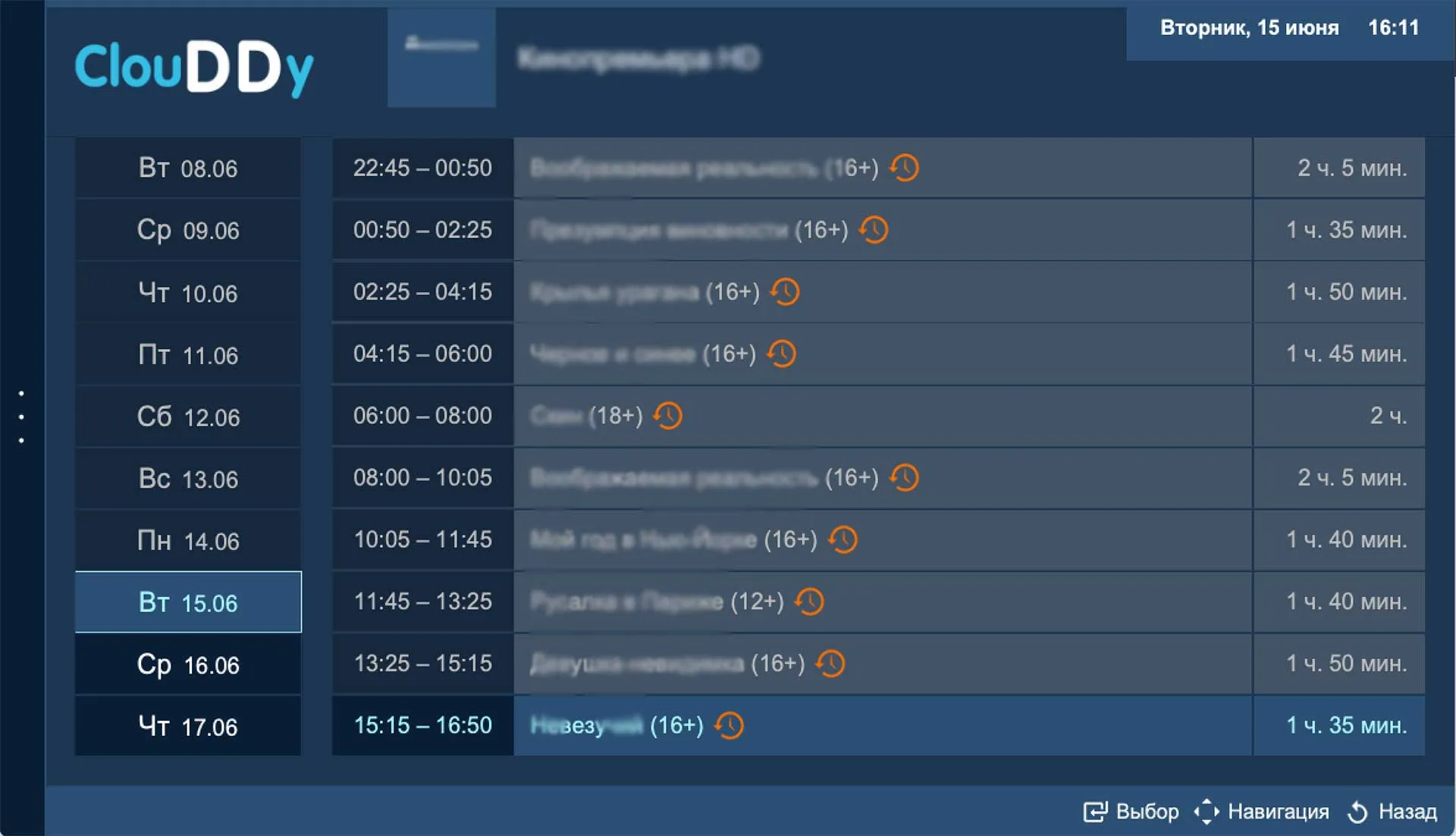
7. Watching programmes from the archive
To watch a programme from a channel's archive, open the "TV guide" list in the right-hand panel, move to the recording you want and confirm with the Select button.
If you have any questions — for example how to install the player on an Amazon Fire TV Stick — our support team is happy to help.
ClouDDy download links
- Windows — files.clouddy.online/windows/setup.exe
- macOS — files.clouddy.online/mac/setup.dmg
- Linux (Debian, Ubuntu) — files.clouddy.online/linux/setup.run
- Android — files.clouddy.online/android/latest.apk
- Samsung Tizen (Tizen Studio) — files.clouddy.online/samsung/tizen.wgt
- Samsung Tizen (USB) — files.clouddy.online/samsung/tizen.zip
- Samsung Orsay (USB) — files.clouddy.online/samsung/orsay.zip
- Dune — files.clouddy.online/dune/dune_plugin_clouddy.zip
- MAG, Aura, TVIP — web portal player.clouddy.online
Browser warning when downloading the installer
When you download setup.exe from files.clouddy.online, Chrome may show the warning "setup.exe isn't commonly downloaded" and stop the download. This is not a virus and not a problem with the file: Chrome flags any rarely downloaded installer that is not signed with a developer certificate. The ClouDDy installer is not signed (a developer certificate is expensive), but the file can be trusted if it was downloaded from the official files.clouddy.online link.
How to download it: (1) start the download again; (2) open Chrome downloads — Ctrl+J, or the three-dot menu → Downloads; (3) next to setup.exe click the "⋮" icon and choose Keep; (4) when you run it, Windows may show a SmartScreen window — click "More info", then "Run anyway". After installing, open the player and sign in with your ClouDDy login and password.
Moving to the new entbox.uk website: does anything need reinstalling?
No. Moving your account from the old websites (Russian TV Online, Arlekino, VIP Media) to entbox.uk only affects your customer account — managing your subscription and paying for it. Your viewing setup does not change: the player (ClouDDy, Televizo, TiviMate and others), the playlists, and your player login and password all stay the same, and the channels keep working. You do not need to reinstall or reconfigure the player.
Reinstalling is only needed in two cases: the player has stopped showing anything, or you have changed device. In that case install the player from the official link (see the links section above) and sign in with your existing ClouDDy login and password.