Watching IPTV in the UHF app (Apple TV, iPhone, iPad, Mac)
UHF is a third-party player for watching internet TV on Apple devices. You download it from the App Store. It has no built-in playlists — you add them yourself. If you do not have a subscription yet, you can order one in our shop.
Which devices it works on
UHF is an Apple-only app. It does not exist for Android boxes, Fire TV, or Samsung and LG televisions.
- Apple TV — tvOS 17 and later;
- iPhone — iOS 16 and later;
- iPad — iPadOS 16 and later;
- Mac — macOS 13 and later, Apple silicon only (M1 and newer);
- Apple Vision Pro — visionOS 1 and later.
Setup is the same on every device — the one described below. A playlist added on one device does not carry over to another by itself: you have to add it again on each one (or take out the paid Pro subscription, which includes syncing between devices).
A reminder: our subscription is intended for viewing within one home network. Watching from different networks at the same time leads to access being blocked.
What the app costs
The basic version is free and includes everything you need: playlists, live channels, the TV guide, the media library and favourites. That is enough to watch.
The paid UHF Pro subscription is not for watching but for convenience: syncing playlists between devices, no adverts or watermark, unlimited navigation through the TV guide, family sharing, reminders. It costs around $2.99 a month or $17.99 a year (prices differ by country); a one-off Lifetime purchase also appears at times. This is a payment to the app developer in the App Store and has nothing to do with your subscription with us.
Which connection type to choose
When you add a playlist, UHF offers several source types. Two matter here:
- Xtream (Xtream Codes) — for packages with a media library, that is Sputnik TV Medium and Sputnik TV Full. This option brings in the channels, the media library and the TV guide at once.
- M3U8 — for all other subscriptions.
Setting up via Xtream Codes (Sputnik TV Medium and Full)
- Install UHF from the App Store on your device and open the app.
- In the side menu choose Add playlist — it sits at the very bottom of the list, below the PLAYLISTS section.
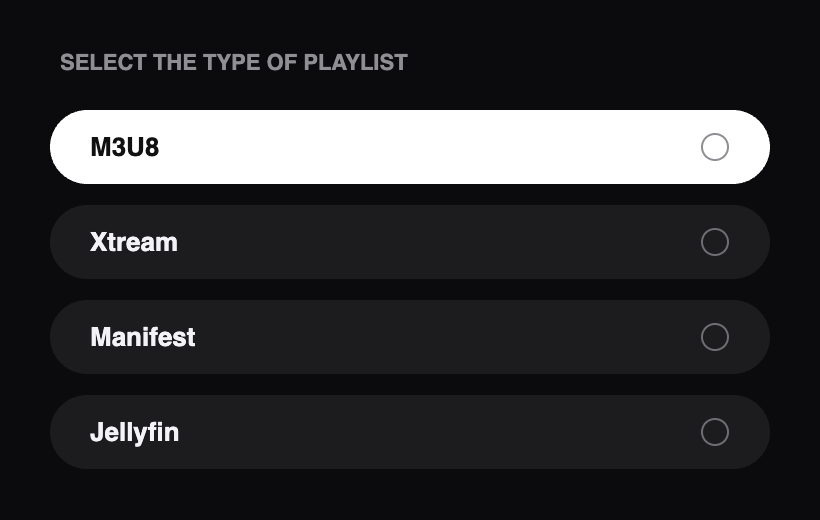
- In the SELECT THE TYPE OF PLAYLIST menu choose Xtream.
- Fill in the form:
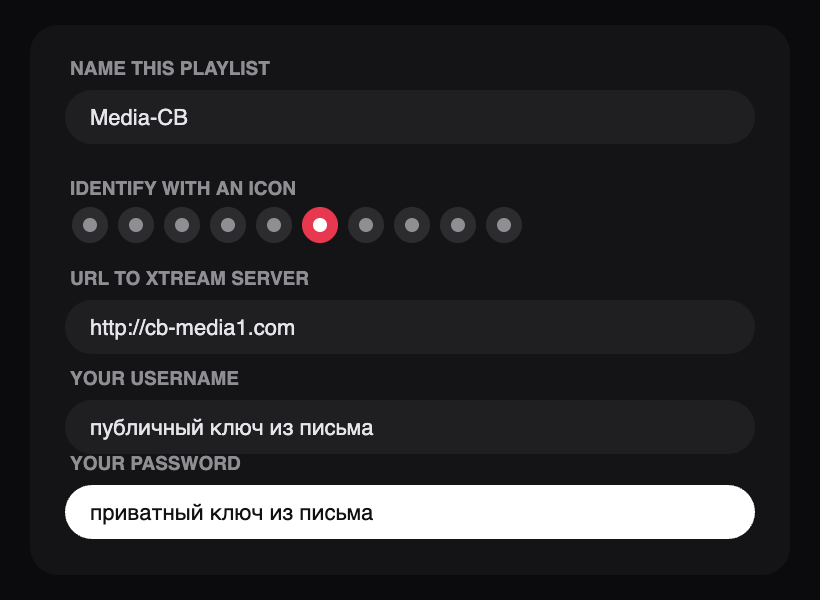
- Name this playlist — any name, for example Media-CB;
- Identify with an icon — the icon the playlist will be shown with in the list;
- URL to Xtream server — the server address from your email (in the form http://cb-media1.com), with no spaces and no trailing slash;
- Your username — the public key;
- Your password — the private key.
- Press Save.
- The app starts loading the channel list, the media library and the TV guide. Indexing takes a while — wait for it to finish without closing or restarting the app.
Setting up via M3U8 (all other subscriptions)
- Open Add playlist and choose M3U8 in the SELECT THE TYPE OF PLAYLIST menu.
- Enter the full playlist link from your email — the app shows the expected format, "i.e. http://your-domain:port/path/file".
- Give the playlist a name and save.
- Wait for the channel list and the TV guide to load.
Tip: a long link is much easier to type with an iPhone or iPad keyboard than with the remote — when a text field is open on the Apple TV screen, an "Apple TV Keyboard" notification appears on your phone.
What you get once it is set up
- live channels sorted into categories (General, News, Films, Sport, Cartoons, Ultra HD and others);
- a TV guide covering several days, so you can see what is on now and what comes next;
- a media library with Top films, Series, genre collections, and a description and rating for each film;
- Recently watched, Recently added and Favorites sections for getting back to what you were watching.
If something does not work
- An error when saving. Check the link character by character: a stray space at the end, a missing dot or slash is the most common cause. Make sure the public key went into the username field and the private key into the password field, not the other way round.
- Channels loaded but the media library did not. The media library only exists in the Sputnik TV Medium and Sputnik TV Full packages, and only over an Xtream connection. If the playlist was added as M3U8, delete it and add it again via Xtream.
- Everything loaded but some channels will not open. First restart the box and the router: unplug them, wait a minute, plug them back in. If that does not help, see Media library or channels do not work on a second device.
- The app asks for payment. You can watch on the free version — the paid UHF Pro subscription is only needed for syncing between devices, removing adverts and other conveniences. It is paid for in the App Store and has nothing to do with your subscription with us. Other free players for Apple TV are Ottplayer and Uniplayer.
You set this up yourself using these instructions. If you would like us to do it for you, remote setup is a separate paid service in our shop.